
Security deposits move through several stages over a lease’s life: charged, collected, held, and eventually refunded or settled. The Security Deposit Liability report tracks all of it in one place, tenant by tenant, so you always know how much you’re required to hold, how much you’ve actually received, and whether anything is still outstanding, overdue for refund, or flagged for a reconciliation issue.
In this article, we’ll walk through the report’s layout, its filters and Deposit Status categories, grouping, and the toolbar actions available to you.
Before you begin:
- This report only shows data for leases that have a security deposit charge attached — leases without one won’t appear.
- The Deposit Status categories are fixed system values and can’t be renamed or reconfigured.
How to Access the Security Deposit Liability Report
Open Reports from the left sidebar, then select Security Deposit Liability from the list of available reports.
Understanding the Report Layout
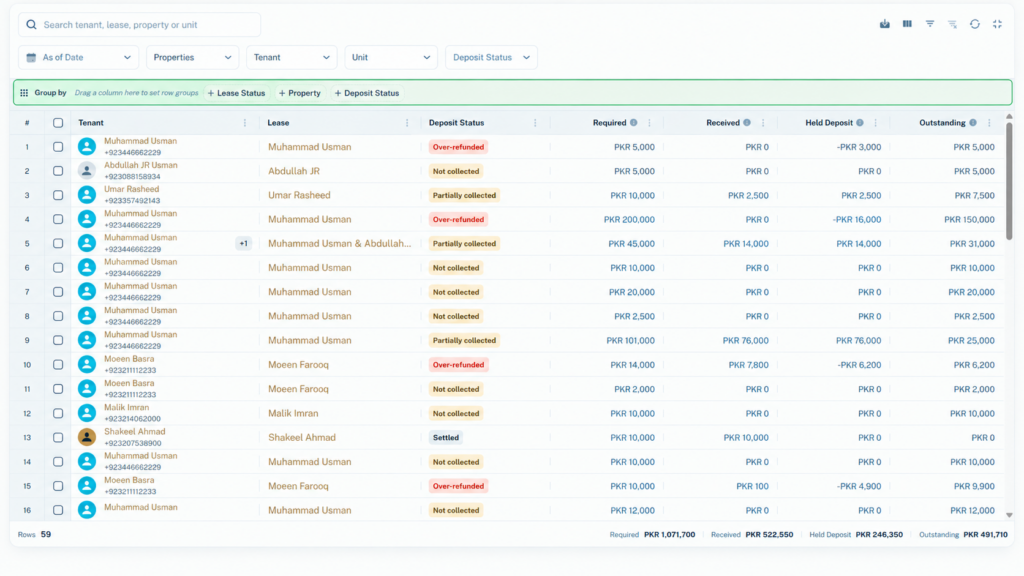
The report table has one row per tenant-lease combination. Seven columns are visible by default, out of 18 total available (see Working with Columns below for the rest):
- Tenant: Shows the tenant’s name and phone number.
- Lease: Shows the lease associated with the security deposit.
- Deposit Status: Shows the current status of the deposit. See Deposit Status Categories below for details.
- Required: Shows the deposit amount charged or expected under the lease as of the selected date.
- Received: Shows payments received and allocated toward the security deposit charge.
- Held Deposit: Shows the deposit funds currently being held, including payments received or transferred in, minus any refunds and amounts applied or withheld.
- Outstanding: Shows the portion of the Required deposit amount that has not yet been settled.
Each of these four money columns has an ⓘ icon next to its header — hover it for the exact definition above, straight from the app itself.
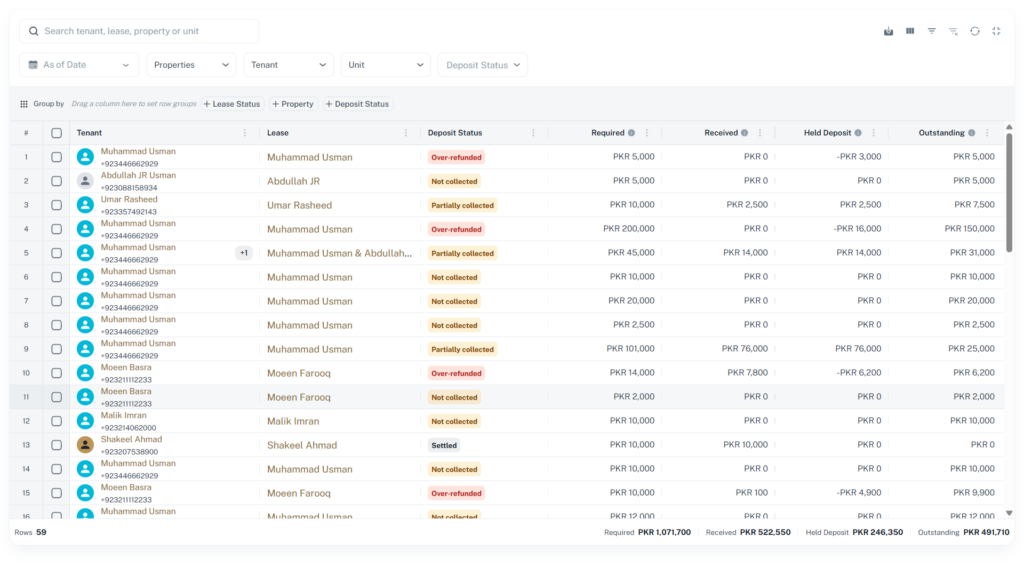
At the bottom, a footer totals Required, Received, Held Deposit, and Outstanding across all visible rows, alongside a Rows count.
Note: Required shows the deposit amount charged or expected under the lease as of the selected date. Outstanding shows the portion of that required amount that has not yet been settled.
Understanding Deposit Status Categories
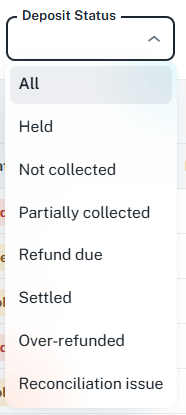
Every row is tagged with one of seven statuses:
- Held: The security deposit was withheld at the end of the lease to cover another pending charge.
- Not Collected: A deposit charge exists on the lease, but no payment has been received against it yet.
- Partially Collected: Some, but not all, of the required security deposit has been received.
- Refund Due: The deposit, or part of it, still needs to be refunded to the tenant.
- Settled: The required refund has already been paid to the tenant.
- Over-Refunded: More money was refunded to the tenant than was originally collected as a security deposit.
- Reconciliation Issue: There is a difference between the recorded deposit liability and the amount expected based on the deposit activity, so the record needs to be reviewed.
Note: “Recorded Liability” (available as a hidden column) is a related but different figure from “Held Deposit” — Recorded Liability is the balance recorded in the security-deposit liability ledger, which can be posted before any cash is actually received, while Held Deposit only reflects funds that have actually come in.
Filtering the Security Deposit Liability Report
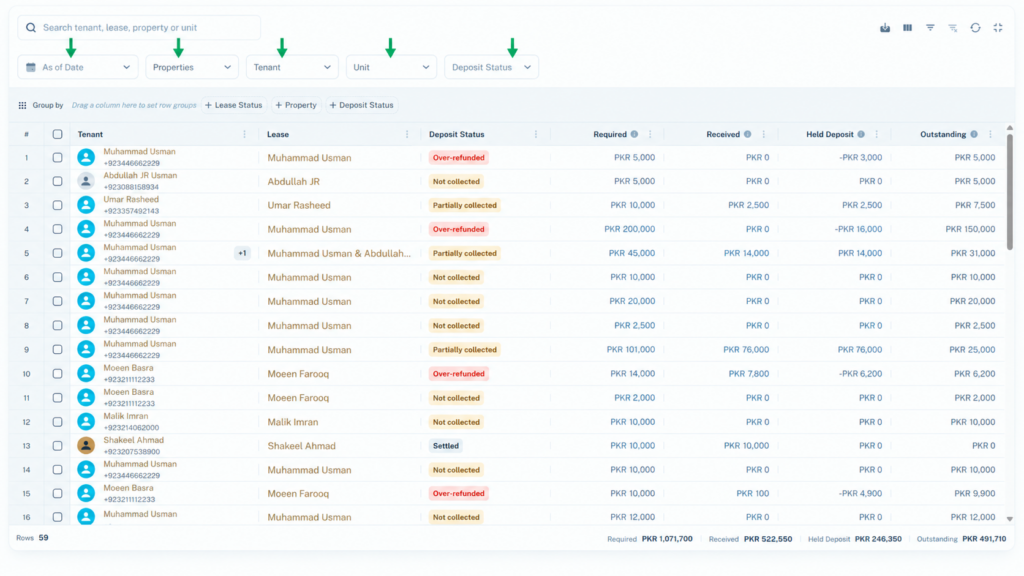
Use the following filters to narrow down the report and view the information you need:
- As of Date: Select a date range to view the report as it stood during a specific period.
- Properties: Filter the report by one or more properties.
- Tenant: Select one or more tenants to view their related records.
- Unit: Filter the report to a specific unit.
- Deposit Status: Filter records by one or more of the seven deposit statuses listed above.
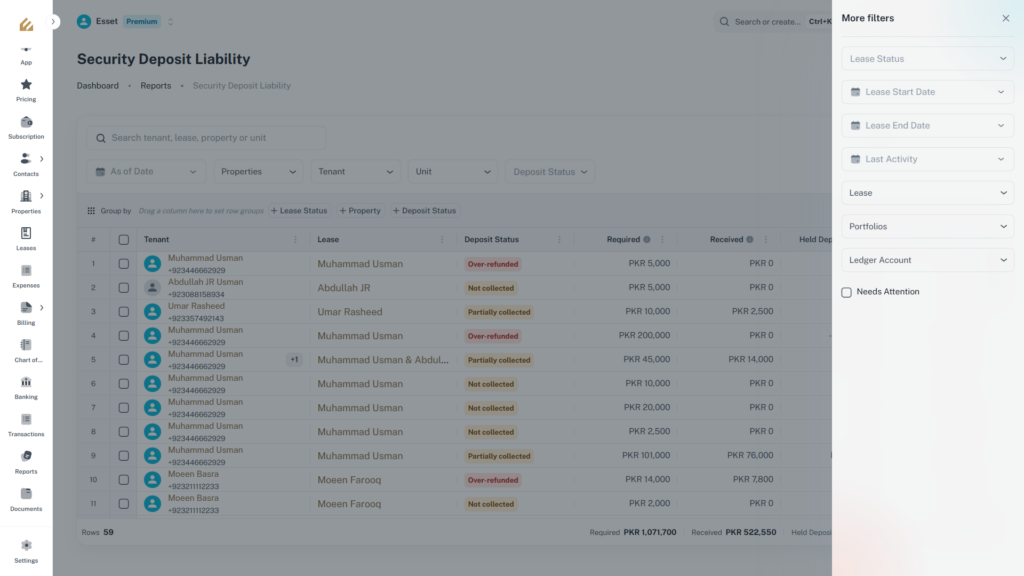
More Filters (the funnel icon) opens a side panel with additional options to help you narrow down the list:
- Lease Status: Filter records based on the current status of the lease.
- Lease Start Date: Filter leases by their start date.
- Lease End Date: Filter leases by their end date.
- Last Activity: Filter records based on when they were last updated or had activity.
- Lease: Select a specific lease to view only its related records.
- Portfolios: Filter records by portfolio.
- Ledger Account: Filter records by the associated ledger account.
- Needs Attention: Turn this checkbox on to show only rows with a Deposit Status of Over-refunded, Reconciliation issue, or Refund due. These statuses indicate records that may require further action.
Grouping Report Rows
The Group by row offers three quick-add buttons — Lease Status, Property, and Deposit Status — any of which collapse the flat tenant list into grouped rows, letting you see, for example, every lease grouped by its Deposit Status, or every tenant grouped under their property.
Using the Report Toolbar
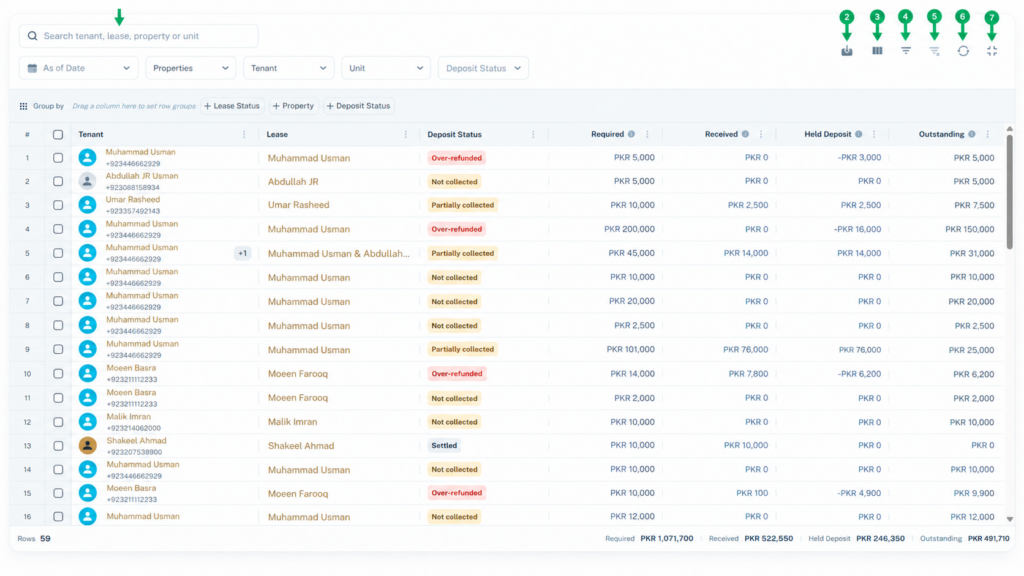
The report toolbar provides several tools to help you search, customize, and manage the report:
- Search: Search for records by tenant, lease, property, or unit.
- Export as CSV: Download the report as a CSV file for further analysis or recordkeeping.
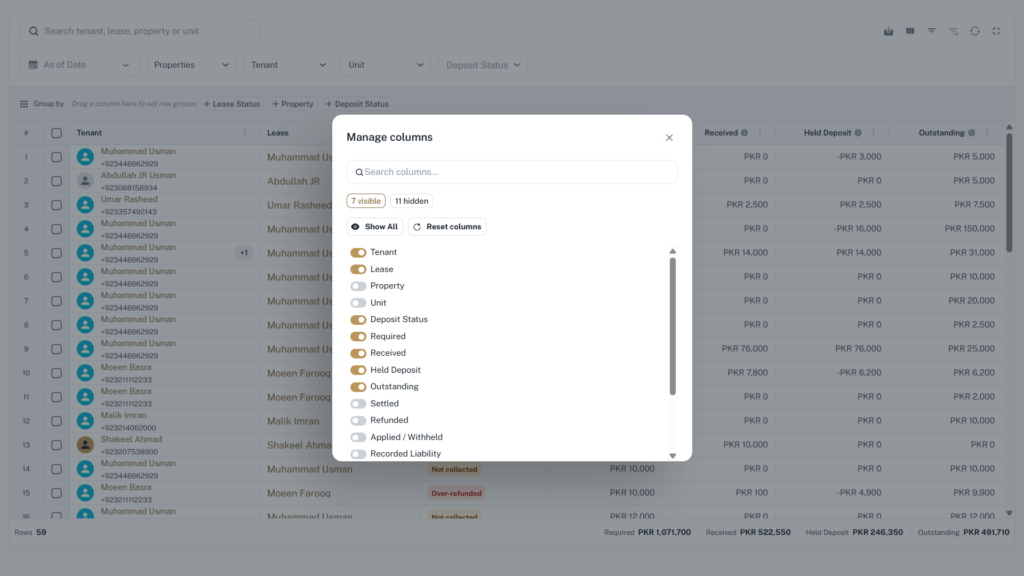
- Manage Columns: Show, hide, or reset the report’s 18 available columns. Seven columns are visible by default.
- More Filters: Opens the additional filter panel described above.
- Remove Filter: Clears any active filters and returns the report to its default view.
- Grid Refresh: Reloads the report with the latest data.
- Expand: Opens the report in full-screen view for easier viewing and analysis.
Note: Manage Columns shows a live count of visible vs. hidden columns (7 visible, 11 hidden by default) and includes a Reset columns button to restore the default view.
Customizing Report Columns
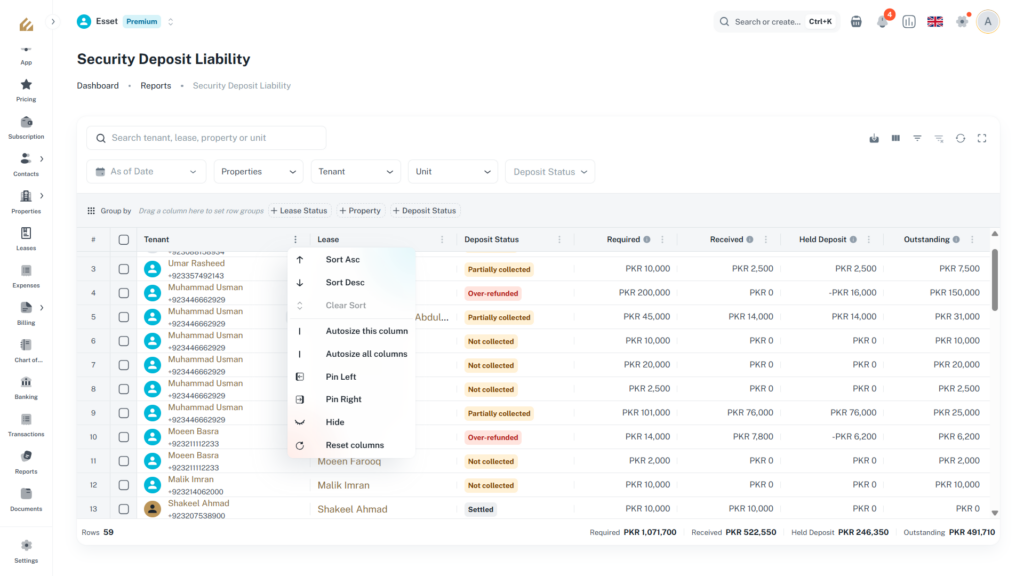
Esset gives you flexible column controls to help organize and view report data more easily. Click the ⋮ icon on any column header to access the following options:
- Sort Asc / Sort Desc / Clear Sort: Sort the column in ascending or descending order, or remove the applied sorting.
- Autosize This Column: Automatically adjust the selected column’s width to fit its content.
- Autosize All Columns: Automatically adjust the width of all columns for better visibility.
- Pin Left / Pin Right: Keep a column fixed on the left or right side while scrolling through the report.
- Hide: Remove the selected column from the current view.
- Reset Columns: Restore the columns to their default settings.
The Security Deposit Liability report gives you a complete, tenant-by-tenant picture of every deposit you’re responsible for — what’s required, what’s actually been received and held, and what’s still outstanding.
The Deposit Status categories turn that raw data into a clear next action: a Refund due or Over-refunded tag tells you exactly which tenants need attention, and the Needs Attention filter surfaces all of them — including Reconciliation issue rows — in a single click.
Keep the distinction between Held Deposit and Recorded Liability in mind: one reflects actual cash held, the other the ledger-side balance, and a mismatch between the two is exactly what shows up as a Reconciliation issue.
Between the filters, the Deposit Status grouping, and the built-in tooltips on every money column, this report is designed so you never have to guess what a number means or dig through individual leases to find out where a deposit stands.