
When you sign in, you land on your dashboard. Your dashboard is a live snapshot of your portfolio’s financial and operational health. In this article, you’ll learn how to use the dashboard’s top bar, portfolio overview cards, financial charts, activity widgets, and filters.
For a full breakdown of the sidebar menu and every section it links to, see Navigate the sidebar menu.
Before you begin
- You’re signed in to Esset.
- Figures on your dashboard reflect the properties, leases, and payments already set up on your account — a new account will show PKR 0 across the board until you add data.
Esset Dashboard Top Bar
The top bar is available from anywhere in Esset and provides quick access to search, notifications, Display settings, and more. Let’s get into these one by one.

The Top Bar
Esset’s Logo
Plan badge
Next to the company logo, you’ll find your plan badge. This badge displays your company name along with your current subscription plan. Esset offers three subscription tiers: Starter, Growth, and Premium. We’ll take a closer look at what each plan offers later in the Pricing Guide.
Search or create (Ctrl+K)
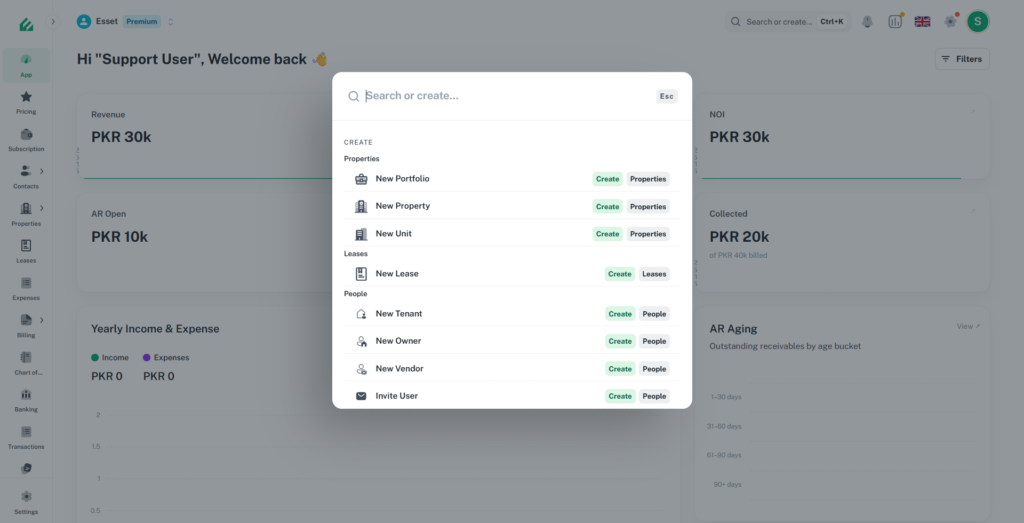
Next is the Search Bar, which you can access by clicking the Search tab or simply pressing Ctrl + K on your keyboard. This opens a convenient command palette that helps you quickly find or create anything in your portfolio. You’ll find shortcuts neatly organized by category, including Properties, Leases, People, Transactions, and Accounting.
Each option has a Create button that takes you directly to the relevant form. You can also click a category link, such as Properties or People, to jump straight to that section. Looking for an existing record? Simply start typing to search across your portfolio.
In short, the search bar gives you quick access to the platform’s key operations which makes it very easy to find, create, and manage things all from one convenient place.
The Search Bar
Operational Alerts
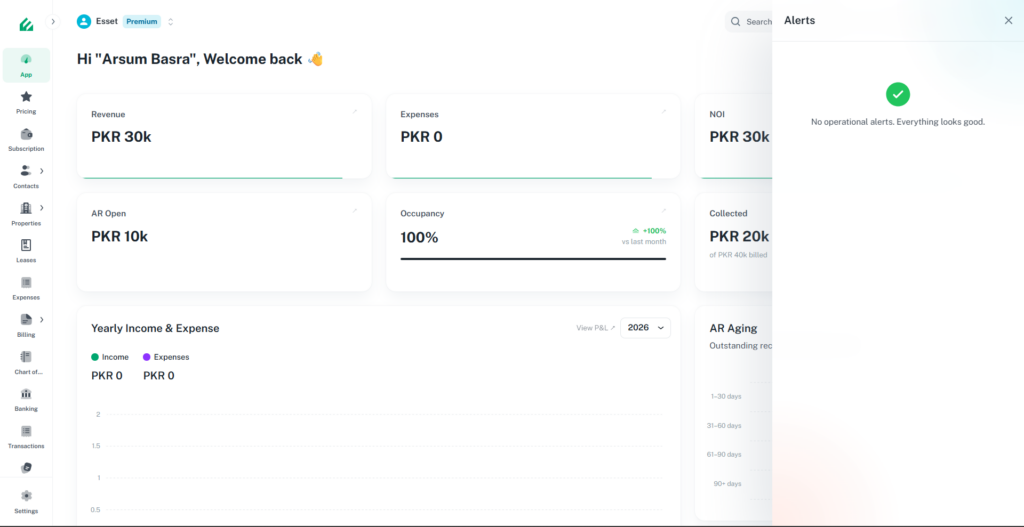
This opens your notifications panel, where you can stay up to date with important activity across your portfolio. The red badge shows the number of unread notifications, so you can quickly see when something needs your attention. You’ll find alerts for important events such as vacant units, overdue charges, expiring leases, and other operational updates.
The Operational Alerts Panel
Usage & Limits
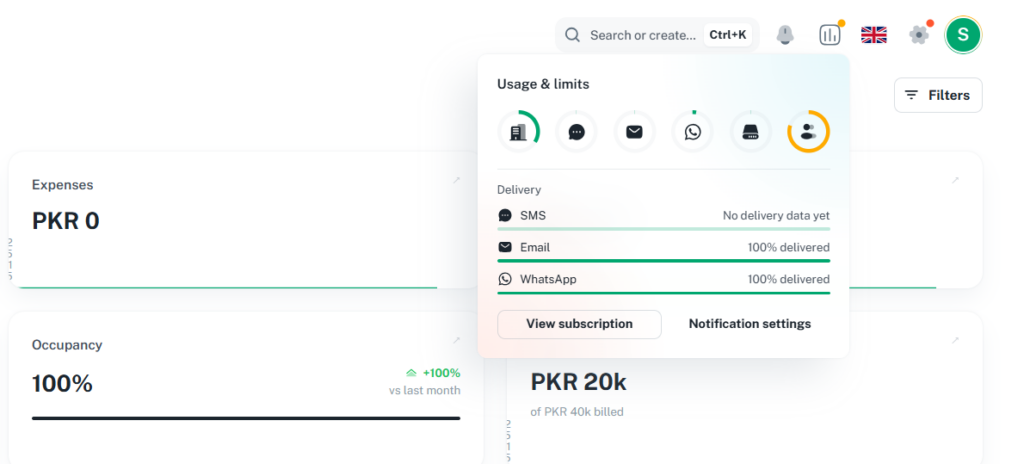
Opens a panel where you can monitor your SMS, email, and WhatsApp delivery stats at a glance. It also provides quick access to View Subscription and Notification Settings, which makes it easy to manage your usage and notification preferences.
Usage and Limits
Language Switching
This allows you to switch the interface language so you can use the platform in your preferred language. Currently, Esset only supports English and Arabic.
Display Settings
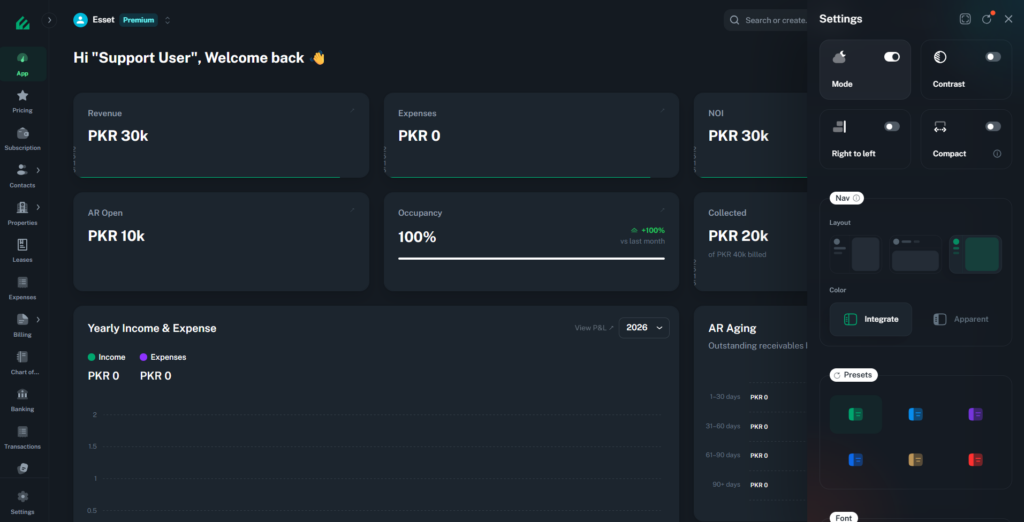
This opens the display settings panel, where you can personalize the look and feel of the interface. You can adjust the Theme (Mode and Contrast), Layout (Right-to-Left, Compact, Navigation Layout, and Color), Color Presets, and Font (Family and Size). Any changes you make are applied instantly, so you can see the results right away.
The Display Settings
Account Panel
This opens your account panel, where you can access your Profile, Subscription, and Company Settings, and Log Out. This gives you a quick and convenient way to manage your account and company preferences.
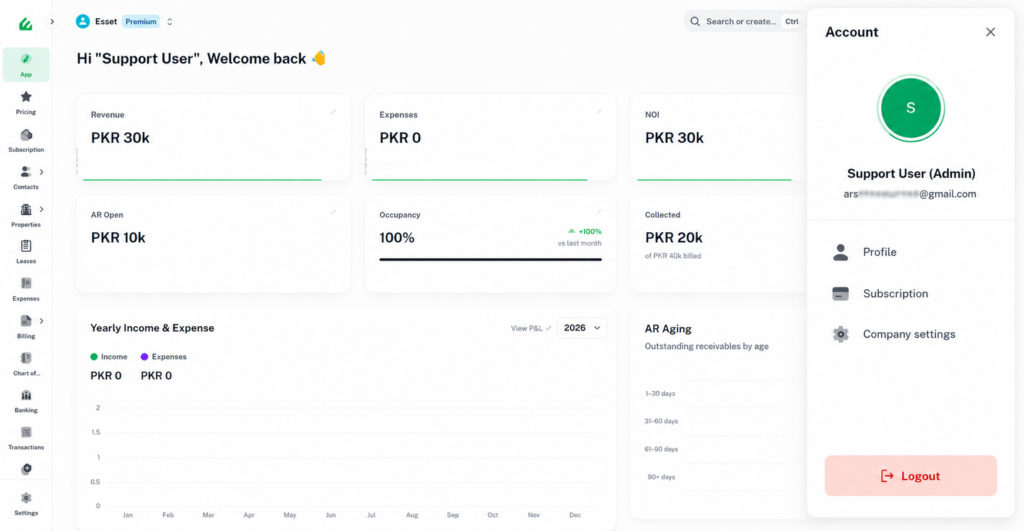
The Account Panel
Inside the Profile section, you’ll find two options: General and Security. In General, you can view and update your personal information, including your Profile Picture, Name, Email, Phone Number, CNIC Number, Country, and Gender.
The Security section allows you to change your password. Simply enter your Current Password followed by your New Password to update it securely.
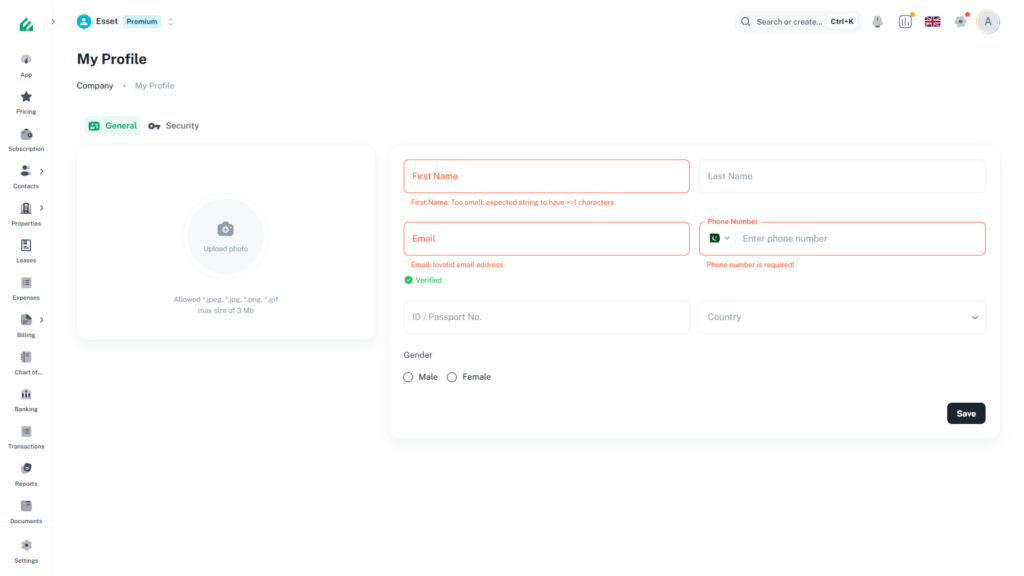
My Profile (General)
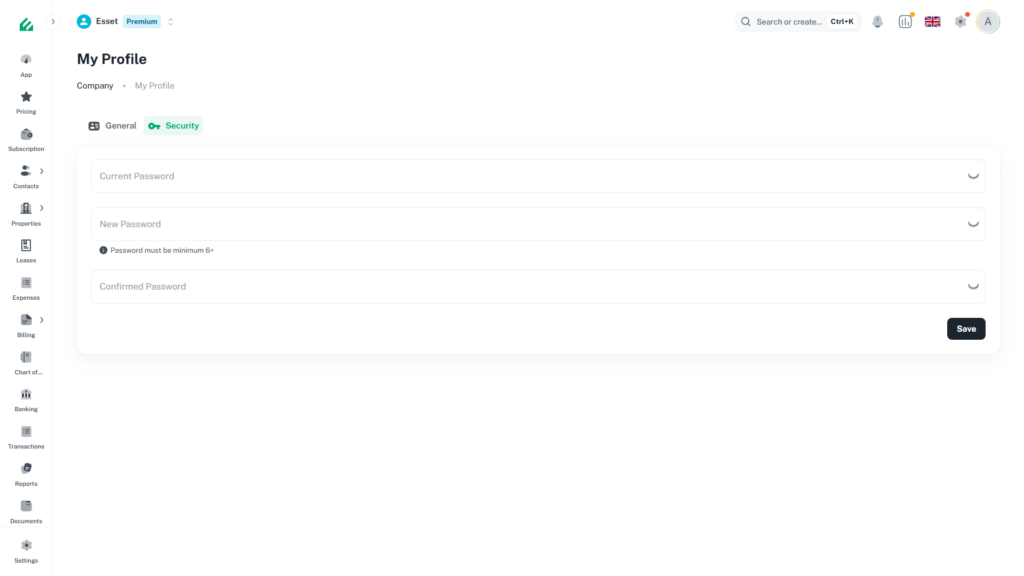
My Profile (Security)
We will get into the details of Subscription and Company Settings in later articles.
Portfolio Overview Cards
At the top of the dashboard, you’ll find six overview cards that give you a quick snapshot of your portfolio for the current period. Each card highlights a key financial or operational metric.
Revenue
This card shows the total income recorded during the current period, giving you a quick view of the revenue generated across your portfolio. Clicking the Revenue card opens the Profit & Loss (P&L) statement, where you can view your income against expenses for the selected period on both a cash and accrual basis. We’ll cover the P&L report in detail in the Esset Reports article.
Expenses
This card shows the total costs recorded during the current period, helping you keep track of the expenses associated with your portfolio. Clicking the Expenses card also opens the Profit & Loss (P&L) statement, where you can review your portfolio’s income and expenses in greater detail.
NOI (Net Operating Income)
This card displays your Net Operating Income, calculated by subtracting expenses from revenue. It provides a clear view of the income generated by your portfolio after operating expenses. Clicking the NOI card opens the Profit & Loss (P&L) statement, which allows you to explore the figures behind your net operating income.
AR Open
Shows your outstanding Accounts Receivable (Amounts that are still unpaid). This helps you quickly identify the total amount currently due to you. Clicking the AR Open card opens the AR Open report, which shows outstanding tenant balances grouped into 0–30, 31–60, 61–90, and 90+ days. We’ll discuss the AR Open report in more detail in the Reports article.
Occupancy
This card displays the percentage of units that are currently occupied, along with the change compared to the previous month. This helps you monitor occupancy trends and understand how your portfolio is performing over time. Clicking the Occupancy card opens the Rent Roll report, where you can view details such as active lease types, properties, tenants, units, and more. We’ll cover the Rent Roll report in detail later.
Collected
This card shows the amount collected against the total amount that was billed. This gives you a quick overview of your collection performance. Clicking the Collected card opens the Collection report, where you can review per-tenant collection performance against charges, along with the relevant aging information.
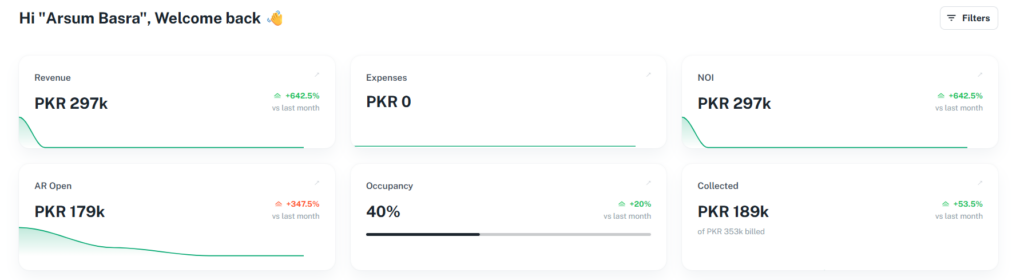
The Dashboard Tiles
Together, these cards give you a quick, at-a-glance view of your portfolio’s financial and operational performance. You can also use the Filters in the top-right of the dashboard to narrow these figures down, for example, by property or date range.
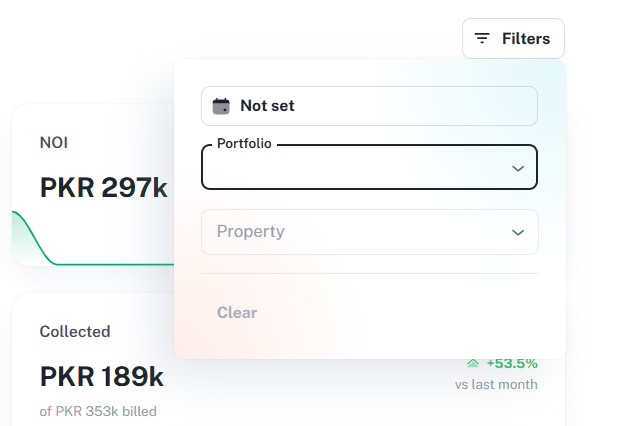
Dashboard Filters
Note: The security deposit is not included in revenue, as it is generally returned to the tenant.
Dashboard Charts, Reports, and Activity Widgets
Below the portfolio overview cards, you’ll find several charts, reports, and activity widgets that help you monitor your portfolio’s financial and operational performance.
Yearly Income & Expense
This displays a month-by-month comparison of your income and expenses for the selected year. Click View P&L to open the complete Profit & Loss report for a more detailed breakdown.
AR Aging
This shows your outstanding receivables grouped into different aging periods: 1–30, 31–60, 61–90, and 90+ days. It helps you identify how long payments have remained outstanding and which receivables may require attention.
Vacancy Cost This Month
This chart shows the estimated income lost due to vacant units during the current month. You can switch between Month and YTD to compare the current month with the year-to-date vacancy cost.
Hotel Eye Coverage
This shows the synchronization status with HotelEye, if it is connected to your account. We will discuss in detail later how you can connect HotelEye to your portfolio and manage its integration.
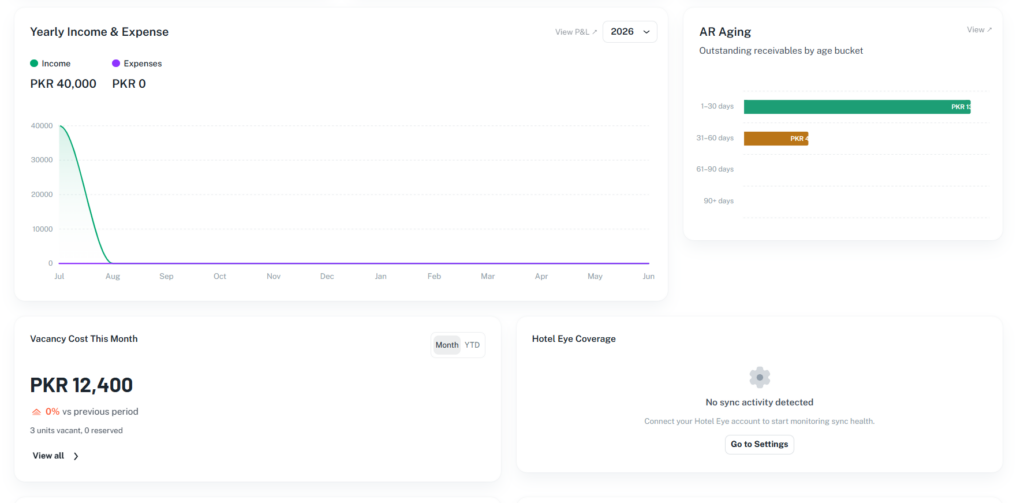
Yearly Income and Expense Graph, AR Aging, Vacancy Cost This Month, HotelEye Coverage
Upcoming Lease Renewals
This widget shows leases that are scheduled to expire within the next 90 days. It helps you stay ahead of upcoming renewals and take action before leases expire.
Recent Payments
This displays the latest payments recorded in the system, including the lease, payment date, and amount. This widget gives you a quick way to keep track of recent payment activity.
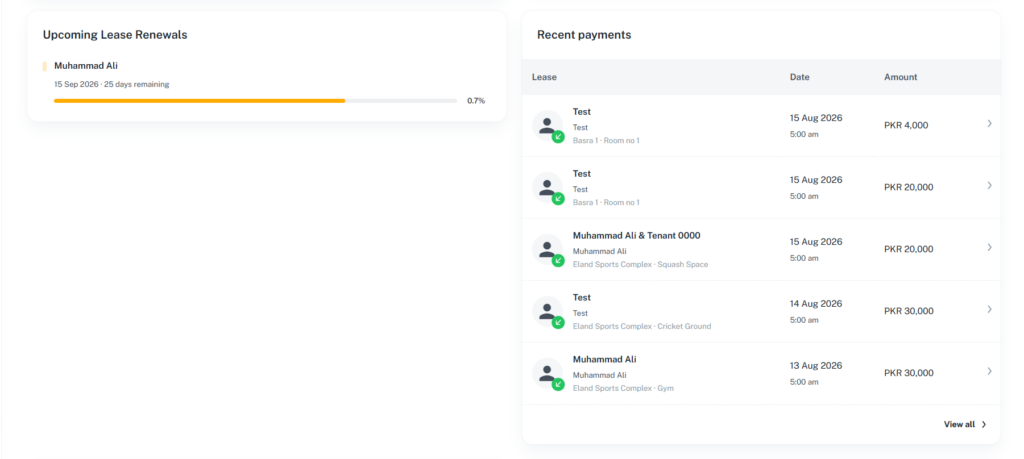
Upcoming Lease Renewals, Recent Payments
Expense Categories
This provides you with a breakdown of your spending across different expense categories and makes it easier to understand where your portfolio’s money is being spent.
Properties Needing Attention
This widget highlights properties with the lowest collection rates. This helps you quickly identify properties where collection performance may require closer attention.
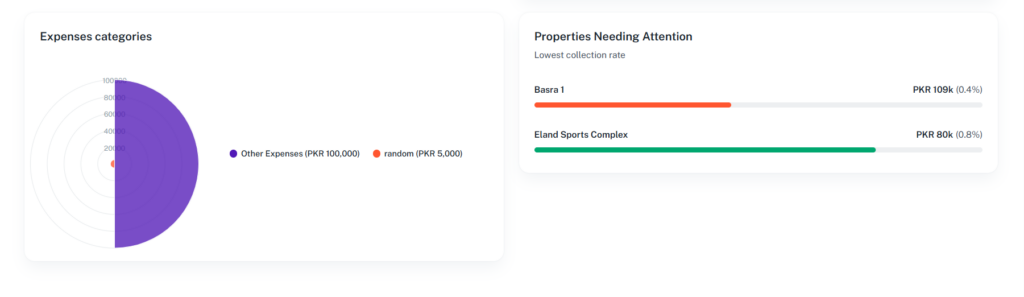
Expense Categories, Properties Needing Attention
Next, learn how to navigate the Esset sidebar menu and explore Properties, Leases, Contacts, Billing, Accounting, and more.