
Properties are the core building blocks of your Esset account — every unit, transaction, and owner is tied to one. This article walks you through viewing your properties list, adding a new property, editing an existing one, and archiving properties you no longer manage.
Before you begin
- You’ll need at least one portfolio created first, since every property must belong to a portfolio. See “How to Add and Manage Portfolios” if you haven’t set one up yet.
View your properties in Esset
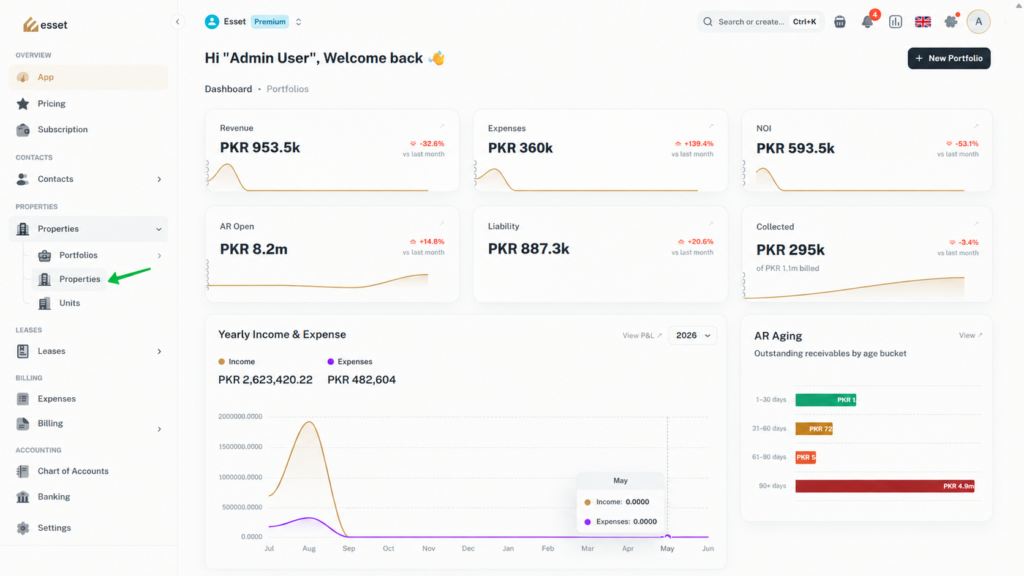
Go to Properties → Properties in the sidebar.
Your properties list shows the following columns by default: Name, Type, Portfolio, Bank Account, Escrow Bank Account, # Units, # Vacant Units, and Status.
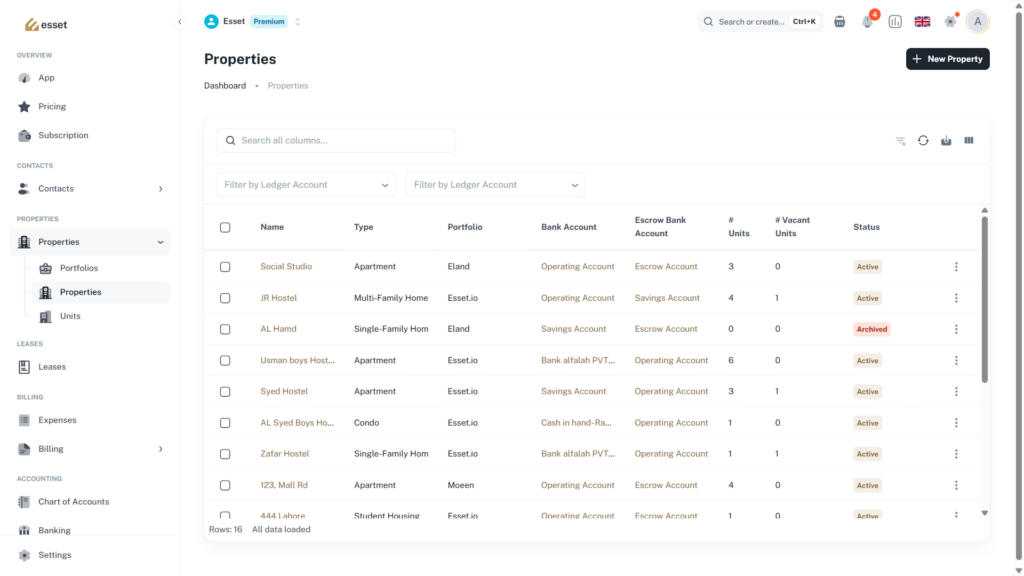
Above the list, the Filter by Ledger Account dropdowns let you narrow the list down to properties using a specific Bank Account or a specific Escrow Bank Account.
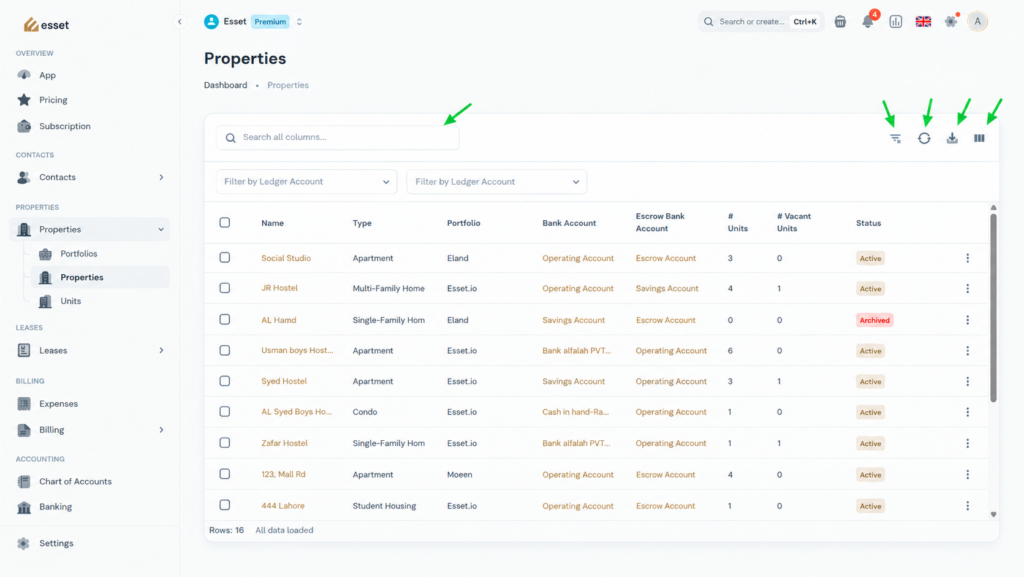
The toolbar above the list gives you a few more tools:
- Search all columns — search across every visible column at once.
- Clear filters — resets any search or filter you’ve applied, back to the unfiltered view.
- Refresh — reloads the list’s data.
- Export — download the list as a CSV or JSON file, with options for filename, including headers, and including only visible columns.
- Manage Columns — show, hide, or reset which columns appear in the list.
Note: Archived properties stay in this same list with a Status of “Archived” — there’s no separate view for them.
Add a New Property
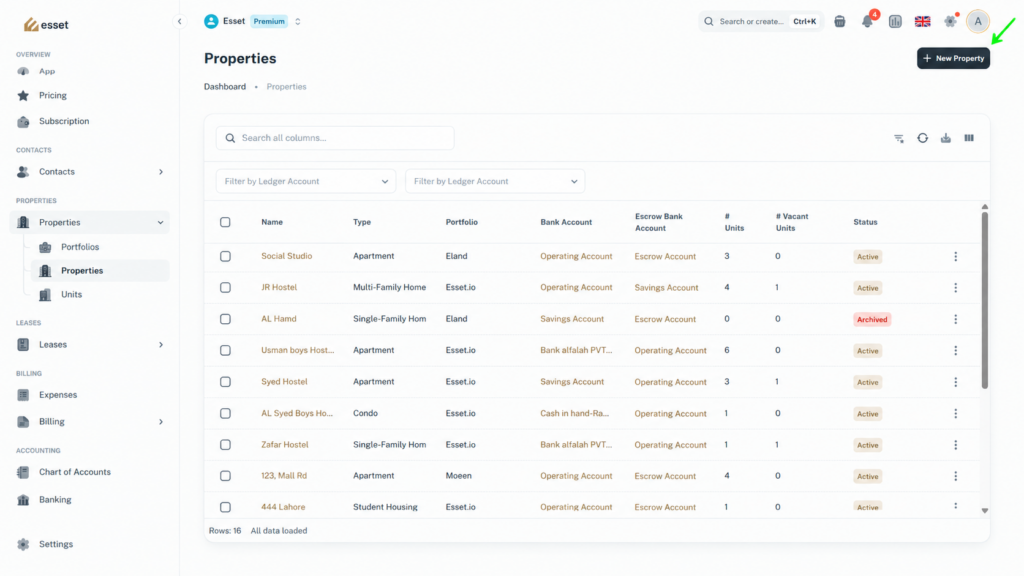
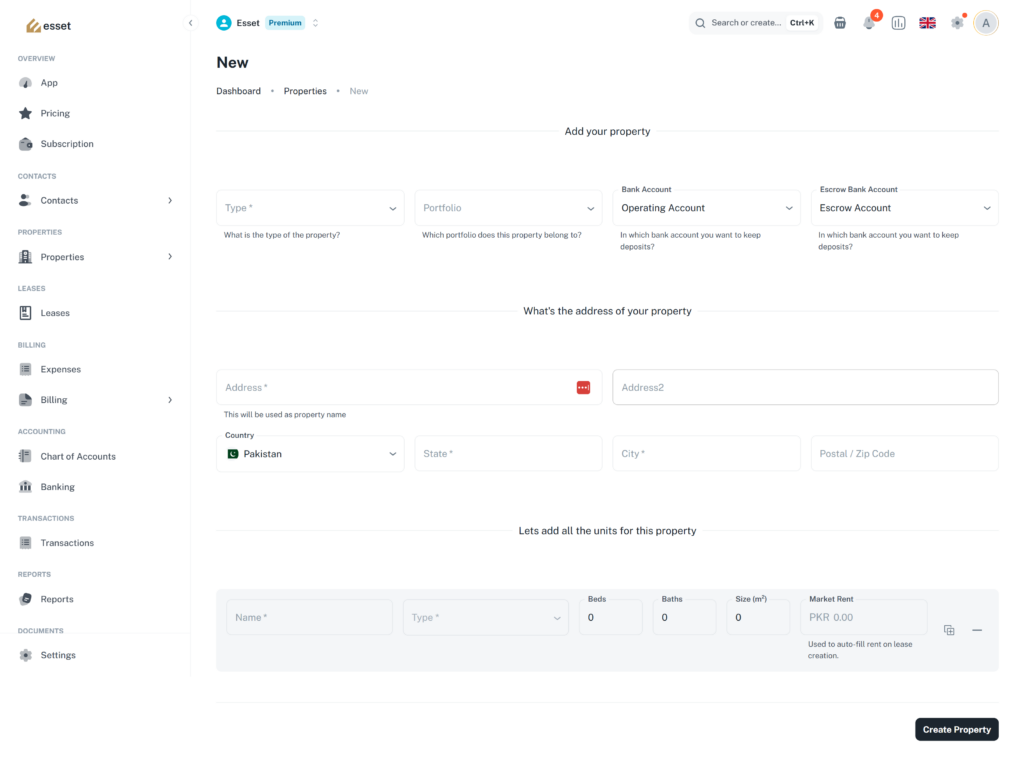
Click New Property at the top right of the Properties list. Unlike some other create forms in Esset, this opens as a full page rather than a modal.
Property details
- Type: Required. Choose the type of property from the categorized list: Apartment, Single-Family Home, Multi-Family Home, Condo, Student Housing, Manufactured Home, Office Space, Retail, Warehouse, Hotel, and more
- Portfolio: Required. Select the portfolio this property belongs to. See How to Add and Manage Portfolios for more information on setting up portfolios.
- Bank Account: Select the account where deposits for this property will be kept. Operating Account is selected as the default account.
- Escrow Bank Account: Select the account used to hold funds on behalf of tenants, such as security deposits. This defaults to your Escrow Account.
Address
- Address: Required. The address is used as the property’s name, so enter a recognizable address or property name.
- Address2: Optional. Use this for suite or unit numbers and other additional address details.
- Country: Defaults to Pakistan.
- State: Required.
- City: Required.
- Postal/Zip Code: Optional.
Units
Add the units that make up the property. For each unit, enter:
- Name: Required.
- Type: Required.
- Beds: Optional.
- Baths: Optional.
- Size (m²): Optional.
- Market Rent: Used to automatically fill in the rent when you create a lease for this unit later.
You can use the Clone icon next to a unit row to duplicate it, or the – icon to remove a row. You can also add units later from the Units page.
Once you’ve entered all the required details and added your units, click Create Property.
Editing a property
From the Properties list, click a property’s row menu (⋮) and select Edit. This opens a modal with two sections:
General Info
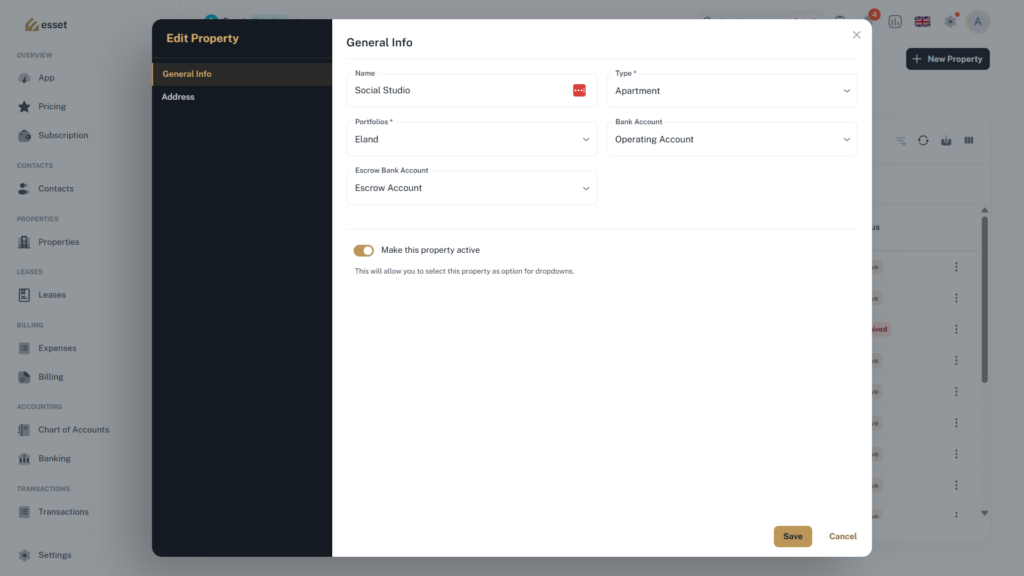
- Name, Type, Portfolio: Same as when creating a property. All three fields are required.
- Bank Account and Escrow Bank Account: Same as the accounts selected during property creation.
- Make this property active: Turn this toggle off to hide the property from selection in dropdowns elsewhere in Esset without archiving the property.
Address
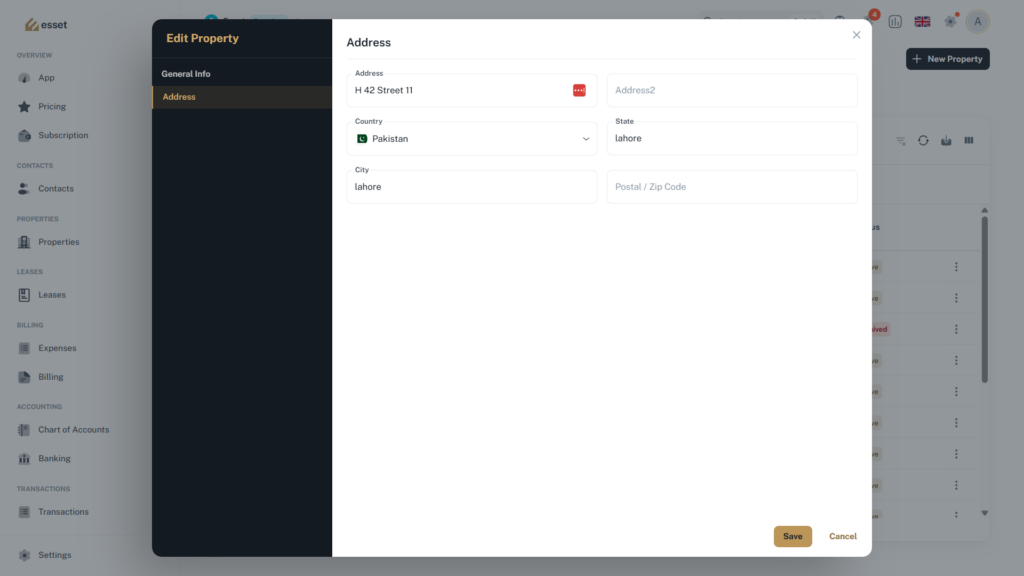
The same address fields as when creating the property.
Click Save to apply your changes, or Cancel to discard them.
Archive a Property
From the row menu (⋮), select Archive. You’ll be asked to confirm.
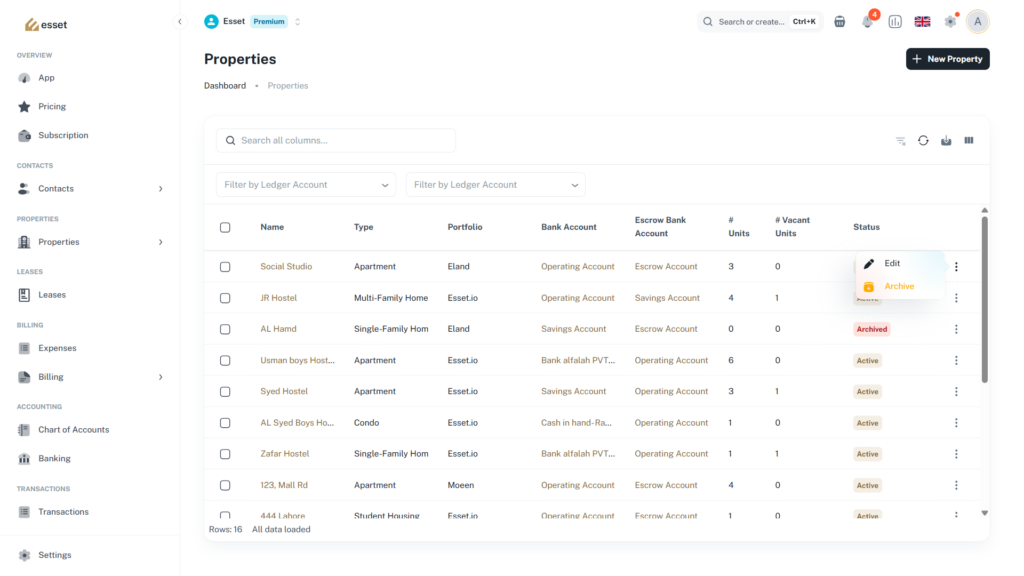
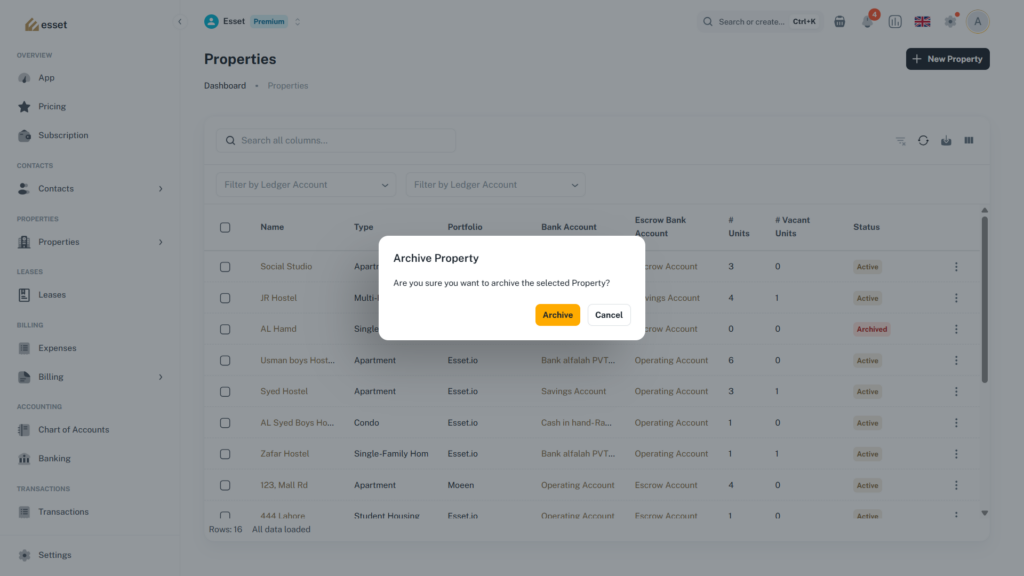
Note: Archiving a property is permanent — there’s no Restore option, so make sure you’re done with a property before archiving it. If you just want to temporarily stop a property from showing up in dropdowns, use the Make this property active toggle in Edit instead.
Manage a Property
Once a property exists, clicking its name opens a set of tabs for managing it day-to-day:
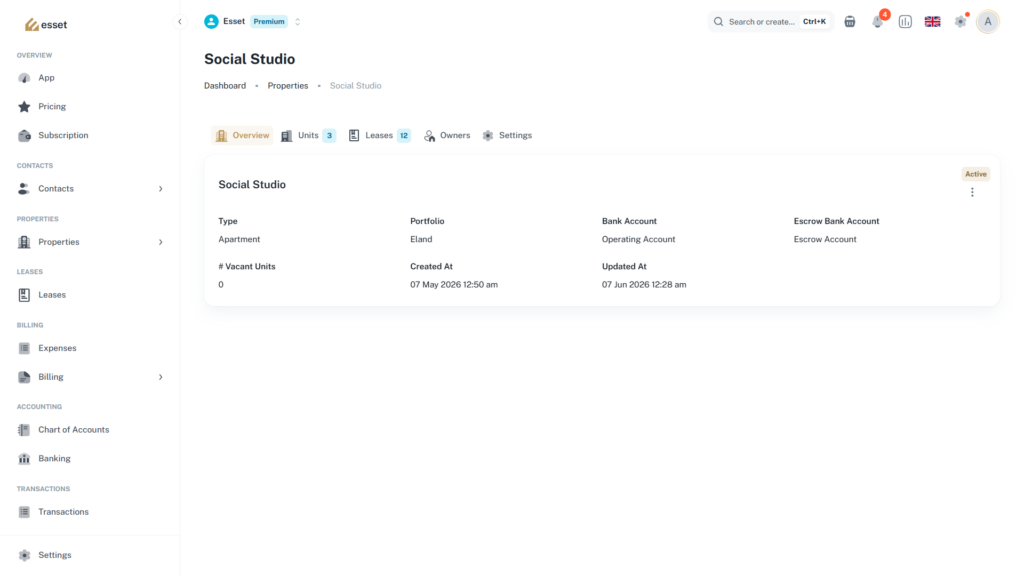
Overview: A read-only summary of the property’s details and when it was created/updated.
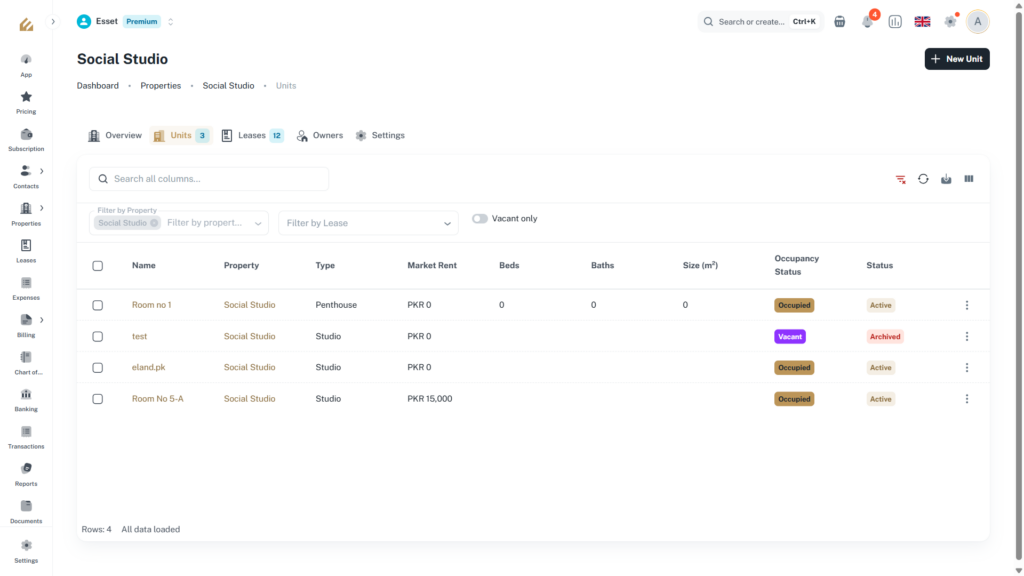
Units: The individual units within the property.
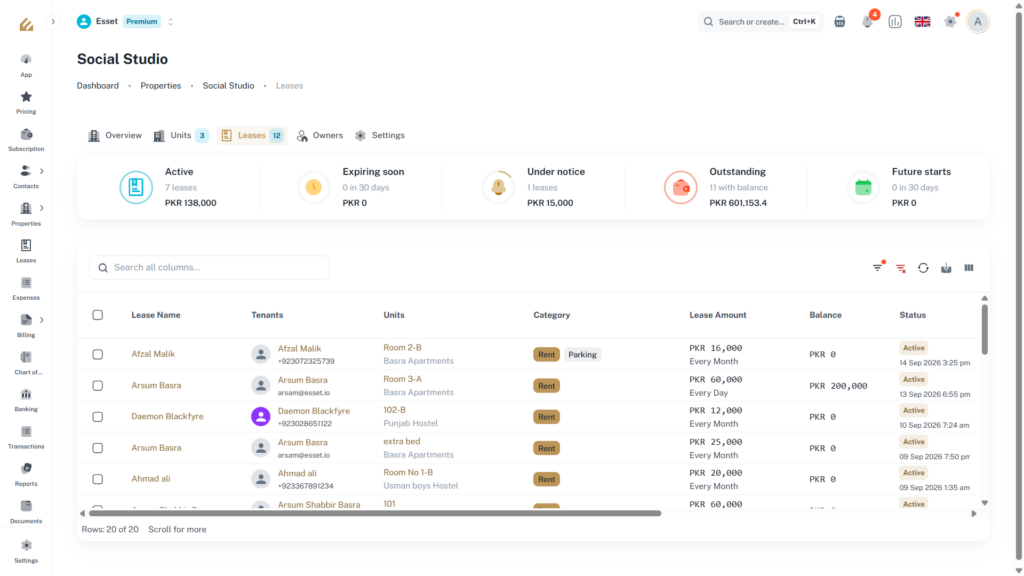
Leases: Active, expiring, under-notice, outstanding, and upcoming leases for the property. We will learn about leasing in detail in its own article.
Owners: Manage ownership stakes for this property. See “How to Add Owners and Manage Ownership in Properties” for the full walkthrough.
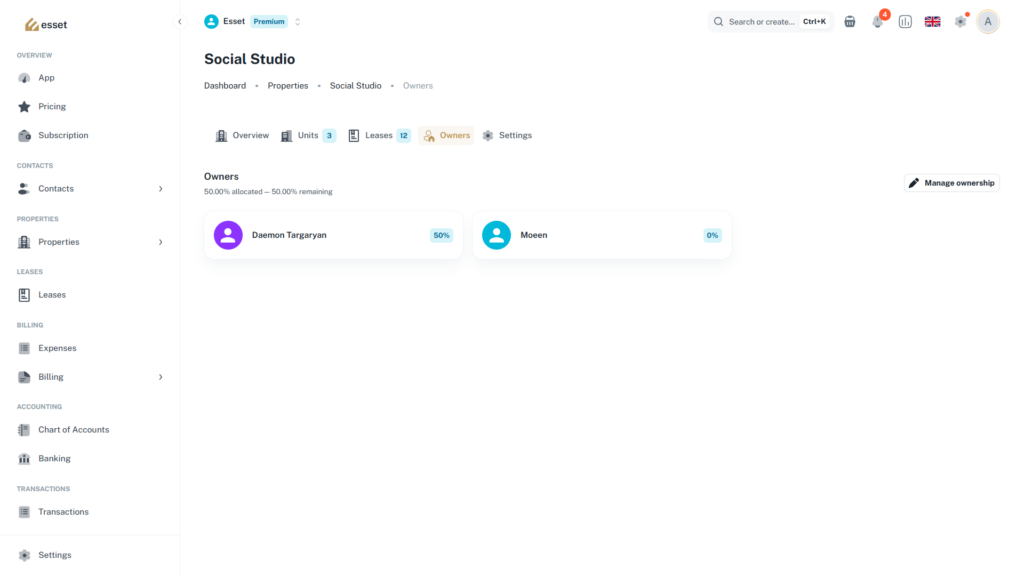
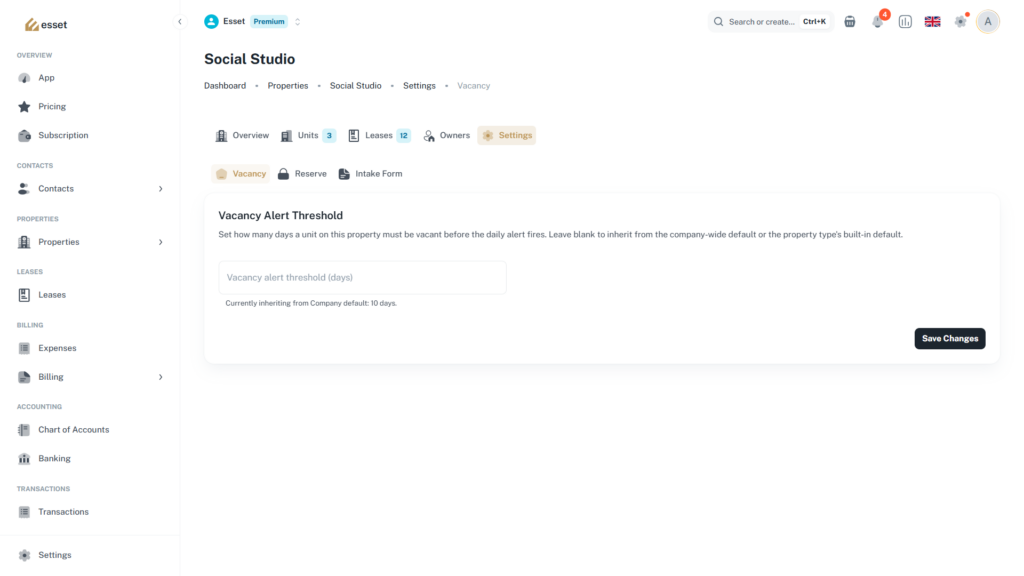
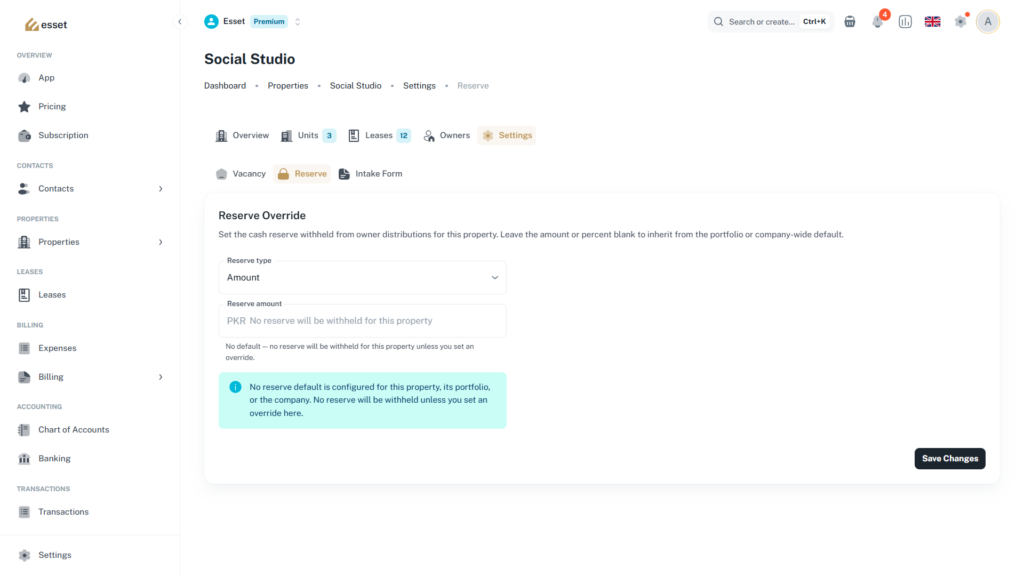
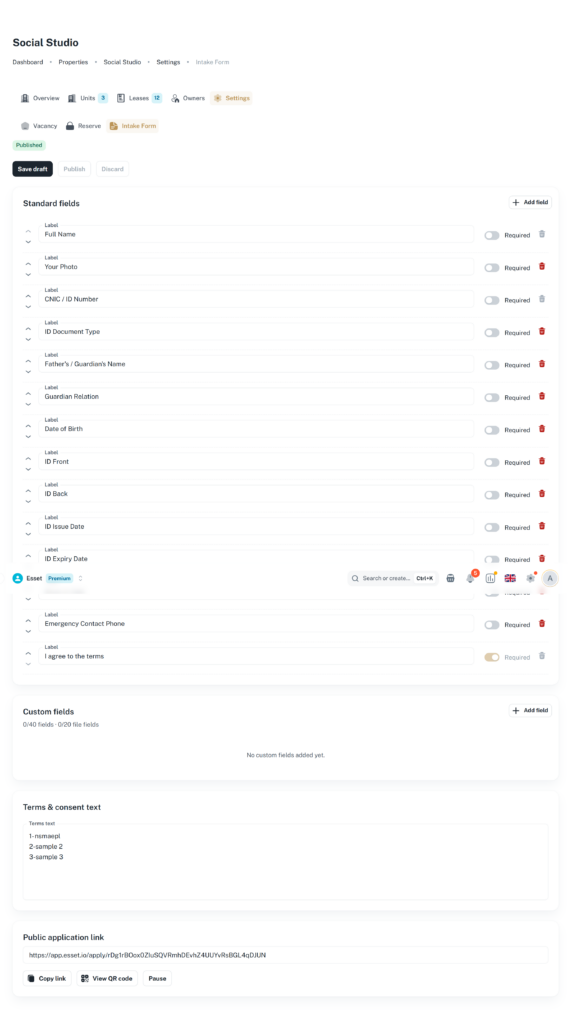
Settings: This includes Vacancy, Reserve, and Intake Form.
- Vacancy: Set the alert threshold for vacancies at the property.
- Reserve: Set the amount of cash to withhold from owner distributions.
- Intake Form: Manage the property’s application form. See How to Set Up and Publish Your Intake Form for more details.
Properties are the foundation that everything else in Esset builds on — units, leases, and owners all live underneath them. Use the “Make this property active” toggle when you need to temporarily pull a property out of circulation, and reserve Archive for properties you’re truly done with, since it can’t be undone.