
Expenses in Esset represent money that’s already been paid out — for a property, a specific unit, a vendor, an owner, or a tenant. This article covers viewing your expenses list, recording a new expense, and editing or archiving one.
Before you begin
- You’ll need at least one property already added, since every expense line item is recorded against a property. See “How to Add and Manage Properties.”
- If you’re paying a vendor, owner, or tenant, it helps to have them already added as a contact — see the relevant article for each.
View Expenses in Esset
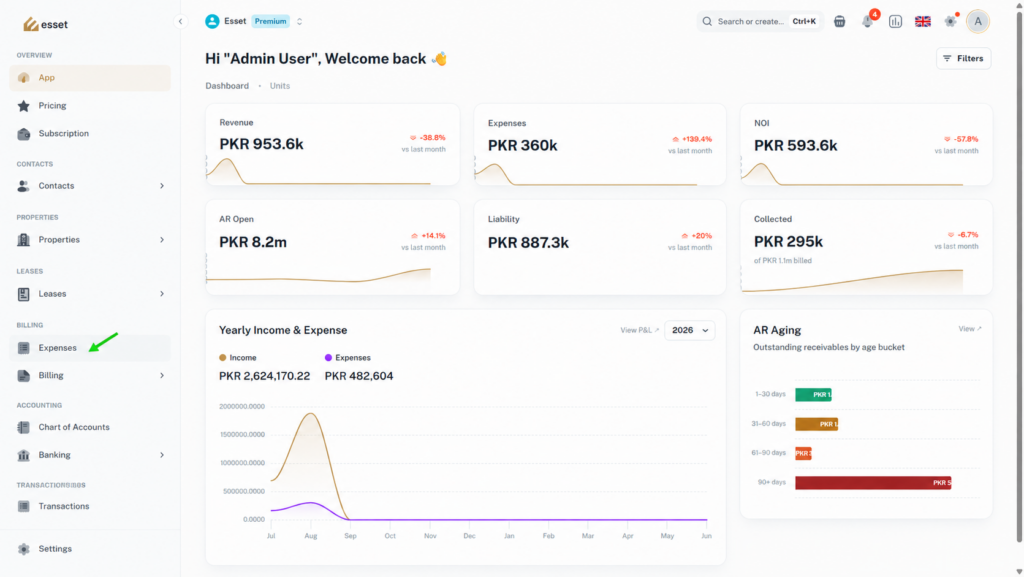
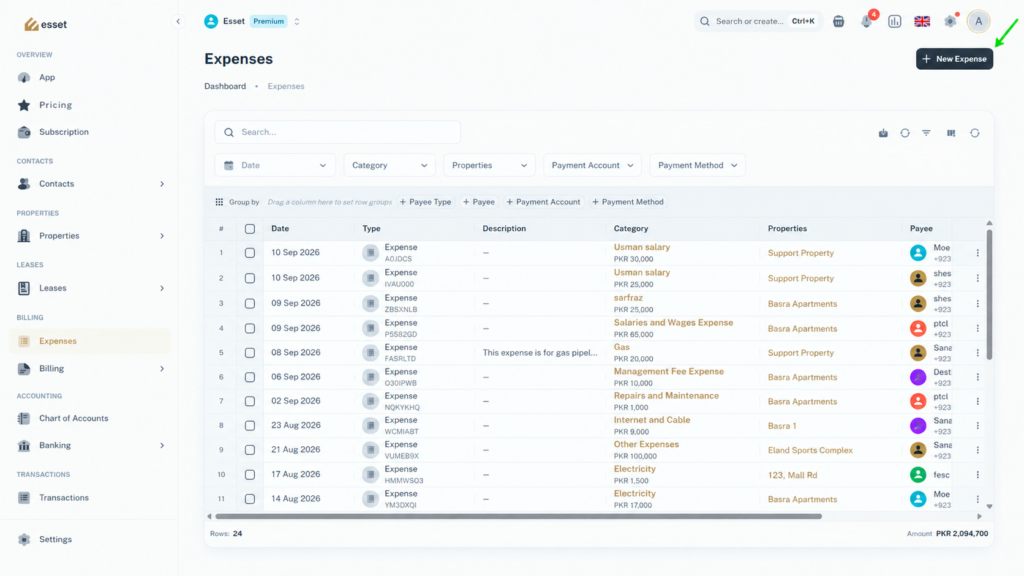
Go to Billing → Expenses in the sidebar.
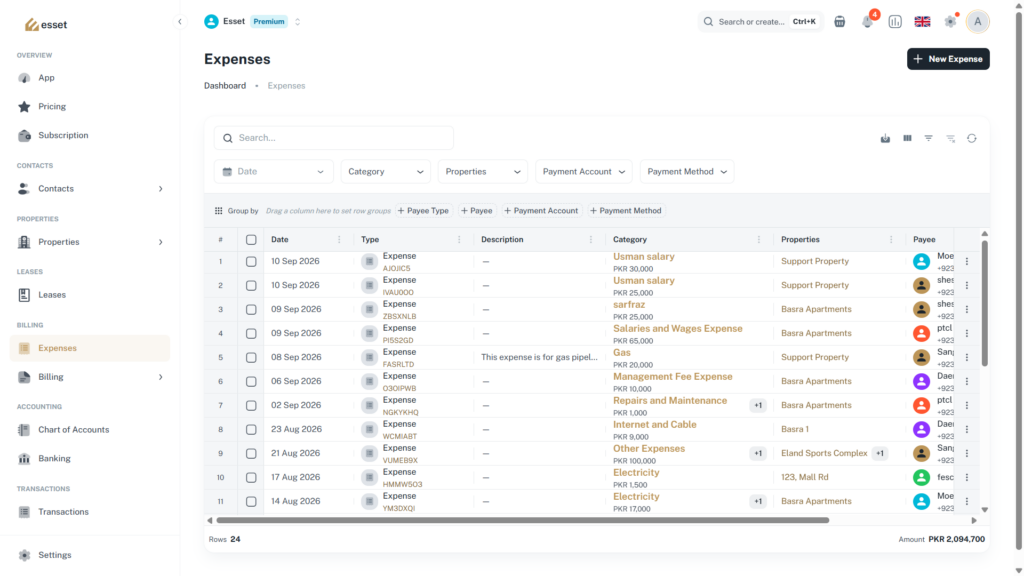
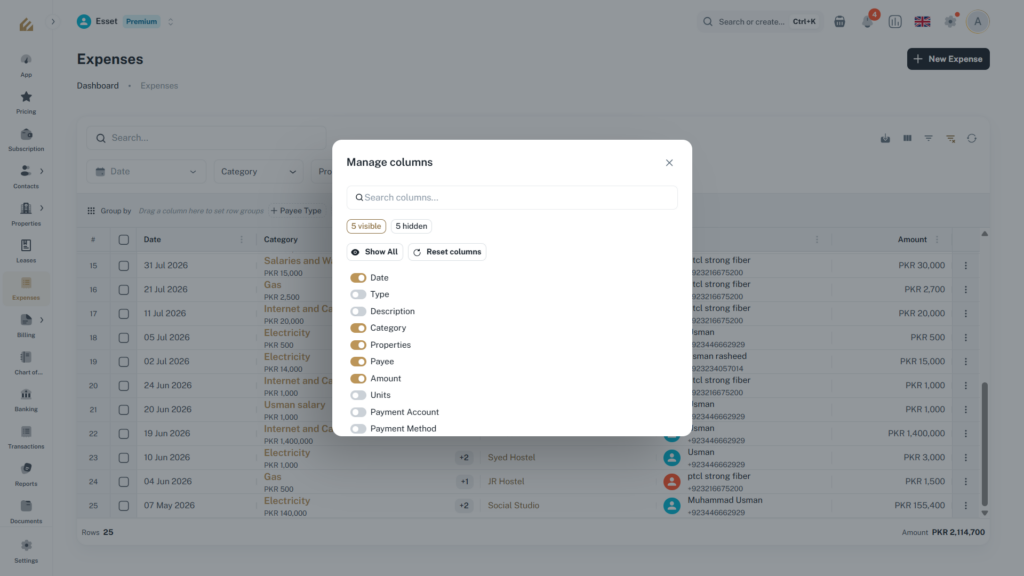
The list shows Date, Type, Description, Category, Properties, Payee, and Amount by default, with Units, Payment Account, and Payment Method available but hidden — you can turn these on from Manage Columns. The total number of rows and total Amount are shown at the bottom of the list.
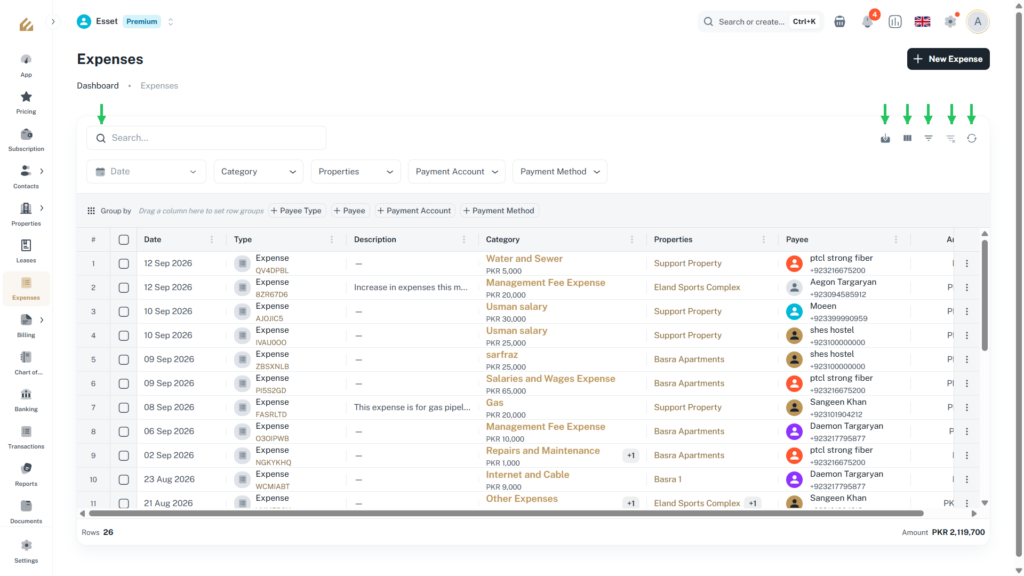
Esset Expenses Toolbar
- Search — use the search bar to find a specific expense quickly.
- Export — download the list as a CSV or JSON file, with options for filename, including headers, and including only visible columns.
- Manage Columns — show, hide, or reset which columns appear in the list.
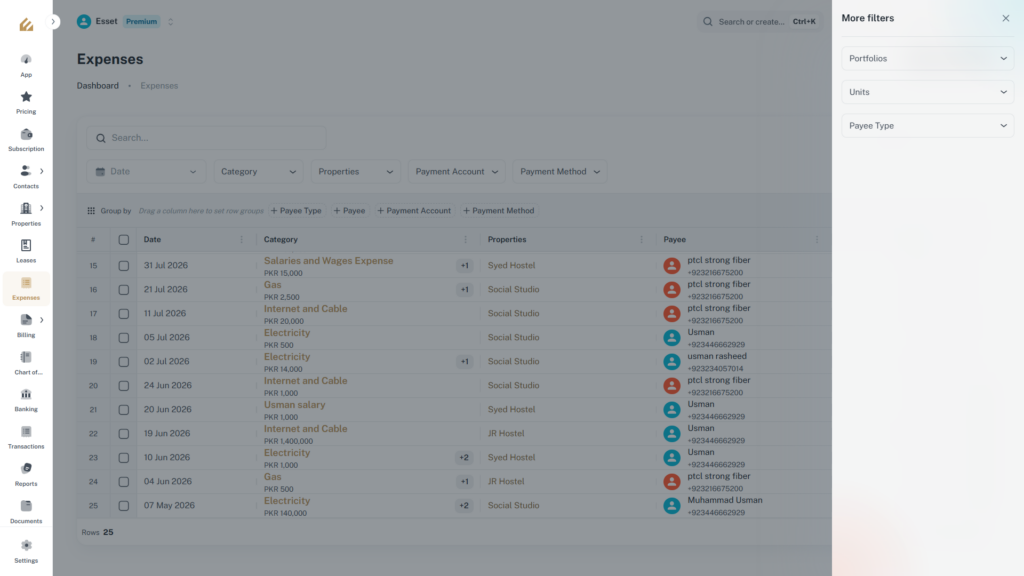
- Filter — opens the More filters panel.
- Remove Filter — resets any search or filter you’ve applied, back to the unfiltered view.
- Refresh — reloads the list’s data.
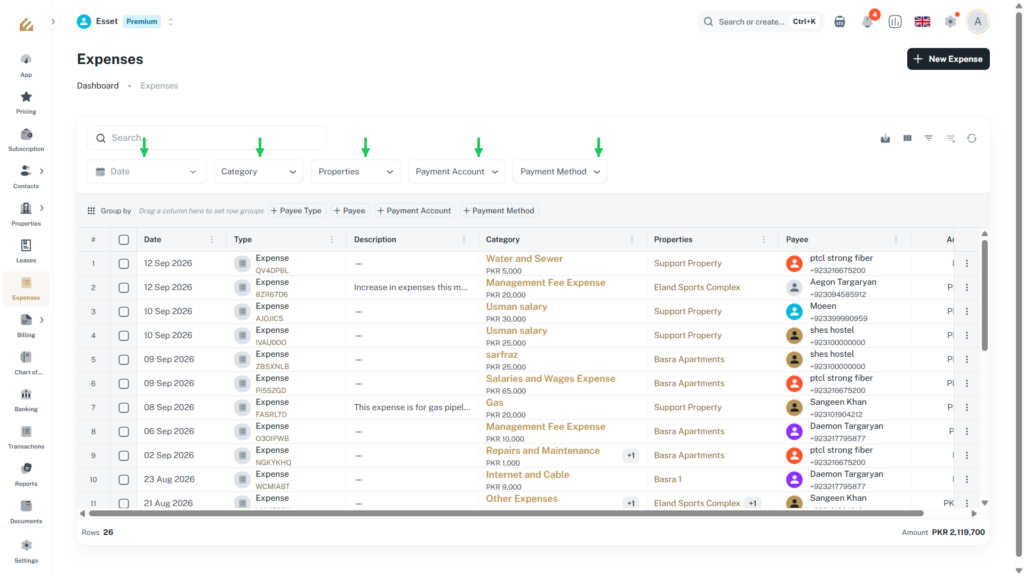
Filter Expenses
Above the list, you can filter by Date, Category, Properties, Payment Account, and Payment Method.
For a few more filters — Portfolios, Units, and Payee Type — click the filter (funnel) icon in the toolbar to open the More filters panel.
Group Expenses
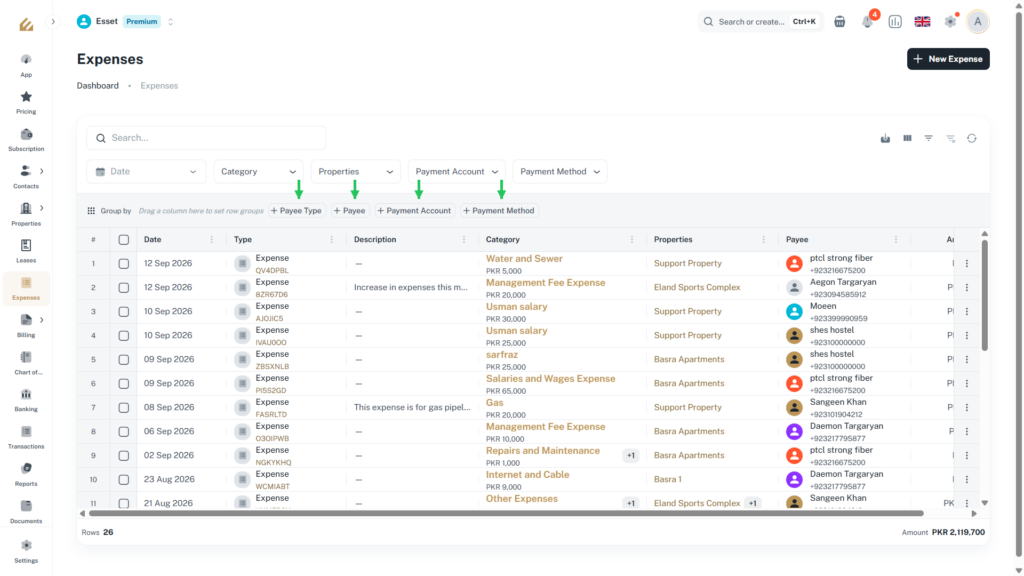
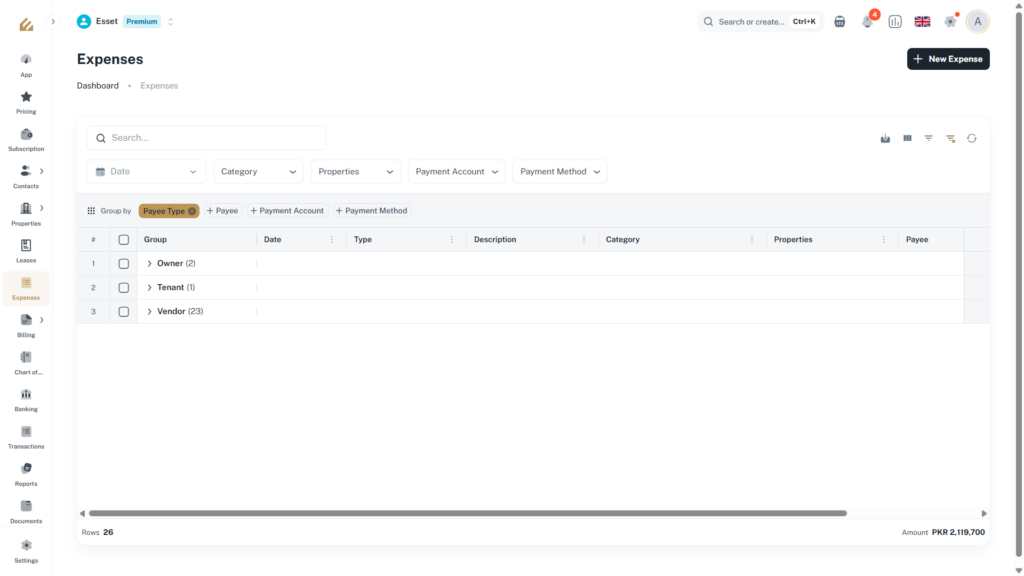
Drag any column header into the Group by row to collapse the list into groups, or use one of the quick-add buttons — Payee Type, Payee, Payment Account, Payment Method — to group instantly. For example, grouping by Payee Type buckets your expenses into Owner, Tenant, and Vendor groups with a count for each.
Customize Expenses Columns
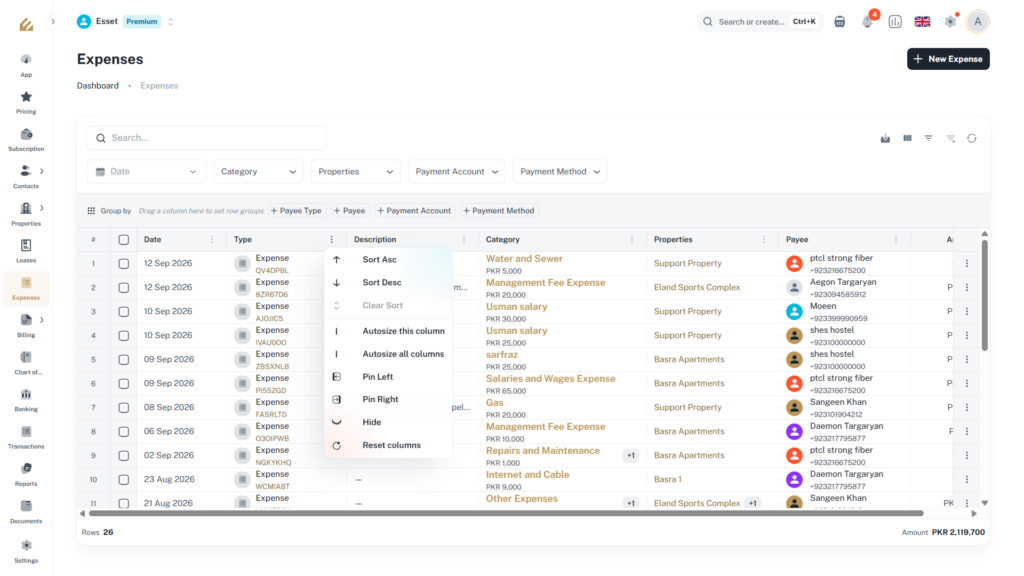
You can customize the Expense list from any column header. Click the ⋮ menu to sort the column in ascending or descending order, resize the current column or all columns, pin the column to the left or right, hide the column, or reset the column settings.
Add a New Expense
Click New Expense to open the Save Expense form.
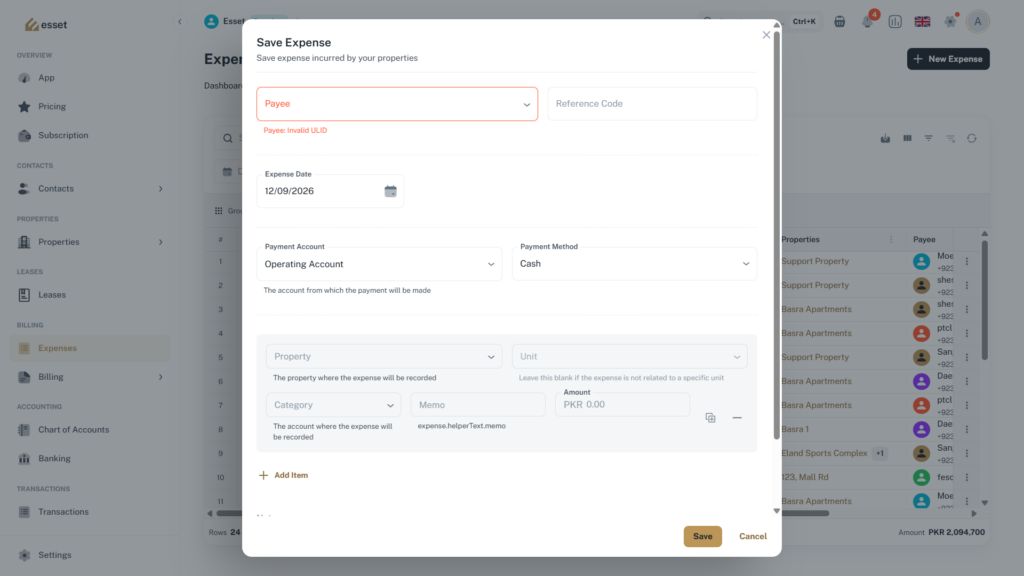
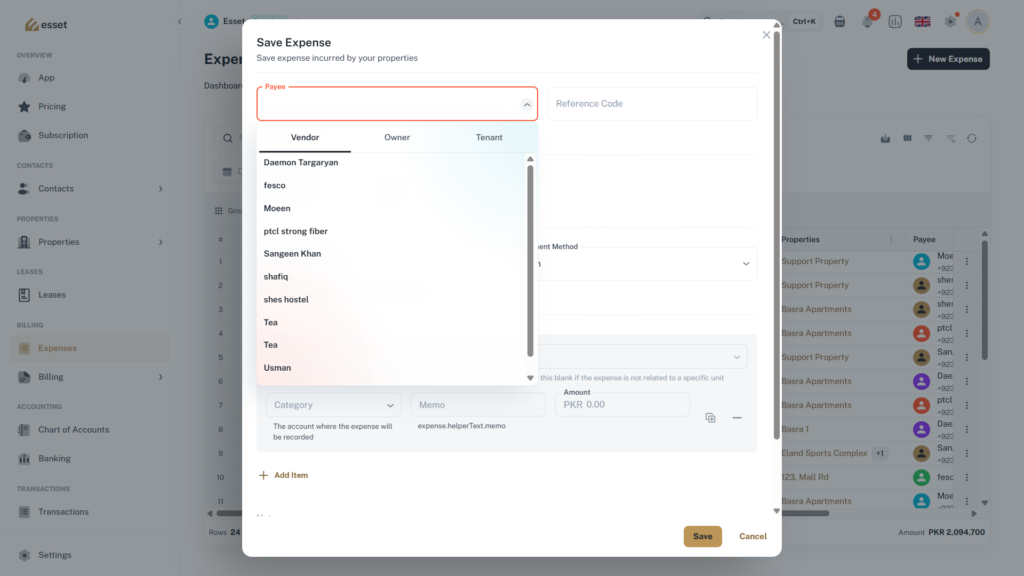
Payee (required) — who this expense was paid to. Choose from three tabs: Vendor, Owner, or Tenant.
Reference Code — optional, for your own tracking. If you don’t have a reference code, the system will generate one for you automatically.
Expense Date — defaults to today.
Payment Account — the bank or cash account the payment came from, pulled from your Chart of Accounts.
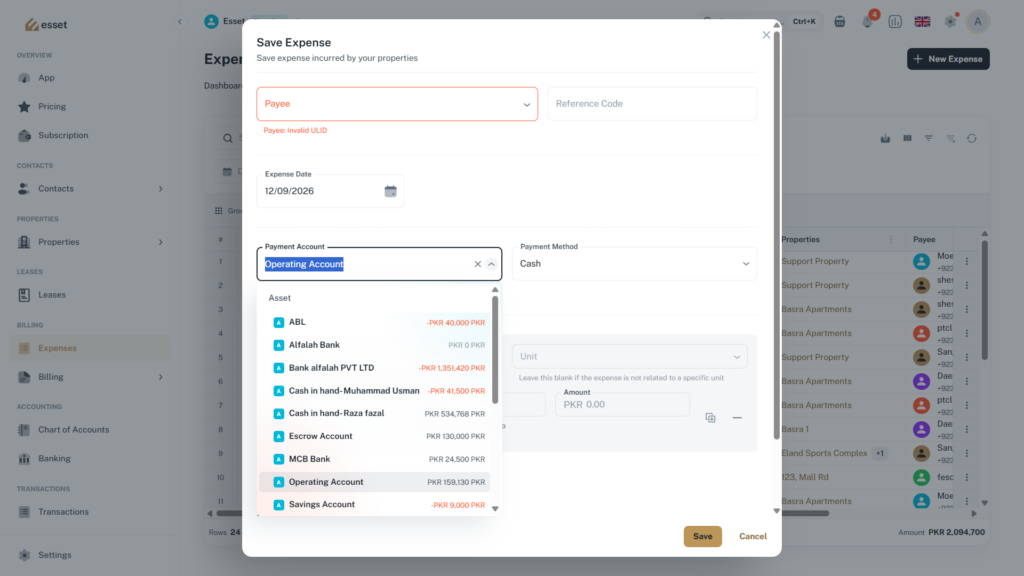
Payment Method — e.g., Cash, credit card, electronic funds, etc.
Below that, add one or more line items, each with:
Property — which property this cost applies to.
Unit — optional; leave this blank if the expense isn’t tied to a specific unit.
Category — the type of cost, e.g., Water and Sewer, Management Fee Expense, Salaries and Wages Expense, Repairs and Maintenance, Internet and Cable, or Other Expenses.
Memo — optional notes.
Amount — Expense Amount
Use the clone icon to duplicate a line item, or Add Item to add a fresh one — this lets a single expense cover multiple properties, categories, or amounts at once under the same payee and date. Click Save when you’re done.
Edit or Archive an Expense
From the row menu (⋮) on any expense, choose Edit to reopen the Save Expense form with its current details, or Archive to remove it.
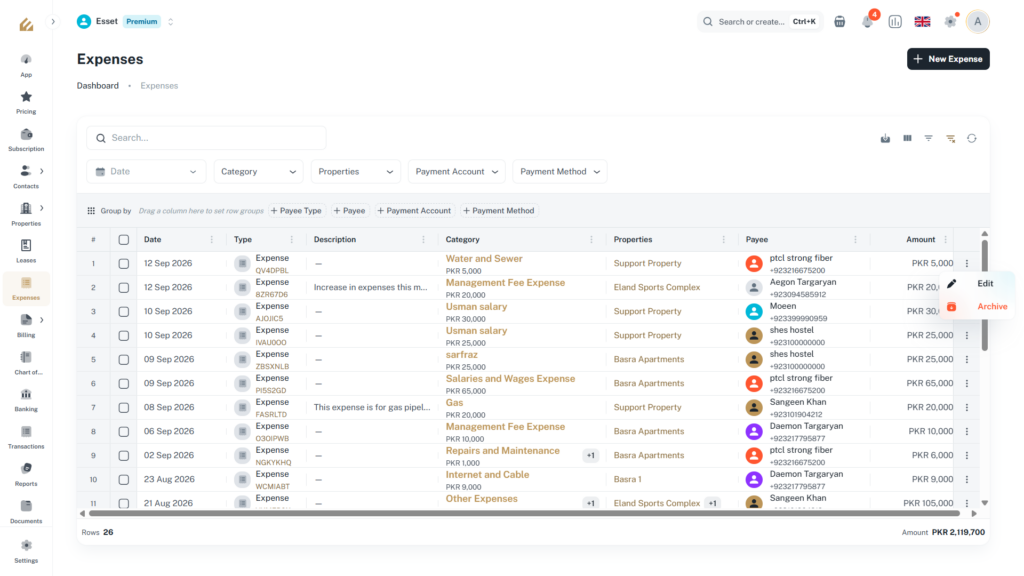
Note: Archiving an expense is permanent — there’s no Restore option. In practice, this is the way to remove an expense you entered by mistake, so double-check the details before confirming.
Expenses vs. Bills
An expense in Esset represents a cost that’s already been paid — it doesn’t create an outstanding balance against the Payee. If you owe a Payee money you haven’t paid yet, that’s tracked separately as a Bill, which is what actually drives a Payee’s outstanding Balance. We’ll cover Bills in their own article.
Recording an expense is quick once you know where the pieces live: pick who was paid, where the money came from, and which property (and optionally unit and category) it applies to.
The list’s filters, grouping, and column controls are there for when your expense history grows — grouping by Payee Type or Payment Account is often the fastest way to spot everything paid to one vendor or through one account.
Just keep in mind that archiving is a one-way action here, so it’s best treated as an undo for a genuine mistake rather than routine cleanup.