
As your portfolio grows, you may need more units, more features, or both. This article walks you through Esset’s Pricing page: comparing Starter, Growth, and Premium; seeing live pricing as you adjust units and billing cycle; understanding how unit count is actually changed on your account; and upgrading when you’ve decided.
Before you begin
- You’ll need Primary/Admin access, or a role with billing permissions, to upgrade a plan
- Have your company’s target unit count in mind before you start comparing
Opening the Pricing page
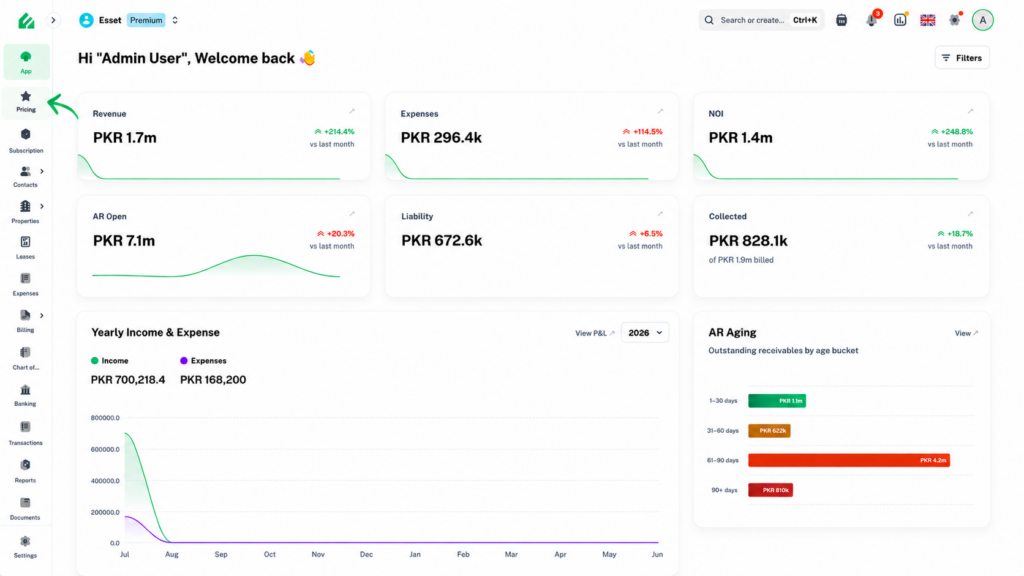
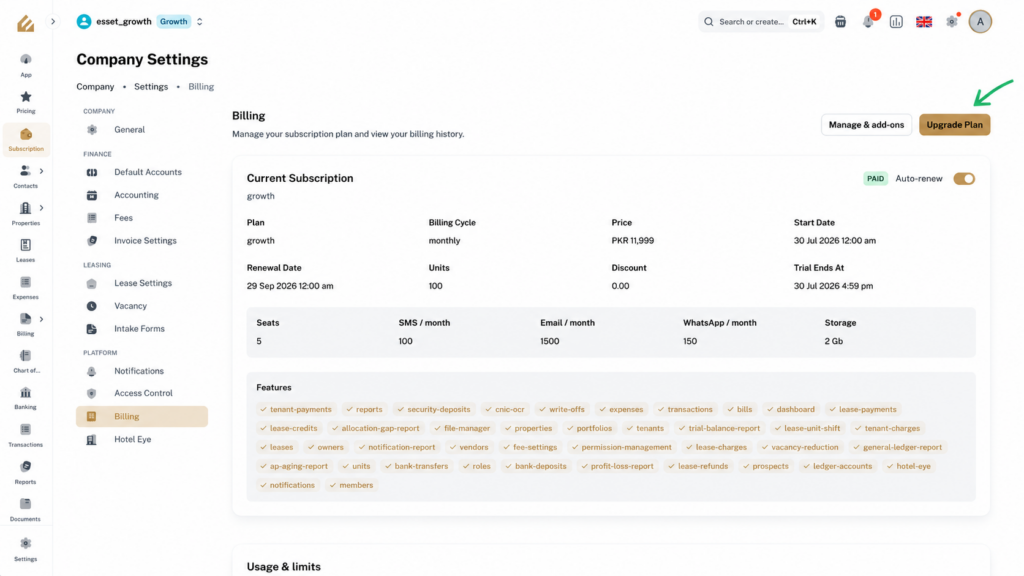
There are two ways to get here: click Pricing directly from the left sidebar, or open Subscription → click Upgrade Plan on the Billing page. Both take you to the same Pricing page.
Adjusting units and billing cycle to see live pricing
At the top of the Pricing page, enter a Number of Units and toggle Billed Annually — the three plan cards below recalculate live as you change either one. Your current plan is marked CURRENT.
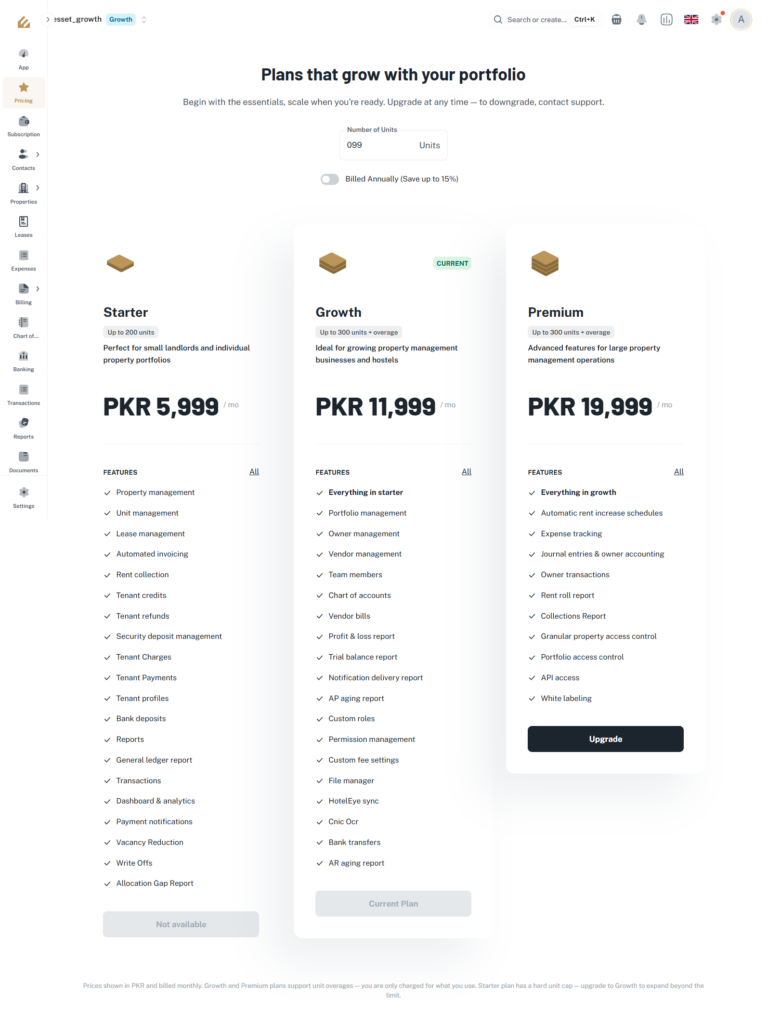
This is a comparison tool; changing the number here doesn’t change your actual subscription. It just previews what each plan would cost at that unit count and billing cycle.
Changing your unit count on your account
Unlike the preview above, your account’s real unit count is changed from the Manage & Add-ons page (Billing → Manage & Add-ons). There, the Units field lets you raise your count yourself, and the change is prorated to your current billing cycle.
Note: You can raise your unit count yourself, but lowering it below your plan’s minimum requires contacting support — self-serve downgrades aren’t available. See the Adding Capacity with Add-ons article for the step-by-step.
Comparing plan features
Each plan card lists what’s included, and each higher tier includes everything in the one below it.
Starter: Up to 200 units
The Starter plan includes the essential tools you need to manage your properties, units, leases, tenants, rent, and basic financial activity. It supports portfolios with up to 200 units.
- Property Management: Add and manage your properties. For more details, visit the Property Management article.
- Unit Management: Add and manage individual units within a property. For more details, visit the Unit Management article.
- Lease Management: Create and track tenant leases. For more details, visit the Lease Management article.
- Automated Invoicing: Automatically generate invoices according to your schedule. For more details, visit the Lease Management article.
- Rent Collection: Collect and record rent payments.
- Tenant Credits: Apply credit balances to a tenant’s account. For more details, visit the Lease Management article.
- Tenant Refunds: Issue refunds for tenant overpayments. For more details, visit the Lease Management article.
- Security Deposit Management: Track security deposits that are held and returned. For more details, Lease Management article.
- Tenant Charges: Add one-time charges to a tenant’s ledger. For more details, Lease Management article.
- Tenant Payments: Record payments made by tenants. For more details, visit the Lease Management article.
- Tenant Profiles: Maintain a dedicated profile and record for each tenant. For more details, visit the How to Add and Manage Tenants article.
- Bank Deposits: Record deposits made into your bank accounts. For more details, visit the Bank Deposits article.
- Reports: Access standard reporting tools. For more details, visit the Reports article.
- General Ledger Report: View a complete accounting ledger report. For more details, visit the Report article.
- Transactions: View a complete log of your financial transactions. For more details, visit the Transactions article.
- Dashboard & Analytics: Monitor your portfolio through an overview dashboard with charts and key statistics. For more details, visit the Navigate Your Dashboard article.
- Payment Notifications: Send automatic notifications when payments are recorded. For more details, visit the Notifications article.
- Write-Offs: Mark uncollectible amounts as written off. For more details, visit the Write-Offs article.
Growth: Up to 300 units + overage
The Growth plan includes everything in Starter, plus additional tools for managing larger portfolios, teams, accounting, and advanced reporting.
- Portfolio Management: Group multiple properties into portfolios. For more details, visit the Portfolio Management article.
- Owner Management: Manage property owner records. For more details, visit the Owner Management article.
- Vendor Management: Manage vendors and contractors. For more details, visit the Vendor Management article.
- Team Members: Invite and manage members of your team. For more details, visit the How to Invite Your Team and Control What They See and Do article.
- Chart of Accounts: Customize and manage your accounting structure. For more details, visit the Chart of Accounts article.
- Vendor Bills: Track bills and amounts owed to vendors. For more details, visit the Bills article.
- Profit & Loss Report: View your profit and loss statement. For more details, visit the Report article.
- Trial Balance Report: Review your accounting trial balance. For more details, visit the Report article.
- Notification Delivery Report: Check whether sent notifications were successfully delivered. For more details, visit the Report article.
- AP Aging Report: Review amounts owed to vendors and how long they have been outstanding. For more details, visit the Report article.
- Custom Roles: Create roles tailored to your team’s needs. For more details, visit the How to Invite Your Team and Control What They See and Do article.
- Permission Management: Control which areas and actions each role can access. For more details, visit the How to Invite Your Team and Control What They See and Do article.
- Custom Fee Settings: Configure late fees and other custom fees. For more details, visit the Fee Settings article.
- File Manager: Store and manage your documents in one central location. For more details, visit the File Manager article.
- HotelEye Sync: Sync property information with PITB’s HotelEye system. For more details, visit the HotelEye article.
- CNIC OCR: Automatically extract relevant tenant information when uploading a CNIC. For more details, visit the How to Add and Manage Tenants article.
- Bank Transfers: Record transfers between your bank accounts. For more details, visit the Bank Transfers article.
- AR Aging Report: Review amounts owed by tenants and how long those balances have been outstanding. For more details, visit the Report article.
Premium: Up to 300 units + overage
The Premium plan includes everything in Growth, plus advanced tools for automation, expense tracking, accounting, reporting, integrations, and customization.
- Automatic Rent Increase Schedules: Schedule future rent increases in advance. For more details, visit the Lease Management article.
- Expense Tracking: Track company and property-related expenses. For more details, visit the Expense Tracking article.
- Journal Entries & Owner Accounting: Create manual accounting entries and manage owner-level accounting. For more details, visit the Journal Entries & Owner Accounting article.
- Rent Roll Report: View a summary of units, tenants, and their rents. For more details, visit the Report article.
- Collections Report: Monitor rent collection and payment performance. For more details, visit the Report article.
- API Access: API access allows other software or applications to communicate with Esset and work with your Esset data programmatically. This can be useful if you want to connect Esset with another system, build custom tools or dashboards, automate data exchange, or reduce the need for manually entering or transferring information between platforms.
- White Labeling: White labeling allows you to present the Esset platform under your own brand. This includes things like applying your company name, logo, and other branding elements. This is particularly useful for businesses that want the software to feel like part of their own brand rather than a third-party platform.
Choosing the right plan
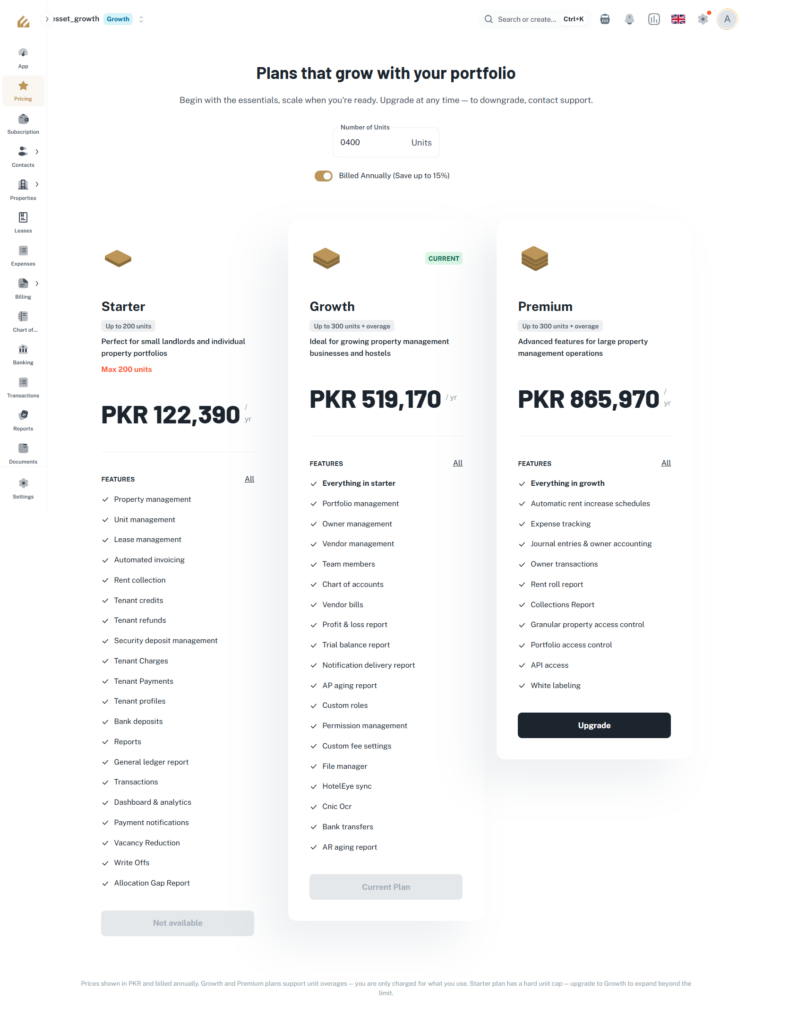
The Starter plan supports up to 200 units. If your portfolio exceeds 200 units, the Starter plan is no longer available for selection, and its plan card will show Not available. In that case, you’ll need to choose Growth or Premium, which support up to 300 units plus additional overage.
This means you can start with Starter when your portfolio is within the 200-unit limit and you mainly need the essentials for managing tenants, rents, leases, units, and day-to-day property operations.
If you need more of the accounting side of property management, Growth adds features such as Chart of Accounts, Vendor Bills, P&L, Trial Balance, AR/AP Aging, bank transfers, custom roles, and permission management, making it a better fit for businesses that need a more complete accounting setup.
If you’re looking for the most advanced experience, Premium builds on Growth with features such as automatic rent increase schedules, expense tracking, journal entries, and owner accounting, advanced reports, API access, and white labeling. In particular, white labeling gives you the added flexibility to customize the platform with your own branding.
In short, Starter is a good choice for the core property management essentials, Growth is suited to businesses that want stronger accounting and team-management capabilities, and Premium is for those who want the full feature set along with advanced tools and customization options. Compare the three plans to find the one that best matches the size and needs of your portfolio.
Upgrading your plan
Click Upgrade on the plan you want. Upgrades take effect through the same checkout flow as add-ons. To move to a smaller plan, contact support instead — downgrades aren’t self-serve.
Note: The prices shown in this article’s screenshots reflect one point in time and are only examples — Esset’s actual package prices may differ from what’s pictured here. For current pricing, use the live Pricing page in Esset or contact our sales team.
Once you’ve upgraded, the change reflects immediately on your Billing page; your Current Subscription card, Usage & limits, and next invoice will all update to match. If you just need more SMS, email, or storage without a full plan change, see Adding Capacity with Add-ons instead.