
If you only need a bit more capacity — more SMS credits, an extra team seat, more storage — you don’t have to upgrade your entire plan. Esset lets you add these as standalone add-ons from the Manage & add-ons page. This article walks you through opening that page and adding the capacity you need.
Before you begin
- You’ll need Primary/Admin access, or a role with billing permissions, to manage add-ons
Opening Manage & add-ons
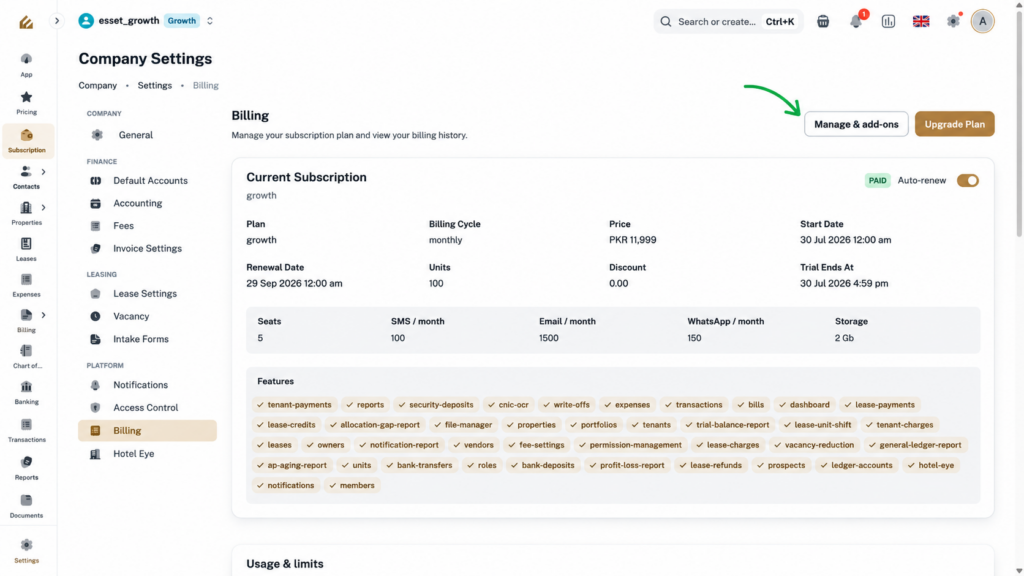
From the Billing page (Subscription in the sidebar), click Manage & add-ons next to the Upgrade Plan button.
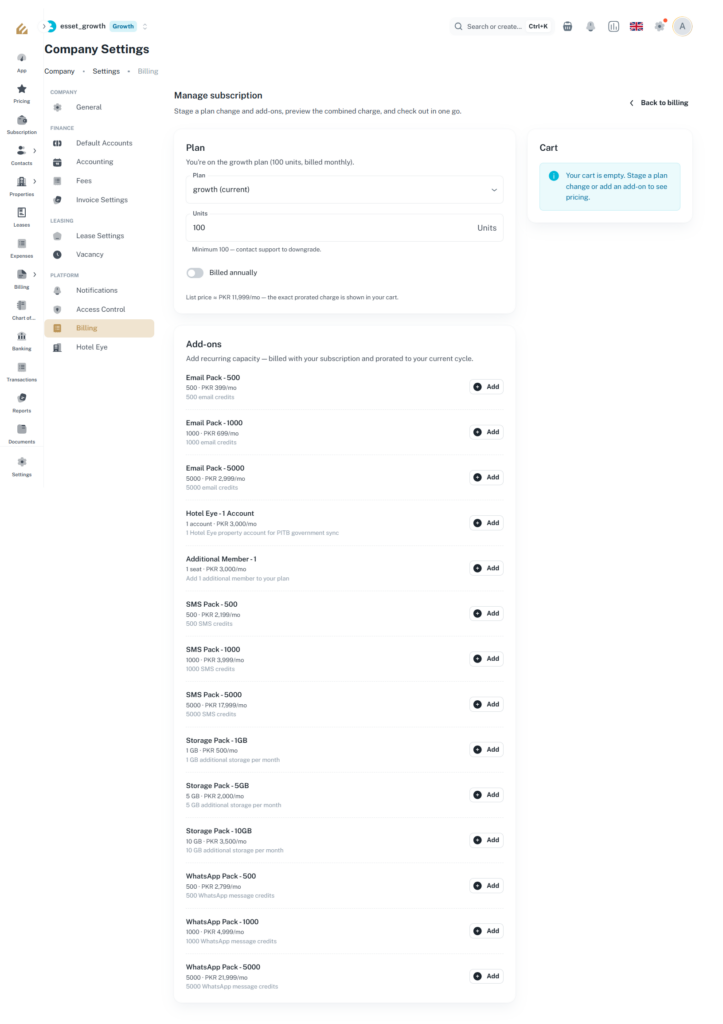
This opens a page where you can adjust your unit count and add capacity in one place, with the combined cost calculated before you check out.
Adding capacity add-ons
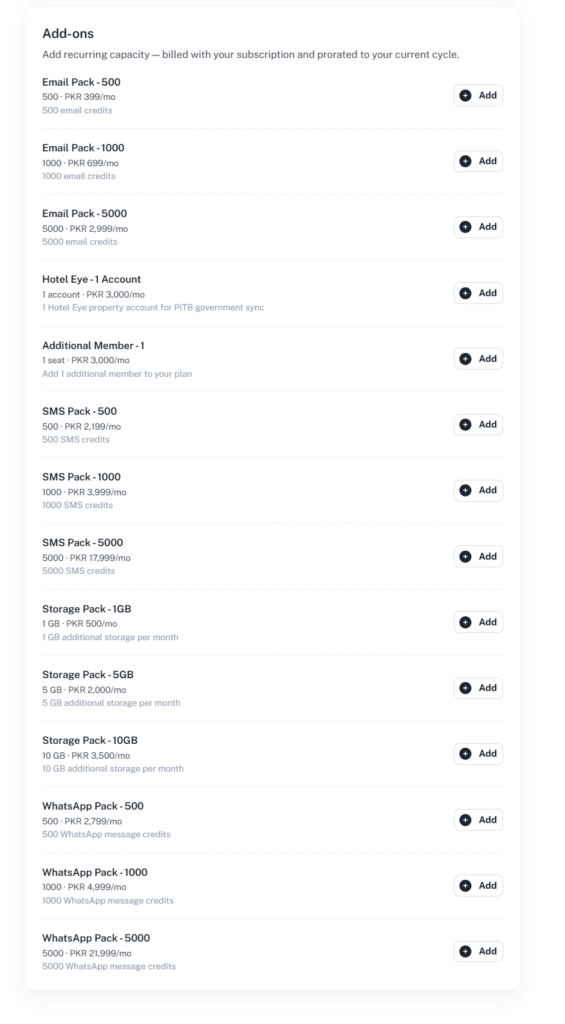
The Add-ons section lists extra capacity you can add on top of your plan:
- Email packs — additional monthly email credits (500 / 1000 / 5000)
- SMS packs — additional monthly SMS credits (500 / 1000 / 5000)
- WhatsApp packs — additional monthly WhatsApp message credits (500 / 1000 / 5000)
- Storage packs — additional monthly storage (1GB / 5GB / 10GB)
- Hotel Eye — 1 Account — an extra Hotel Eye property account for PITB government sync
- Additional Member — 1 — an extra team seat beyond your plan’s included seats
Each row shows the capacity, the recurring price, and an Add button. Adding one stages it in the Cart on the right, prorated to your current billing cycle.
Note: Add-ons are valid for one year from the date of purchase. Once the one-year validity period ends, you’ll need to purchase the add-on again if you still need the additional capacity.
Once added, your new capacity shows up right away on your Billing page — check Usage & limits to confirm the higher cap is reflected. If you find yourself adding the same add-on repeatedly, it may be worth comparing the cost against simply upgrading your plan — see Comparing Plans and Upgrading for that comparison.