
In this article, we’ll explore the left sidebar of your platform, where you can access all the main Esset sections. We’ll provide a brief overview of each section to help you get familiar with the platform. Most sections also have their own dedicated article with a more detailed walkthrough.
Before you begin
- You’re signed in to Esset.
- What you see in the sidebar may vary slightly depending on your role and permissions.
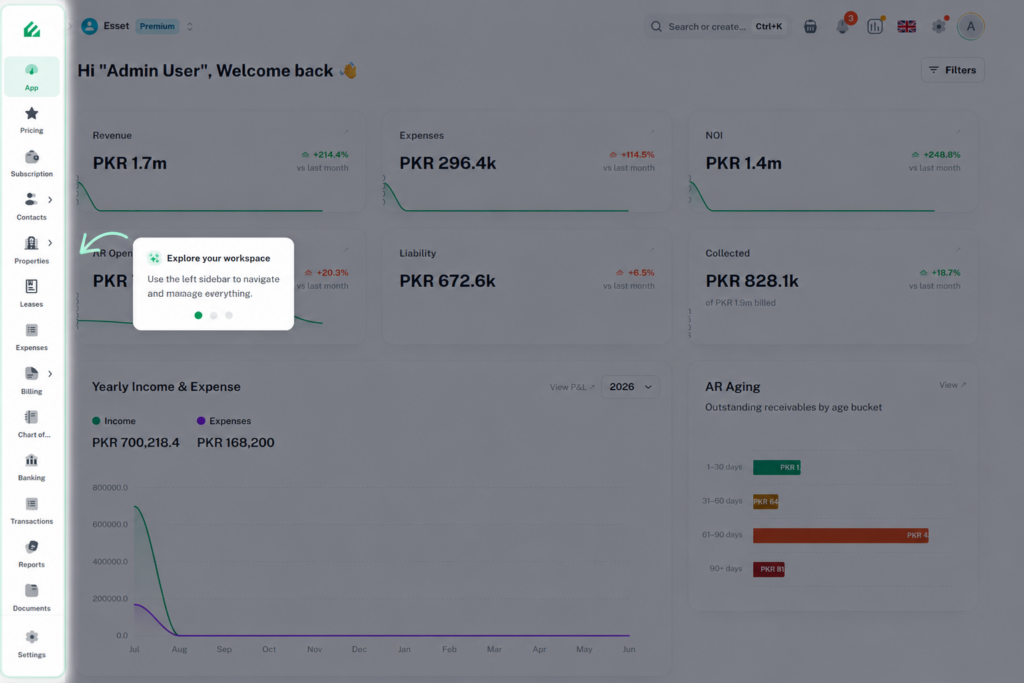
App
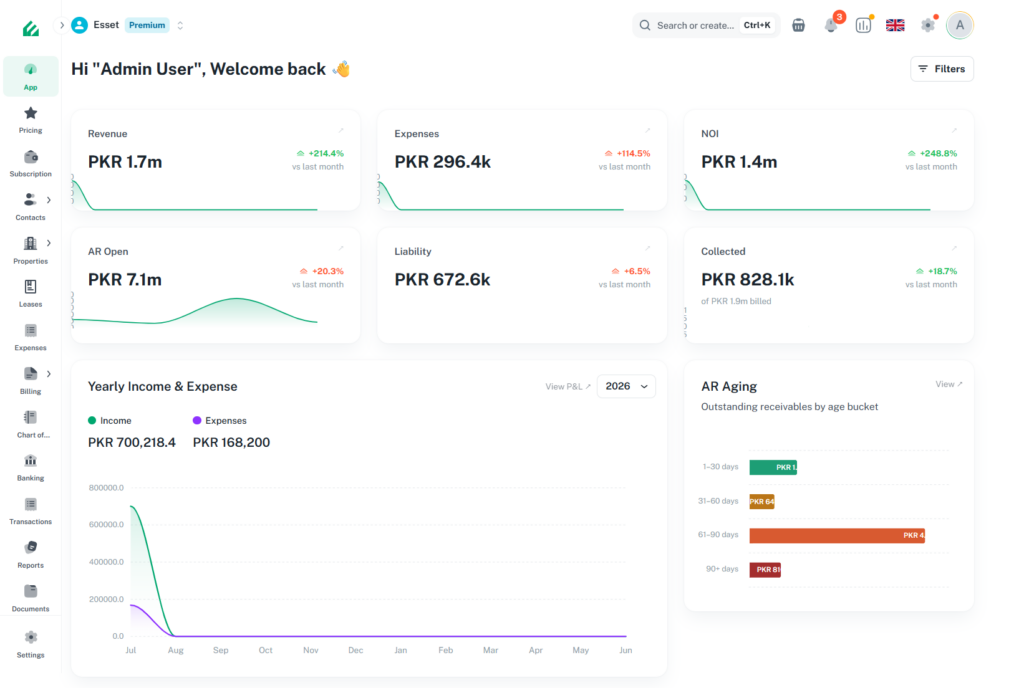
This serves as the home page of the platform and takes you back to the main dashboard, where you can get a quick snapshot of your portfolio’s financial and operational health. For a detailed overview of the dashboard and its features, see Navigate Your Dashboard.
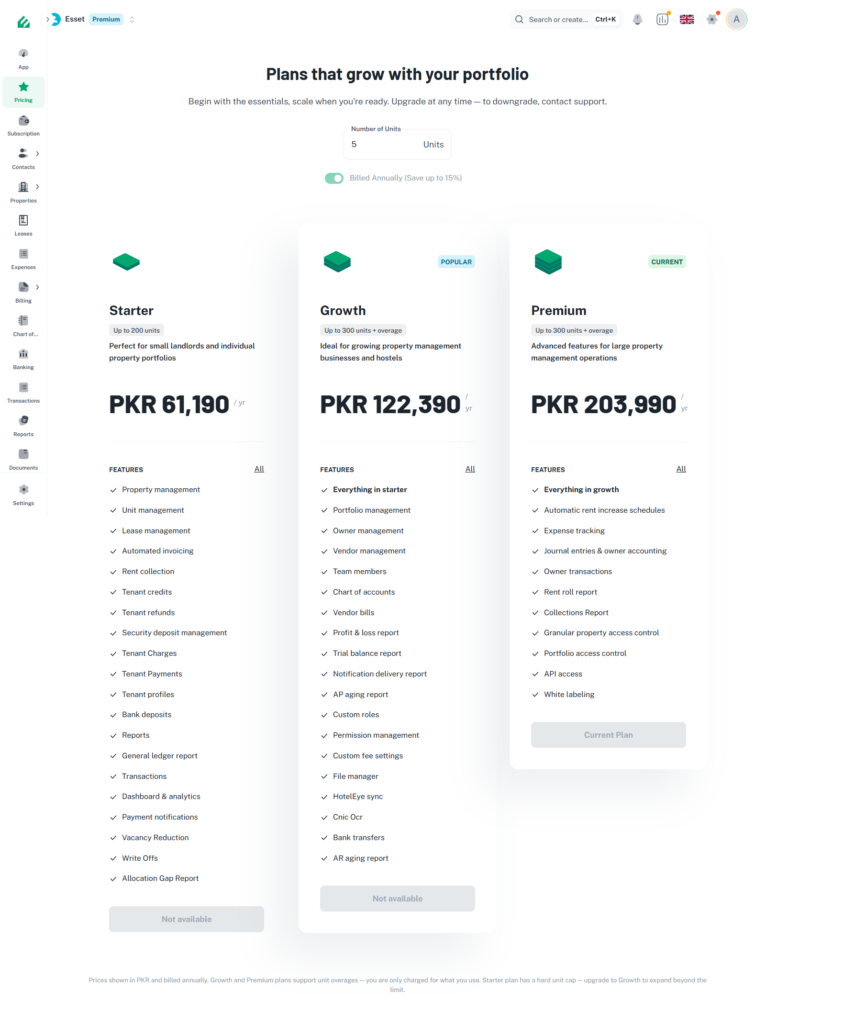
Pricing
This opens the pricing section, where you can compare Esset’s available plans, including Starter, Growth, and Premium, along with the features and benefits included in each plan. This makes it easy to review the options side by side and choose the plan that best fits your portfolio’s needs.
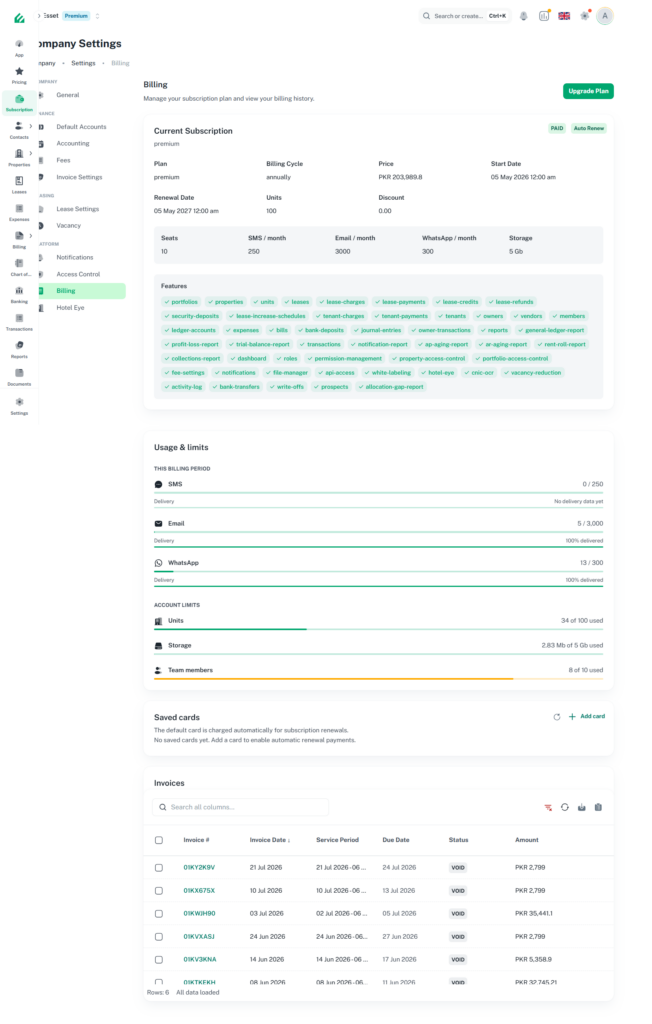
Subscription
This takes you to your billing settings, where you can view your current plan, usage limits, saved payment cards, and invoices. This section gives you a convenient place to review and manage your subscription and billing information.
Contacts
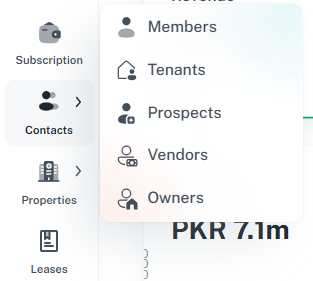
This section brings together everyone connected to your portfolio in one place. Whether you need to look up a tenant’s number, check a vendor’s balance, or see who’s on your team, it’s all organized here into five groups: Members, Tenants, Prospects, Vendors, and Owners.
Members
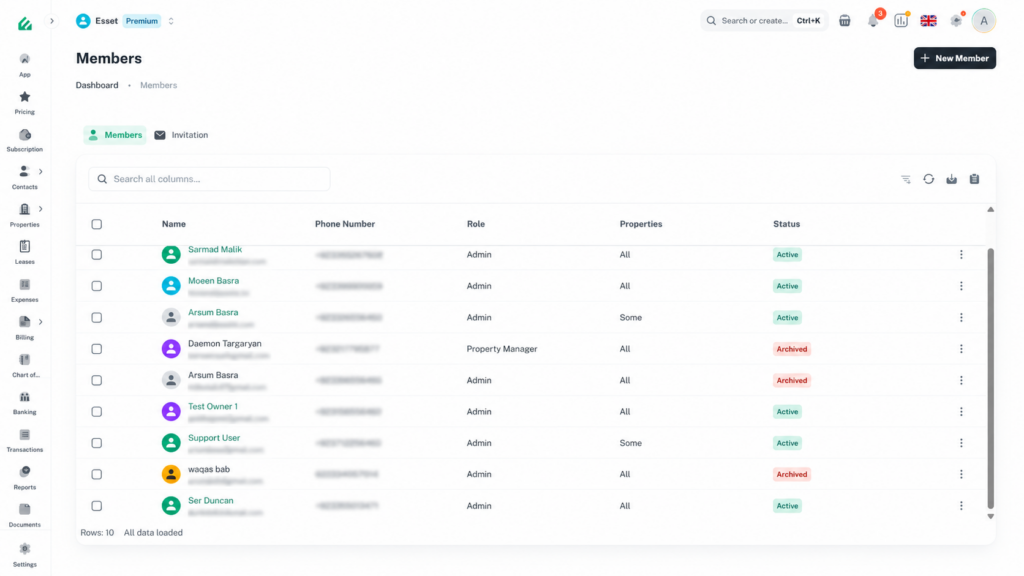
These are your team’s own login accounts inside Esset, not tenants or vendors. Each member has a role like Admin, Property Manager, or Accountant that controls what they can see and do, and which properties they have access to.
Tenants
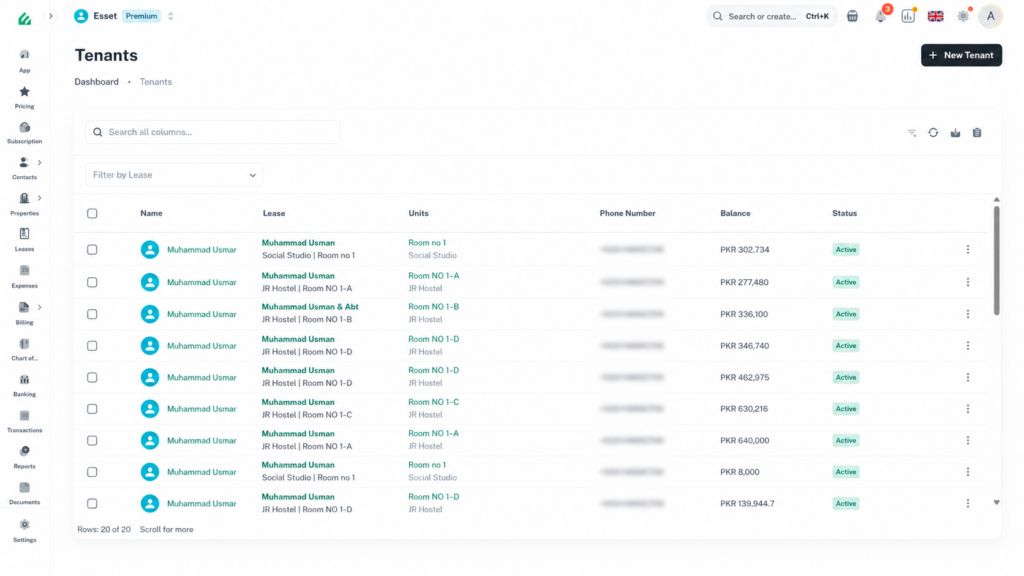
Everyone currently renting a unit from you shows up here, along with their contact details, which lease they’re on, and their running balance. This is your go-to list whenever you need to look up a tenant’s phone number, check what they owe, or see their lease history without digging through individual properties.
Prospects
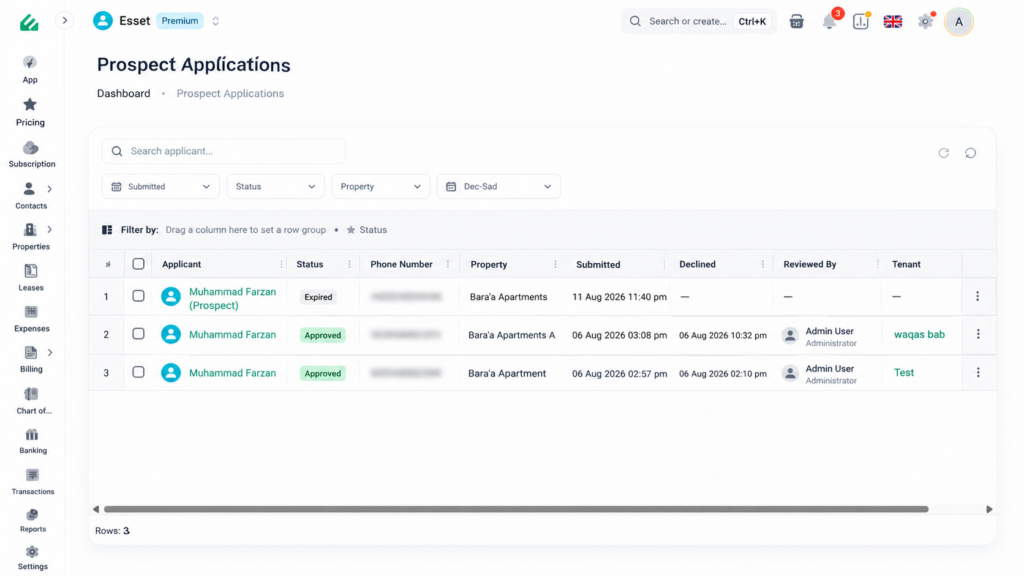
Before someone becomes a tenant, they can submit an application through a form you send them, filling in their own details rather than having your staff type everything in manually. This section shows every application that’s come in, its status (Expired, Approved, and so on), which property it was for, and who reviewed it. This saves your team real clerical work.
Vendors
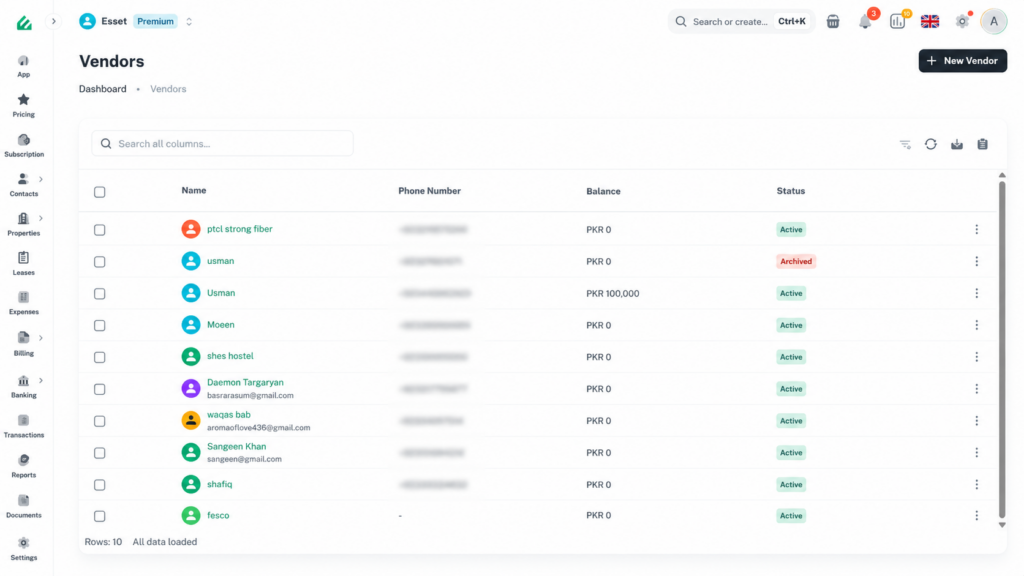
These are the businesses or individuals you pay for services, like utility companies, contractors, or maintenance staff. Each vendor entry tracks their contact info, balance, and status, so when you’re recording a bill or expense, you can quickly pull up who it’s owed to and how much you’ve paid them over time.
Owners
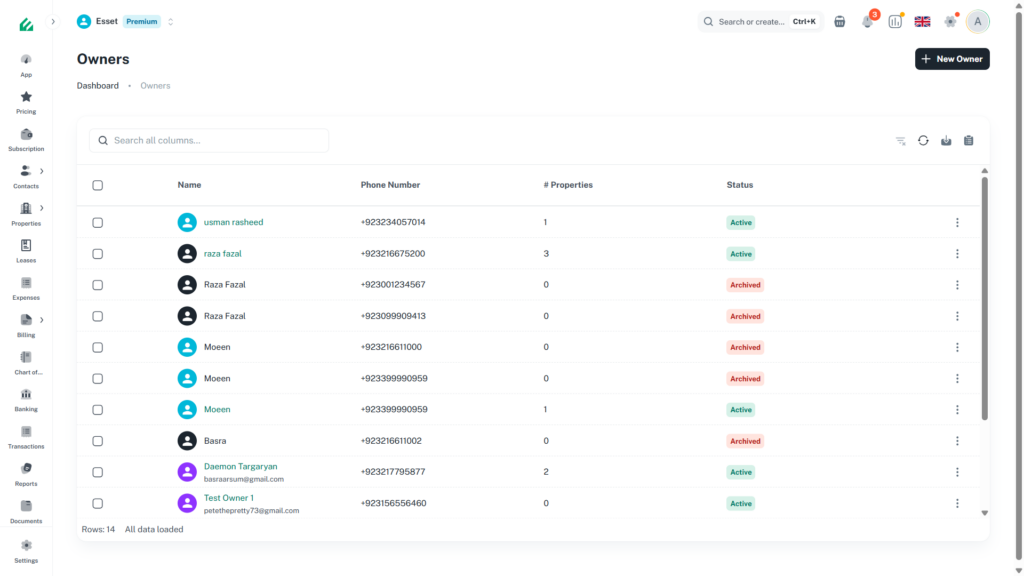
If you manage properties on behalf of property owners, this is where you keep track of them — their contact details, how many properties they own, and their status. Owners are linked to properties elsewhere in Esset, so this list gives you a quick way to see who’s behind which part of your portfolio.
Properties
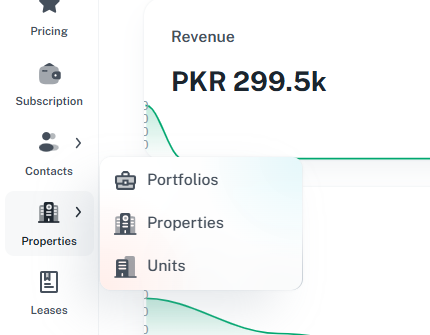
This section brings together everything you manage in properties and organizes it into three clear levels, which makes it easy to move from a high-level overview to the details of individual rentable spaces.
Portfolios
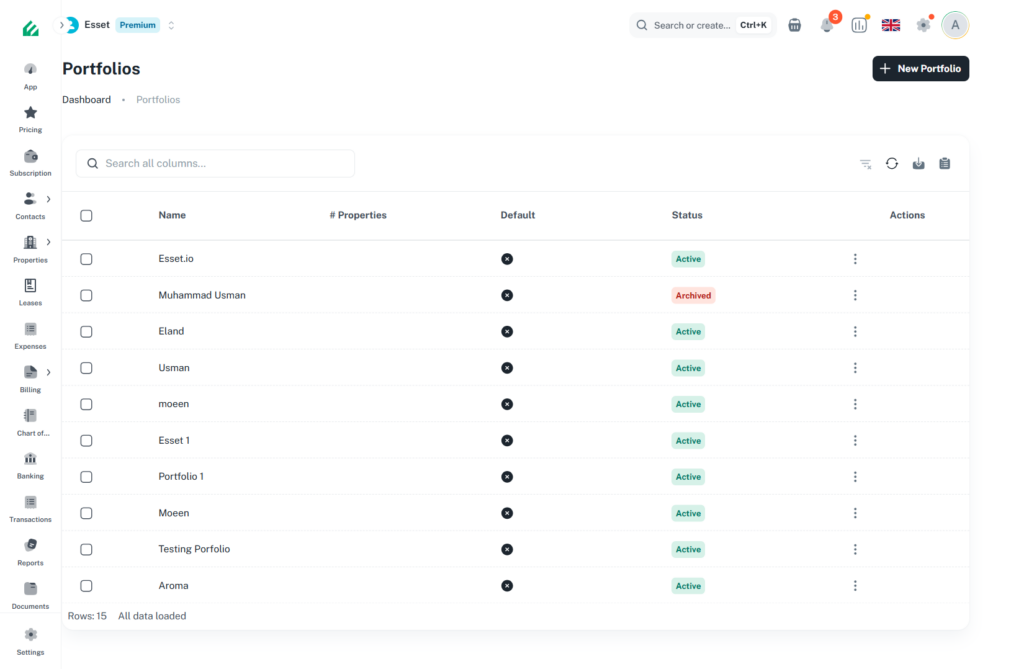
Portfolios are the broadest level and allow you to group multiple properties, often based on the owner, investment group, or another organizational structure. This makes it easier to view, manage, and report on several properties at once instead of having to work with each property individually.
Properties
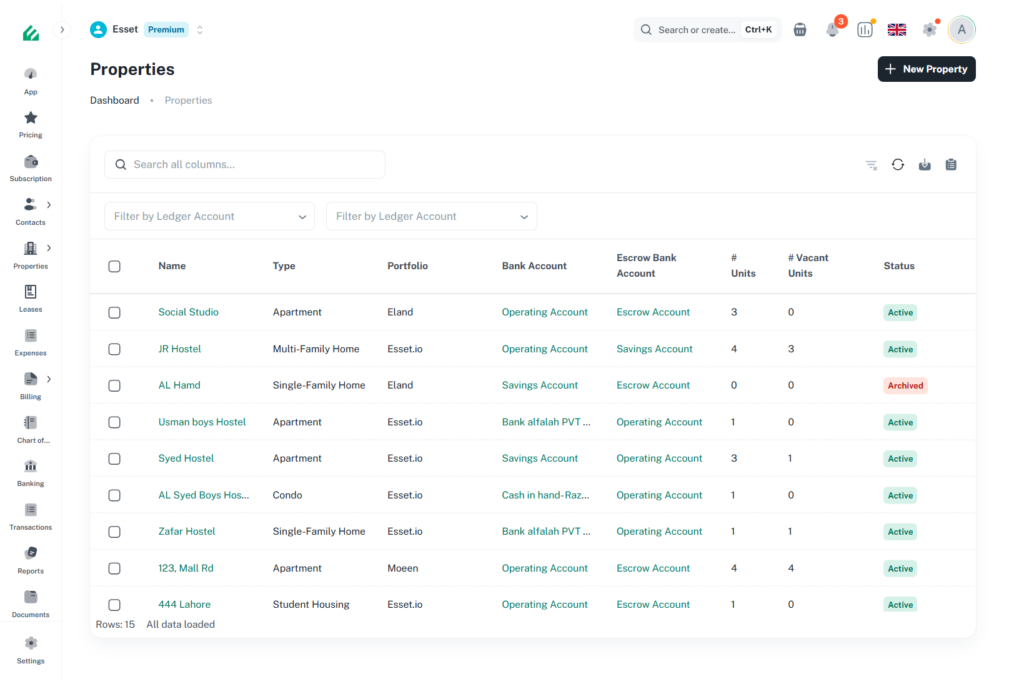
Properties represent your individual buildings or managed locations. Each property includes key information such as its property type, the portfolio it belongs to, linked bank and escrow accounts, the total number of units, and its current status.
Units
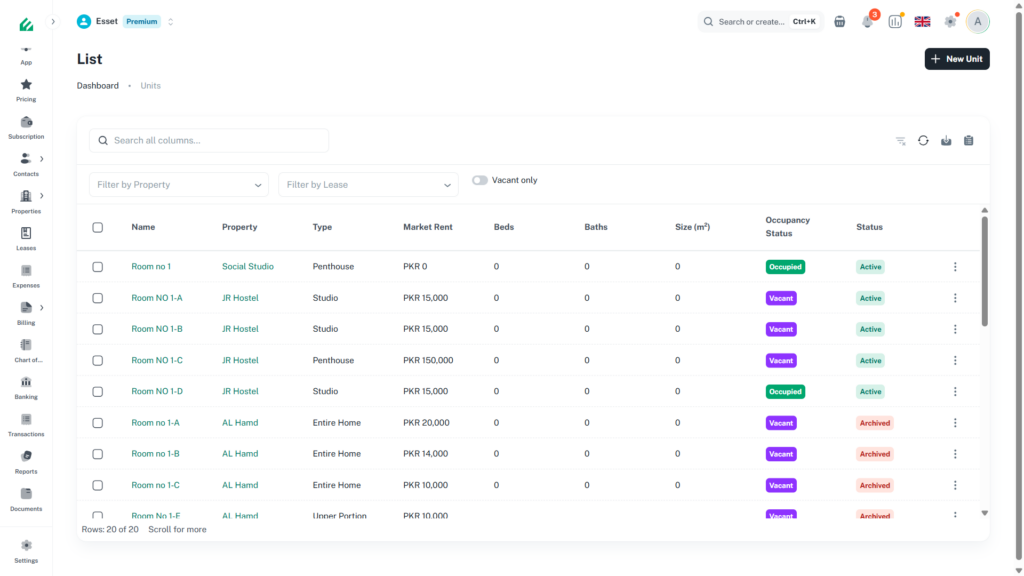
Units take you one level deeper by breaking each property down into its actual rentable spaces, such as apartments, rooms, or other individual portions of a building. Each unit includes important details such as market rent, number of beds and baths, size, and current occupancy status.
Leases
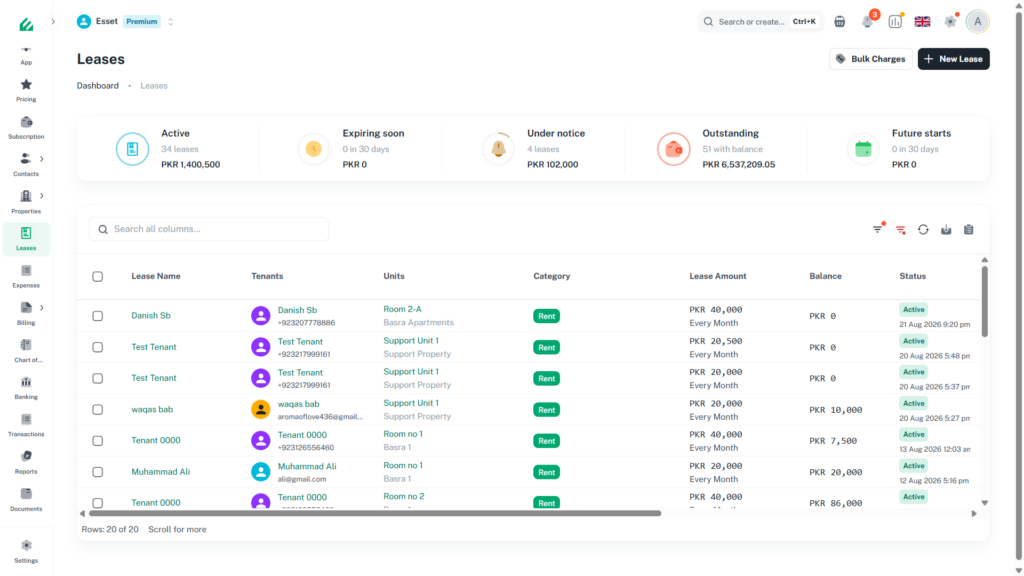
This section brings all the lease agreements across your portfolio into one place, giving you a clear overview of who is renting each unit, the current status of their lease, and where things stand financially. Whether you need to review an individual tenant’s agreement or quickly check the overall status of your leases, everything is organized here for easy access and tracking.
Expenses
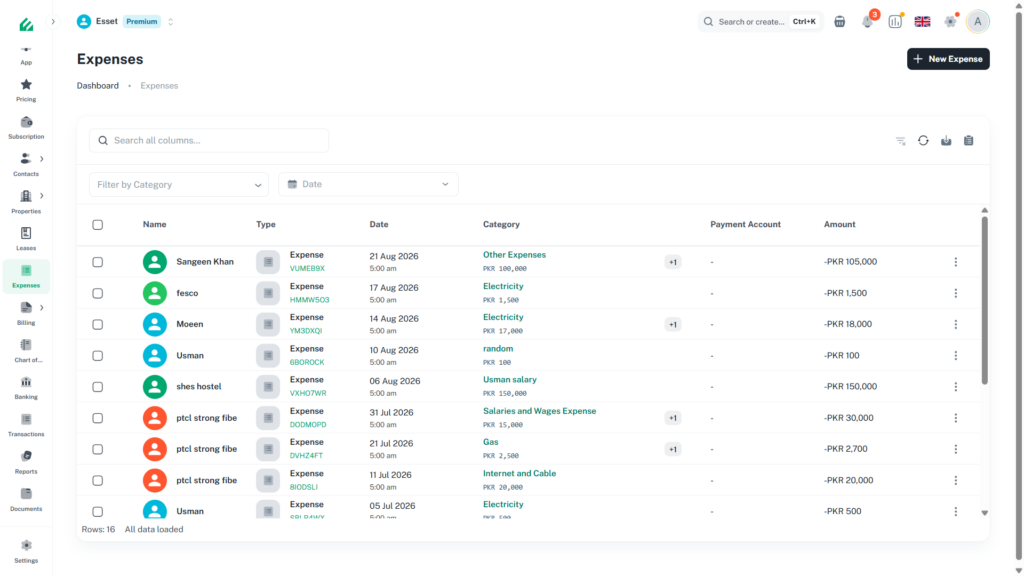
This section gives you a complete and organized record of the costs associated with your portfolio. From recurring expenses such as utility bills and salaries to one-time purchases and other property-related costs. This makes it easier to understand where your money is going and keep track of your overall spending without having to search through individual properties, accounts, or bills.
Billing
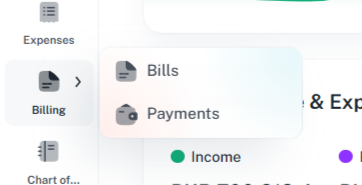
This section helps you keep track of your bills and the payments made toward them, giving you a clear view of what your business owes and what has already been paid. It is divided into two views, Bills and Payments, so you can manage the full payment lifecycle in one place.
Bills
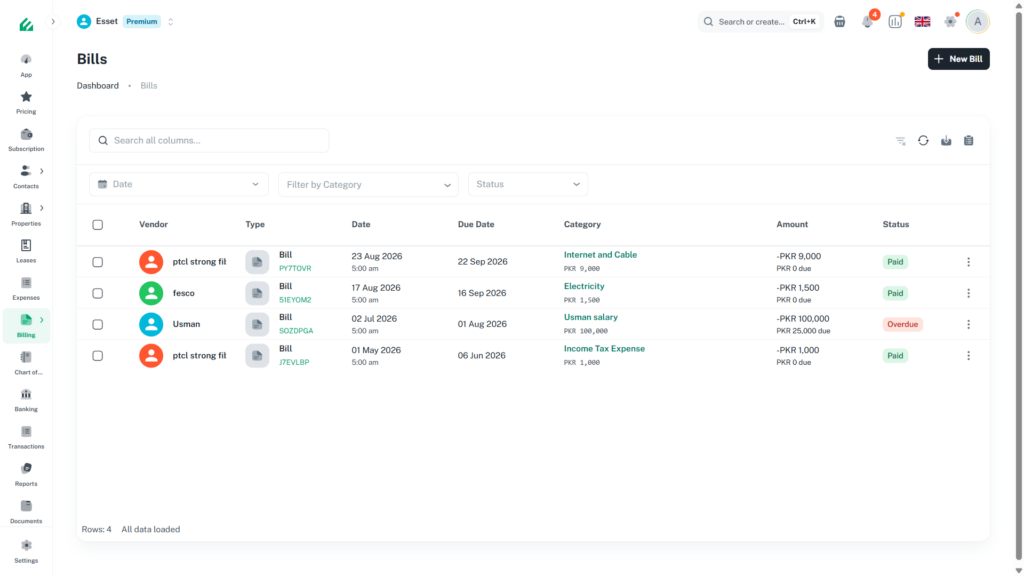
The Bills section contains the invoices and bills you’ve received from vendors and service providers. Each bill includes important details such as the vendor, category, due date, amount, and current status. Statuses such as Paid, Overdue, and other relevant stages help you quickly see which bills still need attention and which ones have already been settled.
Payments
The Payments section records the payments you’ve made toward your bills. When you pay a bill, the payment is recorded here along with details such as the payment date, reference code, amount, and payment method. This gives you a clear history of payments made against your bills and makes it easier to confirm when and how a bill was paid without having to manually trace the transaction.
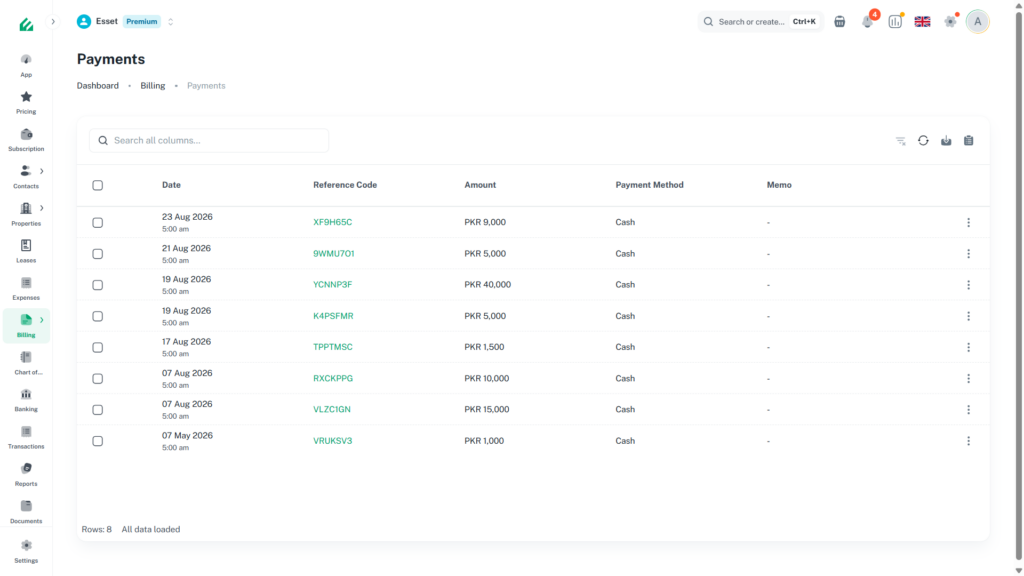
Chart of Accounts
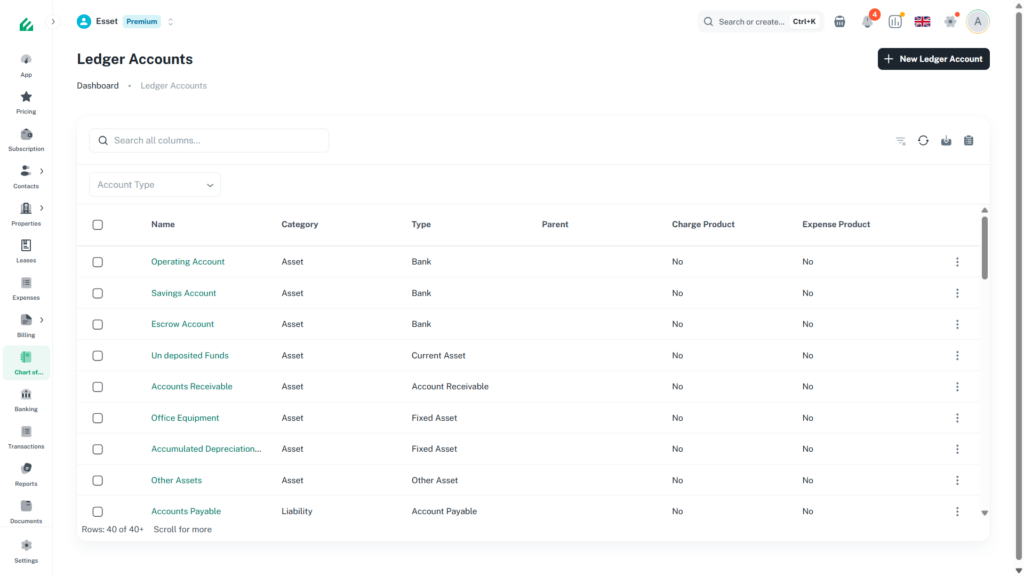
This section forms the foundation of Esset’s accounting structure. It contains a complete list of the ledger accounts used to organize and categorize your financial transactions, giving you a clear framework for how money is recorded throughout the system.
It covers a range of financial accounts, including Bank Accounts, Accounts Receivable, Fixed Assets, and Liabilities, with each one serving a specific role in organizing your financial records.
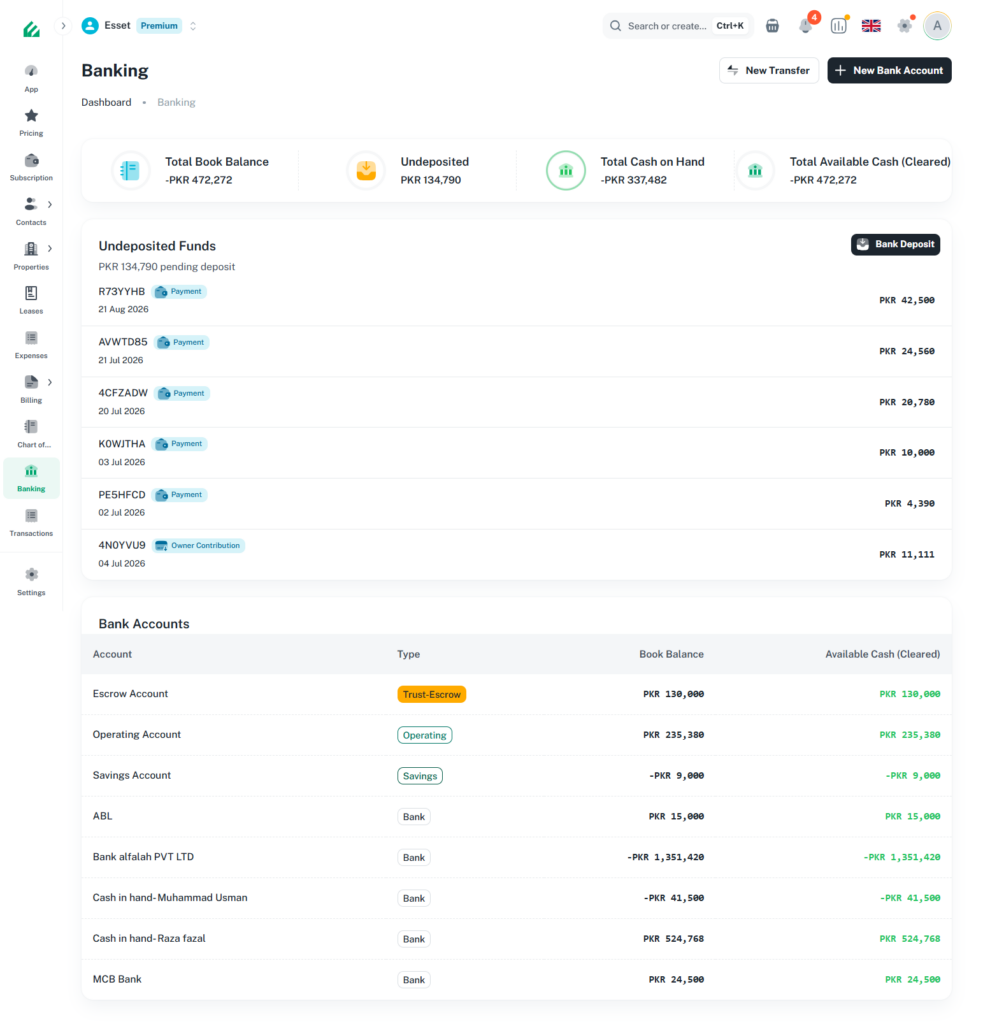
Banking
This section gives you a clear, up-to-date view of your cash position across all the accounts you use. It brings your cash balances and pending deposits together in one place, making it easier to understand how much money you have available and where it is currently held.
Transactions
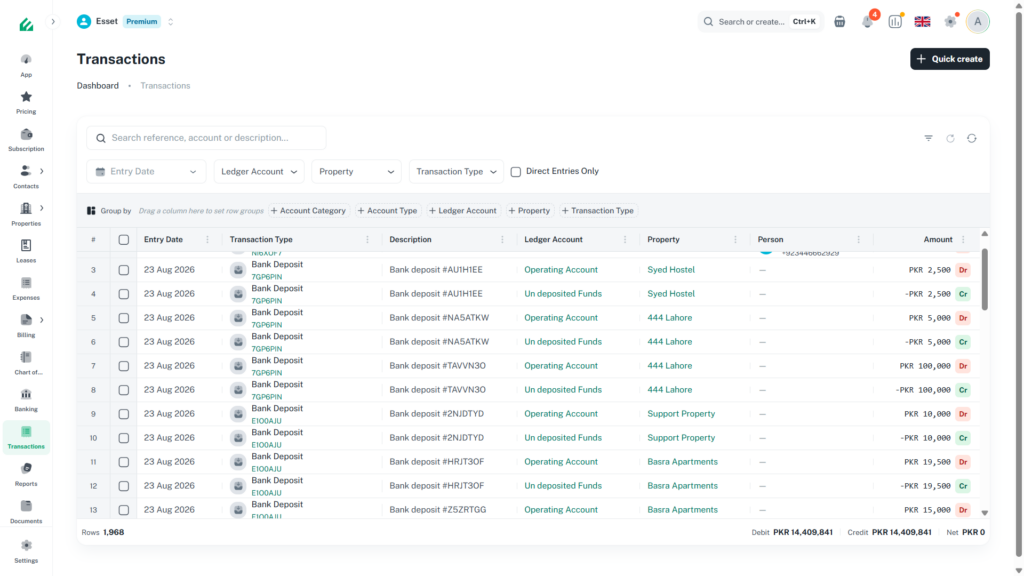
This section provides the most detailed view of your financial activity in Esset. It brings every transaction into a single register, including charges, payments, bill payments, and journal entries, so you can see exactly what has been recorded in your books. Whether you’re reviewing day-to-day activity or investigating a specific financial entry, this gives you a complete place to trace what happened.
Reports
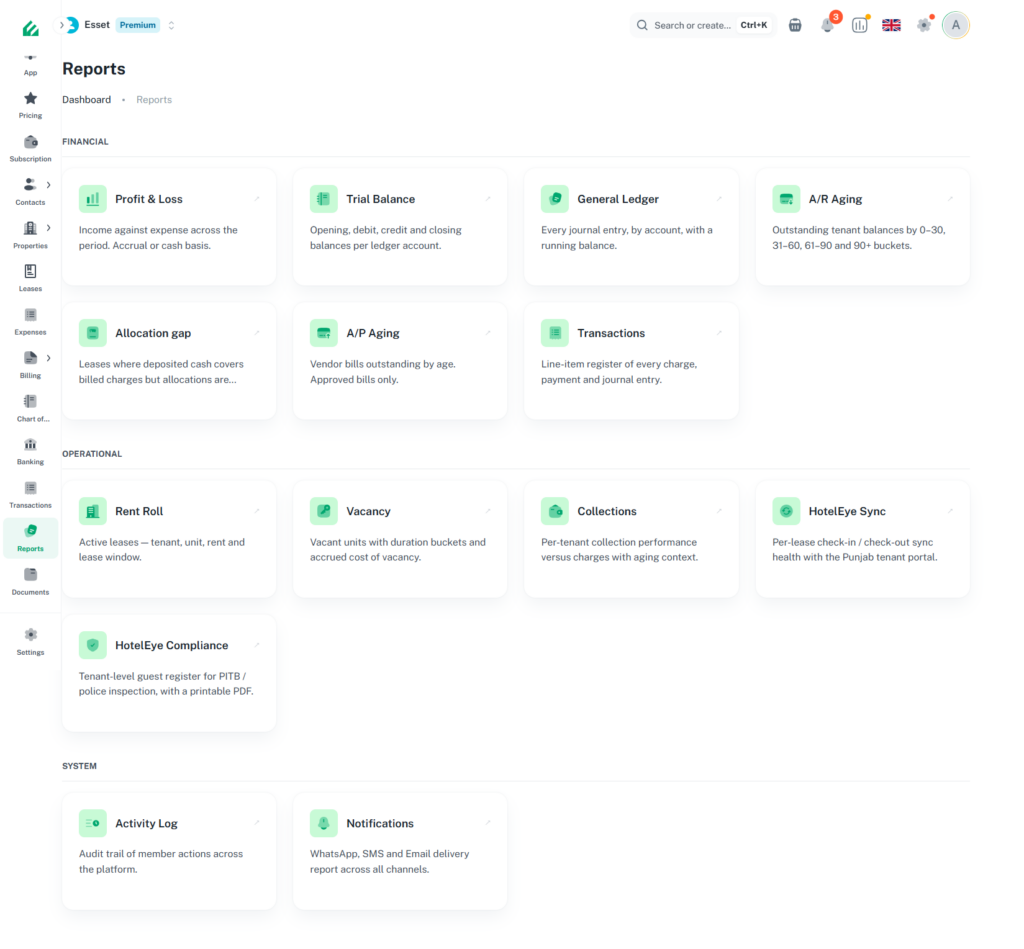
This section brings all of Esset’s available reports together in one place. This makes it easier to find the information you need without searching through different areas of the platform. The reports are organized into three main groups: Financial, Operational, and System, with each group focusing on a different part of your business and portfolio.
Documents
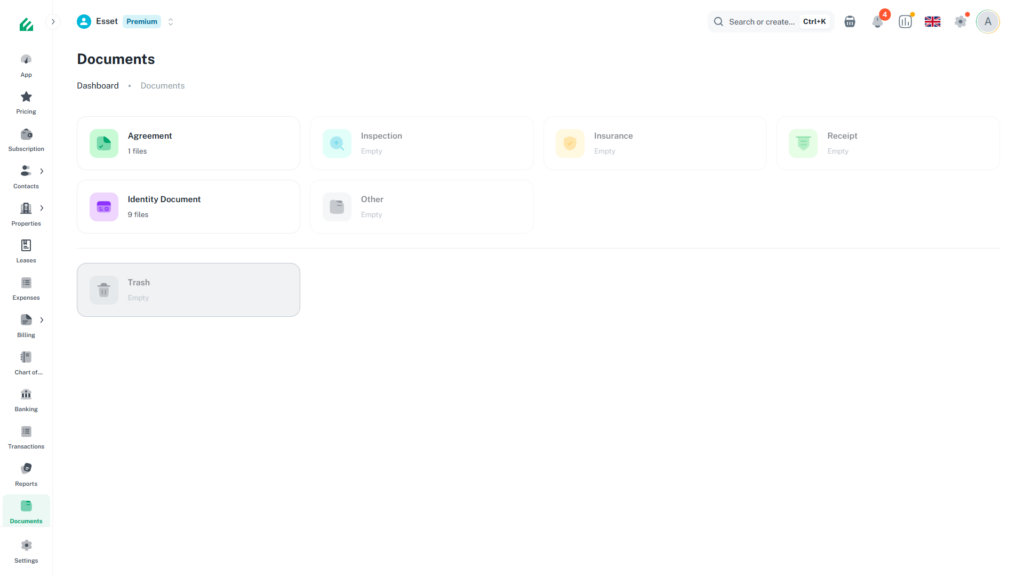
This section acts as a central file storage space for your portfolio, keeping important documents organized and easy to access. Instead of having files scattered across individual leases, properties, or other areas, you can manage them from one place and find what you need without having to search through multiple sections.
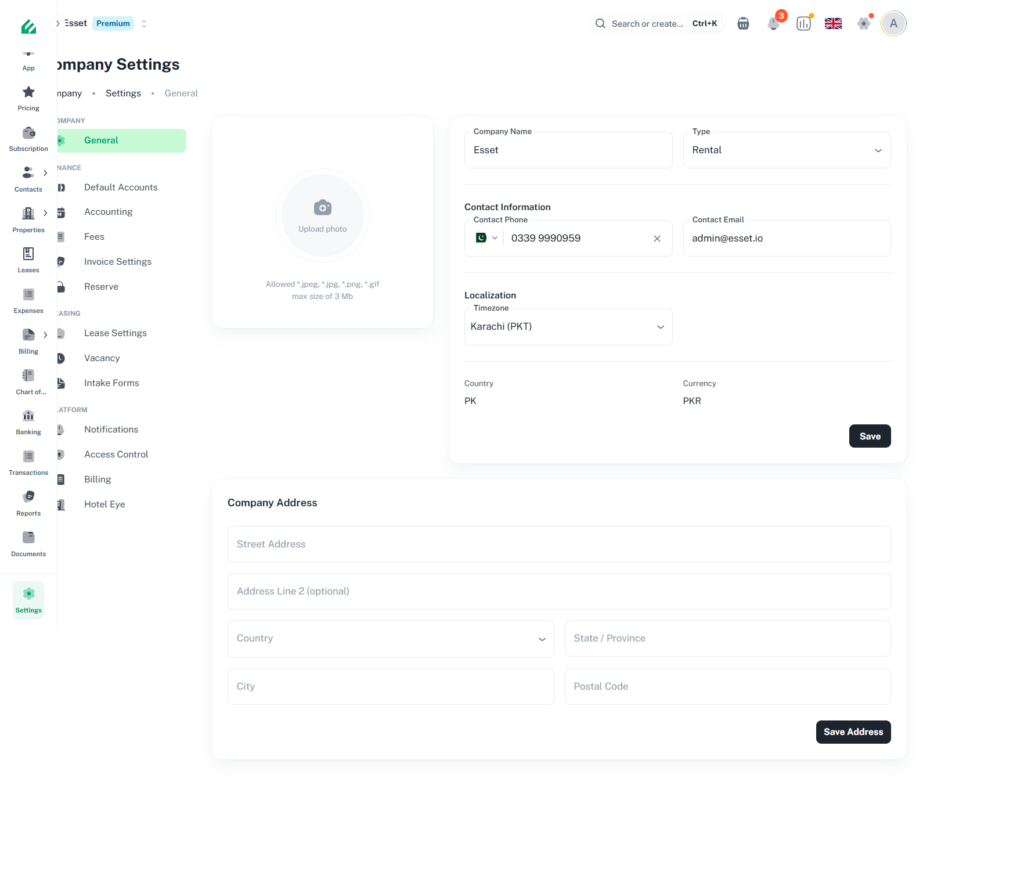
Settings
This section is where you manage the company-wide configuration for Esset. Instead of changing settings individually across different parts of the platform, you can use this area to define the rules, preferences, and integrations that apply across your organization. It brings the key administrative controls together in one place, which makes it easier to keep your setup consistent.
That’s the sidebar at a glance. Each section covers a lot more than fits here; look out for dedicated articles on Properties, Leases, Billing, and the rest as we cover them in depth.