
Esset sends out a steady stream of automated notifications on your behalf, including payment confirmations, overdue charge reminders, lease notices, and more, across Email, SMS, and WhatsApp.
The Notification Report is where you can see every notification sent through Esset, including who it was sent to, which channel was used, whether it was delivered or read, and why it failed if it couldn’t be delivered. In this article, we’ll walk through the report’s columns, filters, grouping options, and toolbar.
Your plan includes a limited number of Email, SMS, or WhatsApp notifications, so if you need additional capacity, you can purchase add-ons to increase your available notification allowance.
Before You Begin
- This report only shows notifications that Esset’s system has actually generated — it doesn’t include messages sent manually outside the platform.
Note: The Notification Report is different from the Notifications settings where you manage your automated notifications. The Notifications settings are where you decide which notifications to enable or disable, which channel to use, and what notifications Esset should send. The Notification Report is for tracking these notifications after they are generated, so you can see what happened, such as whether a notification was delivered, read, or failed.
Accessing the Report
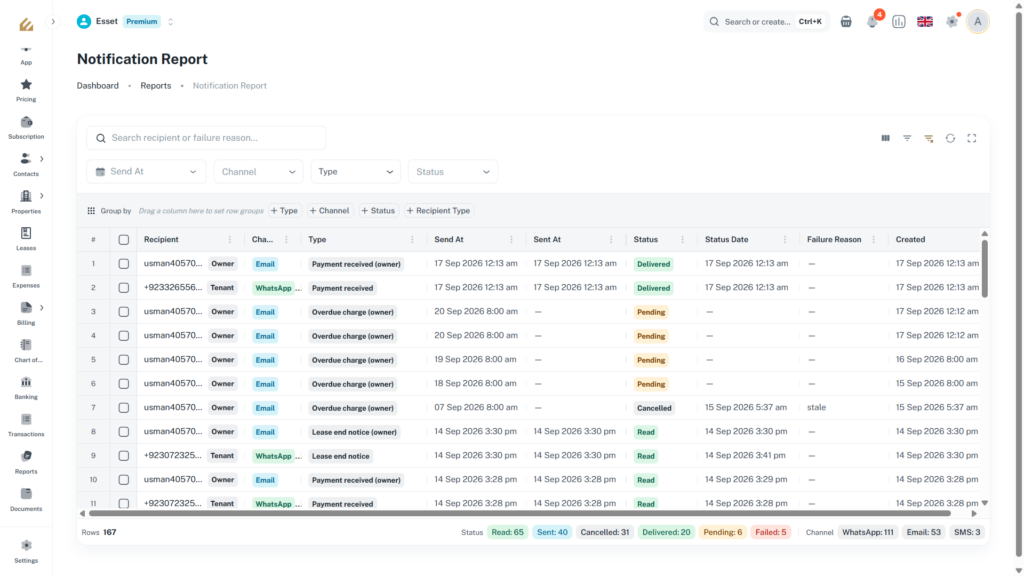
Open Reports from the left sidebar, then select Notification Report from the list of available reports.
Understanding the Notification Report
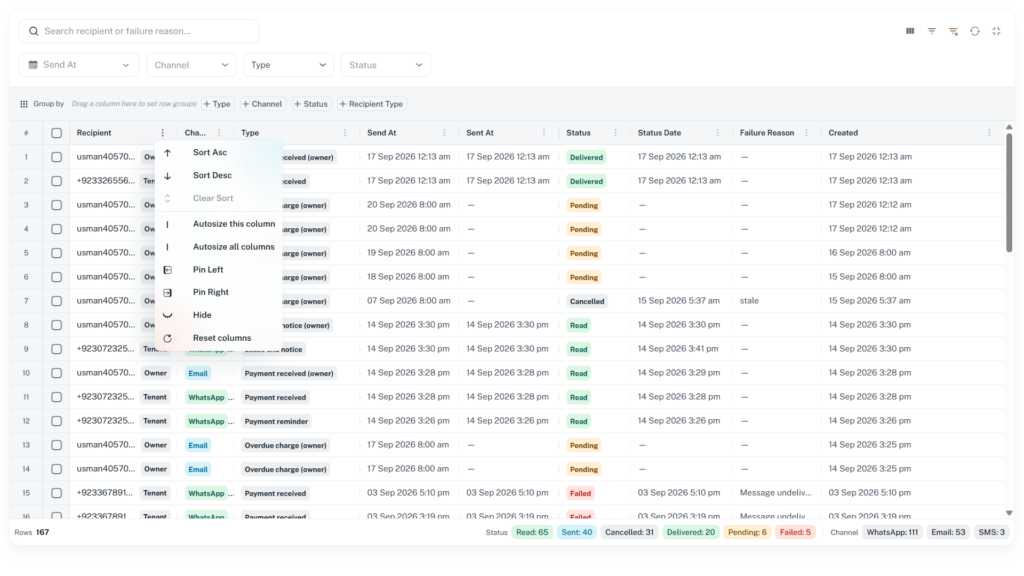
Each row represents a single notification sent to a single recipient. The columns are:
- Recipient: Shows the phone number or email address the notification was sent to, along with the recipient’s type, such as Owner or Tenant.
- Channel: Shows the channel used to send the notification, such as Email, SMS, or WhatsApp.
- Type: Shows the type of notification. See Notification Types below for more details.
- Send At: Shows when the notification was scheduled to be sent.
- Sent At: Shows when the notification was actually sent. If the notification has not been sent yet, such as when it is Pending, this field shows —.
- Status: Shows the current status of the notification. See Status Values below for more details.
- Status Date: Shows when the notification’s status was last updated.
- Failure Reason: Shows the reason a notification failed or could not be sent. This field is only populated when something goes wrong, such as stale for a cancelled notification or a message explaining a delivery failure.
- Created: Shows when the notification record was created in Esset.
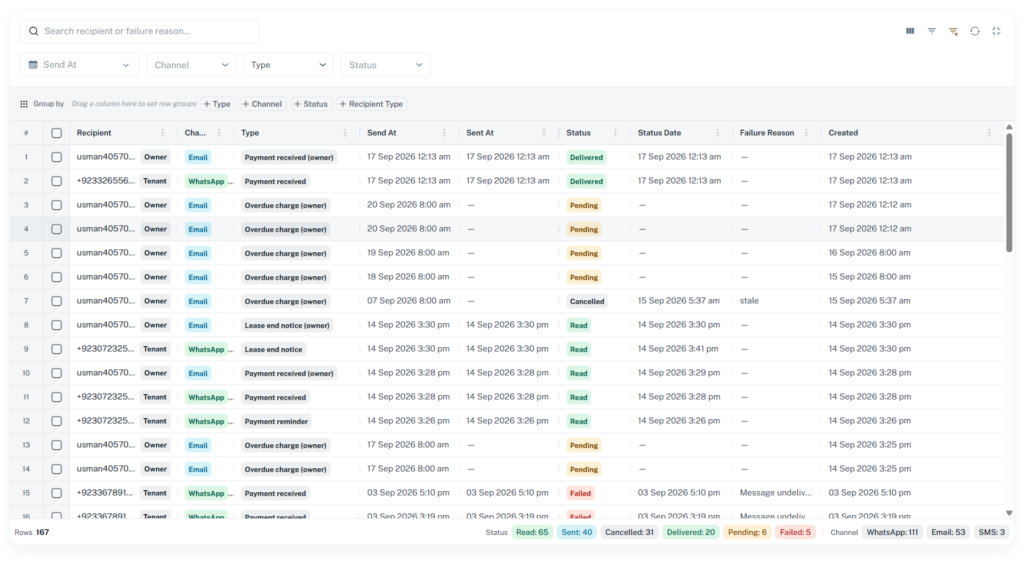
At the bottom, instead of the money totals you’d see on a financial report, the footer breaks down the current view by Status (Read, Sent, Cancelled, Delivered, Pending, Failed — each with a live count) and by Channel (WhatsApp, Email, SMS counts), alongside the overall Rows count.
Status Values
Every notification has one of six statuses that shows where it currently stands:
- Cancelled: The scheduled notification was cancelled before it was sent.
- Pending: The notification is scheduled but has not been sent yet.
- Sent: The notification has been sent, but delivery has not been confirmed yet.
- Delivered: The notification has been successfully delivered to the recipient.
- Read: The recipient has opened or read the notification.
- Failed: The notification could not be delivered. Check the Failure Reason column to see what went wrong.
A notification’s status can change over time as it moves from scheduled to sent, delivered, or read
Filtering the Notification Report
Four filters are available above the table to help you narrow down the notifications you want to review:
- Send At: Select a date range using the available presets, including Today, Yesterday, Last 7 Days, Last 30 Days, This Month, Last Month, This Quarter, This Year, or choose a Custom date range.
- Channel: Filter notifications by All, SMS, Email, or WhatsApp.
- Type: Use the searchable checklist to filter notifications by their type. Notification types are organized by recipient, such as Owner and Tenant, and include options such as Overdue Charge, Payment Received, Payment Reminder, Refund Issued, and Rent Increase Notice.
- Status: Filter notifications by All, Pending, Sent, Delivered, Failed, Read, or Cancelled.

More Filters (the funnel icon) opens a side panel with two additional date filters and a recipient filter:
- Sent At: Filter notifications by the date they were actually sent, separately from the scheduled Send At date.
- Created: Filter notifications by the date their records were created in Esset.
- Recipient Type: Use the searchable checklist to filter notifications by recipient type, including Tenant, Owner, User, Member, or Prospect.
Using the Notification Report Toolbar
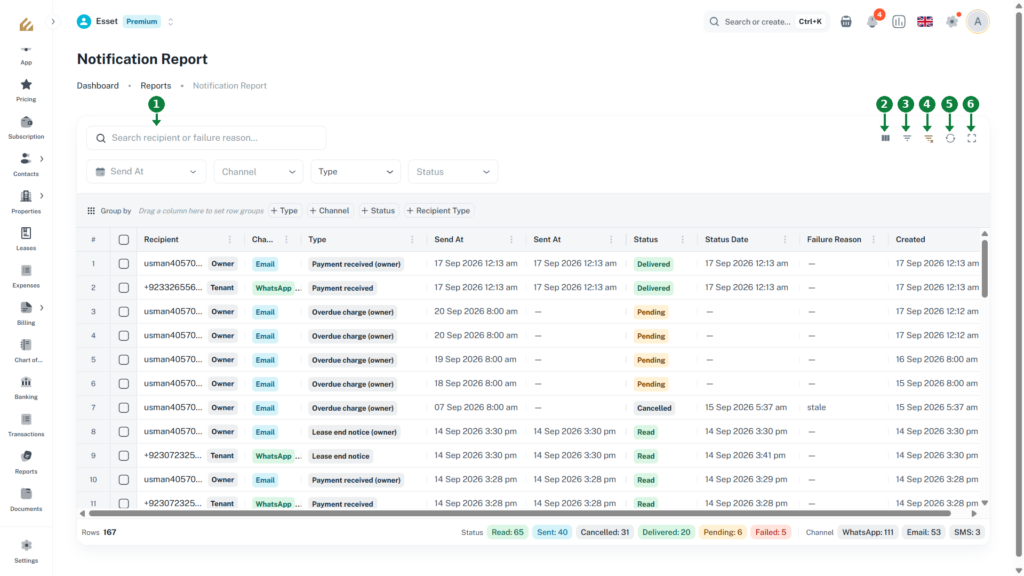
The report toolbar provides several tools to help you customize, filter, and navigate the notification data. Unlike some other Esset reports, this report does not include an Export as CSV option.
- Manage Columns: Show, hide, or reset the columns displayed in the report.
- More Filters: Opens the additional filter panel.
- Remove Filter: Clears any active filters and returns the report to its default view.
- Grid Refresh: Reloads the report with the latest data.
- Expand: Opens the report in full-screen view for easier viewing.
Grouping Rows
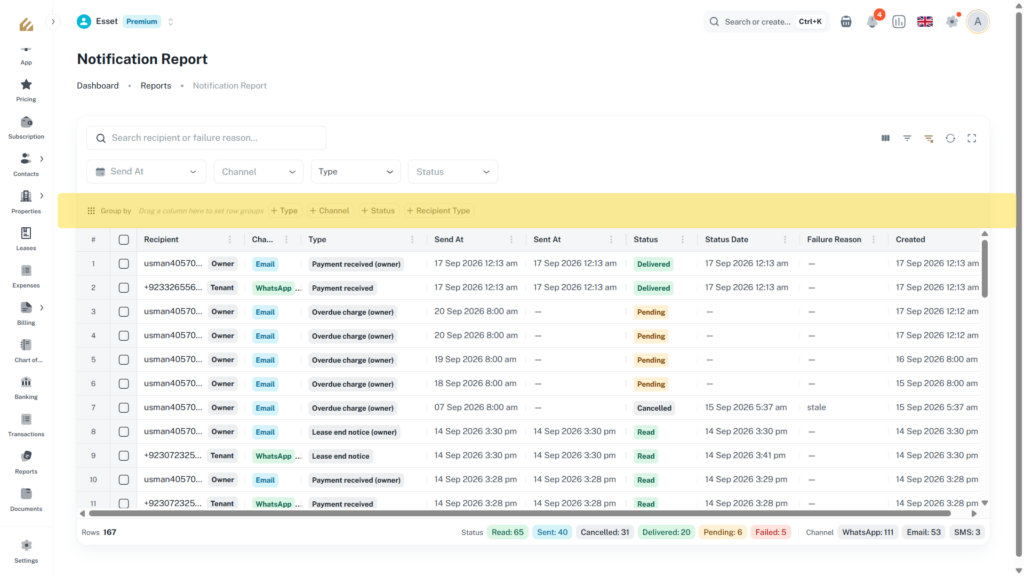
The Group by row offers four quick-add buttons: Type, Channel, Status, and Recipient Type. Use these options to organize the notification list into grouped rows. For example, grouping by Status lets you quickly review Failed and Pending notifications.
Customizing Notification Report Columns
Click the ⋮ icon on any column header for the same controls available across Esset’s reports:
- Sort Asc / Sort Desc / Clear Sort
- Autosize this column / Autosize all columns
- Pin Left / Pin Right
- Hide
- Reset columns
The Notification Report gives you a complete record of notifications generated by Esset, including the recipient, channel, status, and failure reason. Use the filters and grouping options to narrow the report and review specific notifications.
Keep the distinction between Send At and Sent At in mind: Send At shows when a notification was scheduled, while Sent At shows when it was actually sent. For failed notifications, check the Failure Reason column to understand what went wrong.