
Esset is invite-only, so adding a team member starts with sending them an invitation. Once they accept, they can sign in and start working. This article explains how to invite team members, assign roles, and control what each user can see and do through Access Control.
Before you begin
- Make sure you have permission to add new members (Typically as an Admin).
- You’ll also need the email address of the person you want to invite.
Open Members
In the sidebar, click Contacts, then Members from the dropdown.
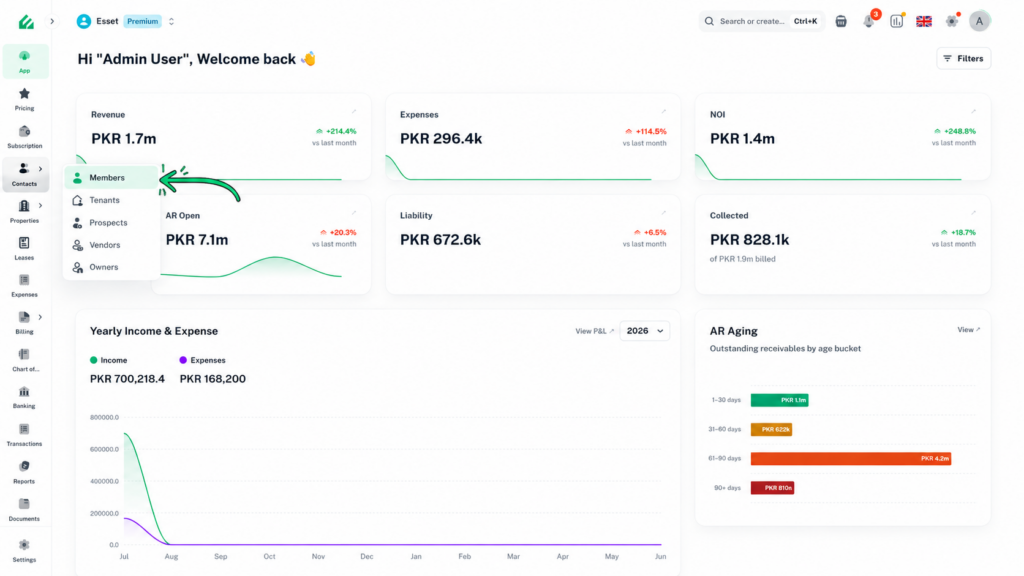
Contacts → Members
Start a new invitation
Click New Member in the top-right. This opens the New Invitation form.
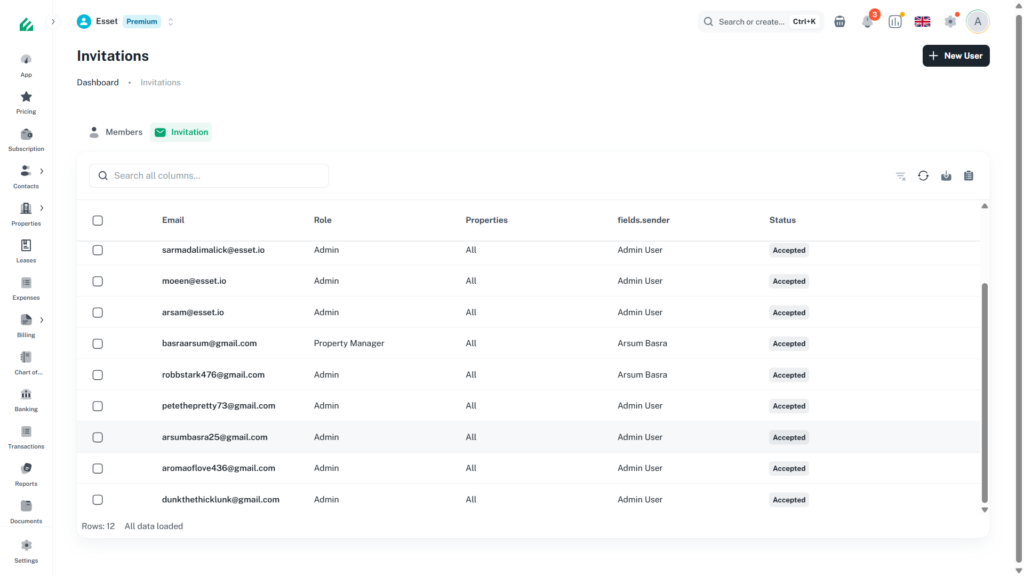
The Members List
Enter the Team Member’s Details
- Email: Where their invitation will be sent.
- Role: Choose Admin, Property Manager, or Accountant, or create your own custom roles based on your team’s needs. You can also rename existing roles and fine-tune their permissions from Settings → Access Control.
- Access: Toggle on. This user can access all portfolios and properties, or leave it off and choose specific Portfolio and Property values instead.
- Notes: Optional, for anything you want to record about this invitation.
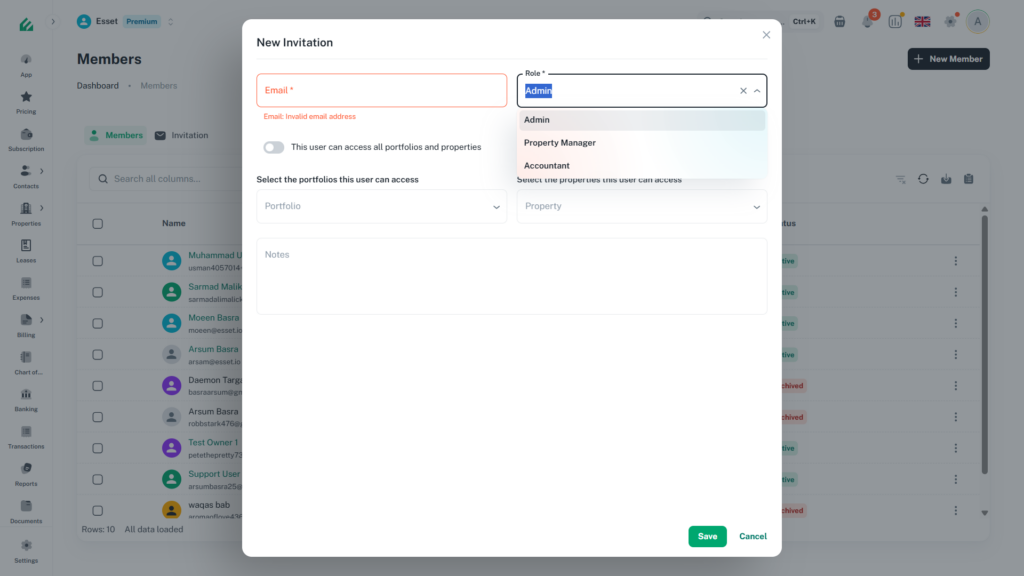
The New Invitation Form
Send the Invitation
Click Save. The invitation is sent, and it’ll show up under the Invitation tab with a status of Sent until they accept it.
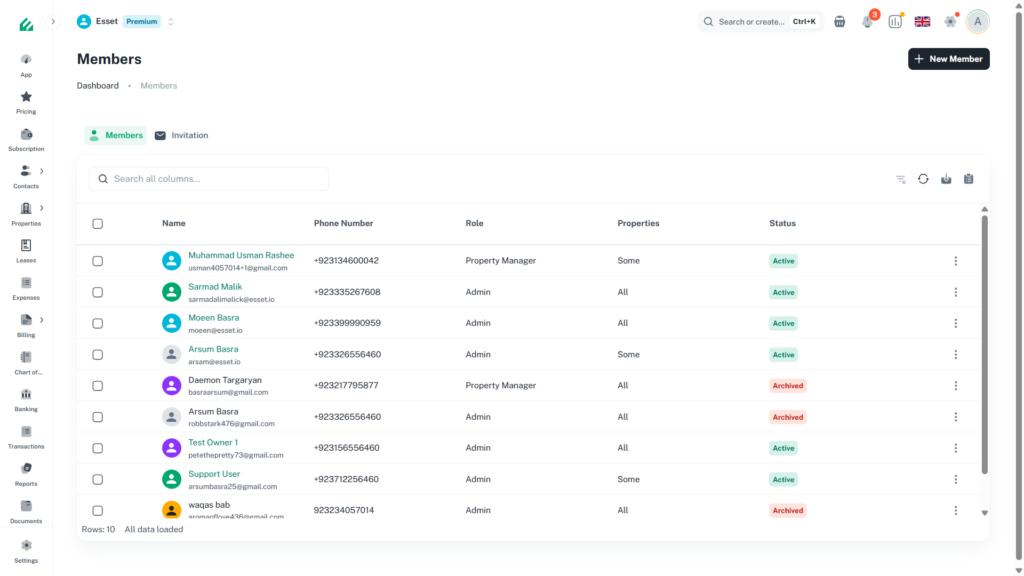
The Invitation Tab
Once accepted, the invitation moves into the Members list with an Active status.
Manage Roles and Permissions in Access Control
Once your team is invited, Settings → Access Control is where you can manage what each role can see and do. Esset comes with three built-in roles: Admin, Property Manager, and Accountant. You can also rename these roles or create your own custom roles, such as Data Entry Clerk, by clicking the “+” next to Roles and adding a name and description.
Above these roles is the Primary role, which belongs to the owner. It is managed by the system and always has full access to the account. The Primary role cannot be edited or restricted.
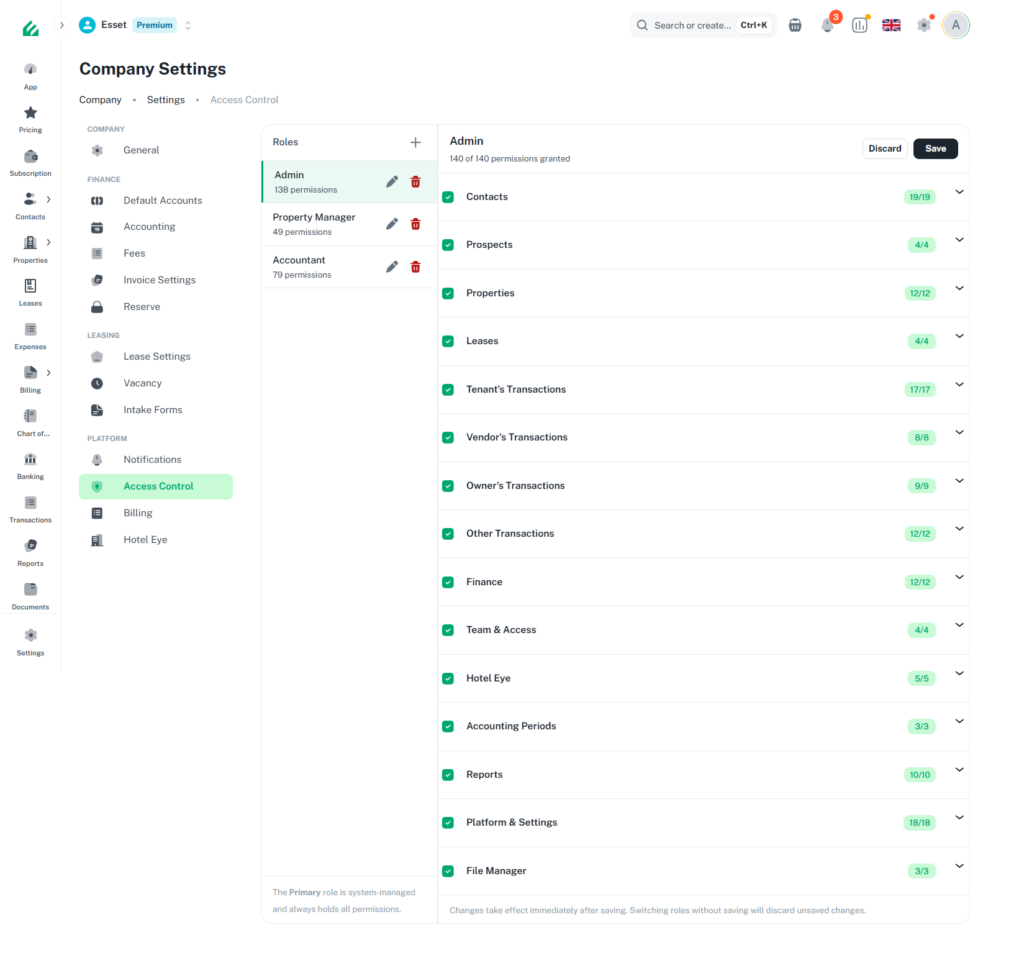
Roles and permission categories
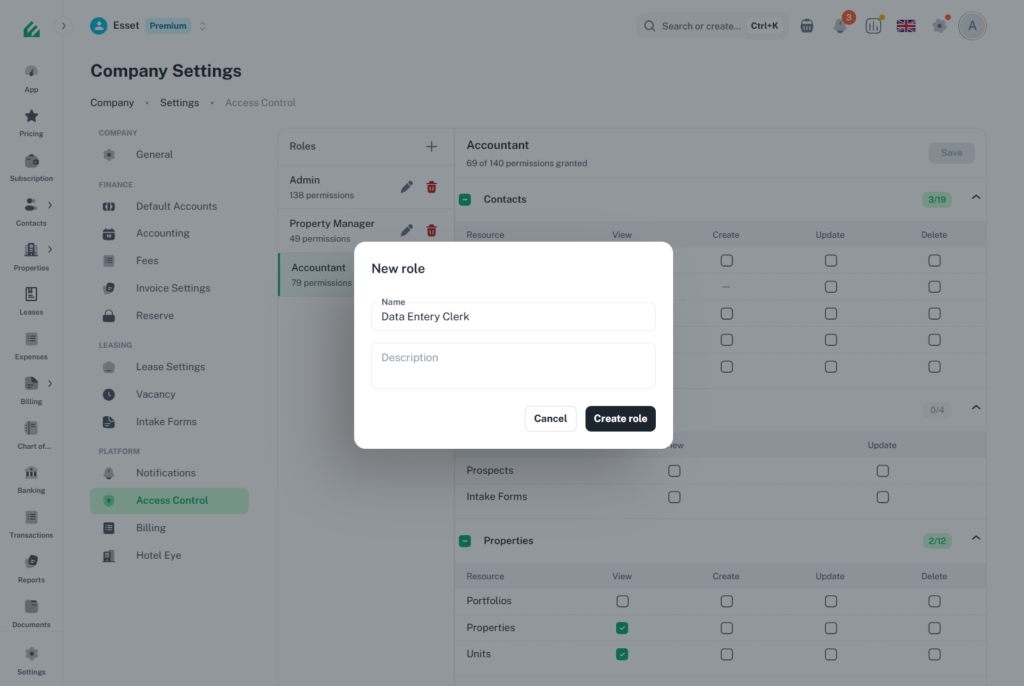
Adding New Role
For every role, permissions are organized into categories, each with View, Create, Update, and Delete columns (some categories add extra actions, like Reveal for sensitive data). Toggling a permission off doesn’t just hide a button — it removes that ability for anyone with that role, which is exactly the point: the fewer people who can create, edit, or delete sensitive records, the fewer chances for costly mistakes.
Contacts
Covers who can view or manage Tenants, Members, Owners, Vendors, and Invitations. Restricting Delete here (especially for Members and Owners) means a Property Manager can’t accidentally remove someone from your account — only an Admin can.
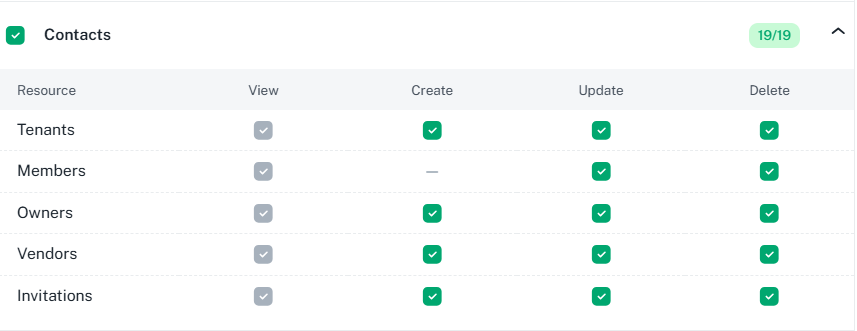
Access Control ➔ Contacts
Prospects
Covers Prospect applications and Intake Forms. Once a prospective tenant submits their application, your staff can only accept or reject it — they can’t edit the applicant’s submitted details. Keeping this limited to Property Managers or Admins avoids Accountants having a reason to touch tenant applications that don’t concern them.
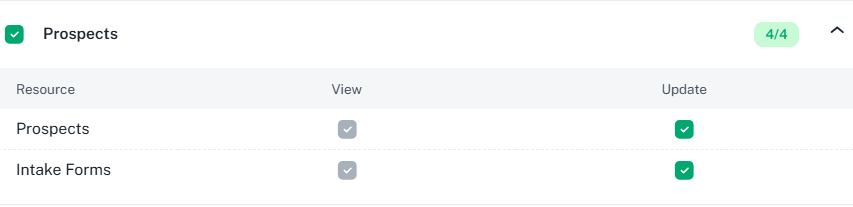
Access Control ➔ Prospects
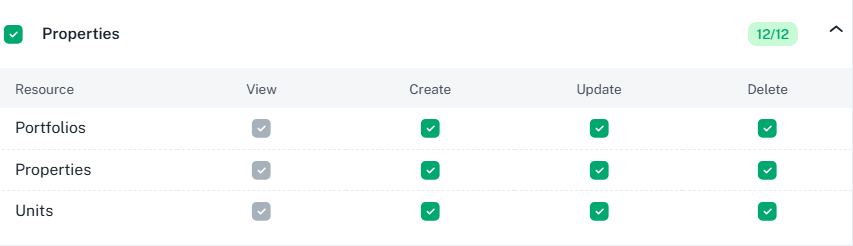
Properties
Covers Portfolios, Properties, and Units. Delete is worth restricting tightly here, as deleting a property or unit by mistake can break historical reports and lease records tied to it, so it’s safest kept Admin-only.
Access Control ➔ Properties
Leases
Controls who can view, create, or update lease agreements. Letting Property Managers create and update leases (but not delete) keeps daily leasing work moving without risking an entire lease being wiped out.

Access Control ➔ Leases
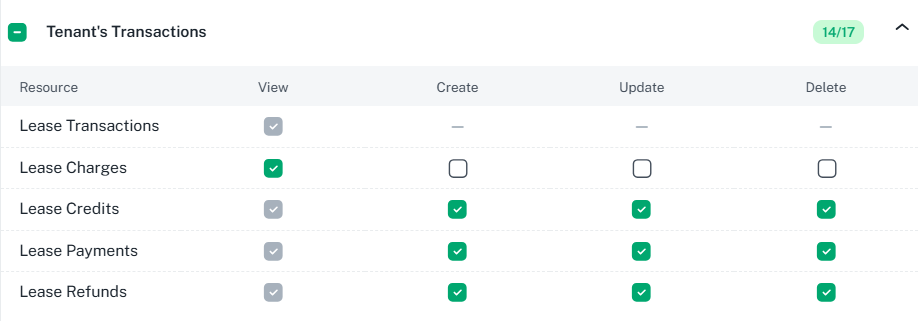
Tenant’s Transactions
Covers Lease Charges, Credits, Payments, and Refunds. This is where money actually moves in from tenants, so Create and Update are often given to Property Managers or Accountants for day-to-day work, while Delete is kept restricted.
Access Control ➔ Tenant’s Transactions
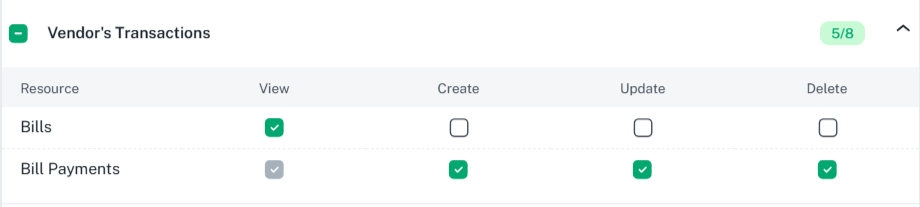
Vendor’s Transactions
This covers Bills and Bill Payments, money going out to vendors. Restricting who can create or approve bill payments is a direct safeguard against unauthorized spending.
Access Control ➔ Vendor’s Transactions
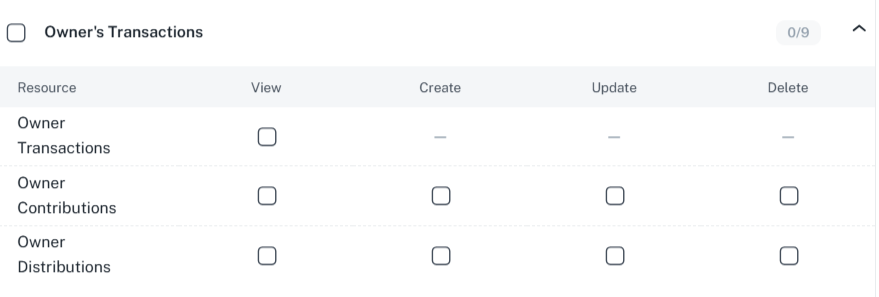
Owner’s Transactions
Covers Owner Transactions, Contributions, and Distributions. Since this affects how money is distributed to property owners, it’s one of the most sensitive categories — most teams keep this Primary account only.
Access Control ➔ Owner’s Transactions
Other Transactions
This covers Bank Deposits, Bank Transfers, Expenses, and the general Transactions register. Restricting Bank Transfers in particular limits who can move money between your accounts.
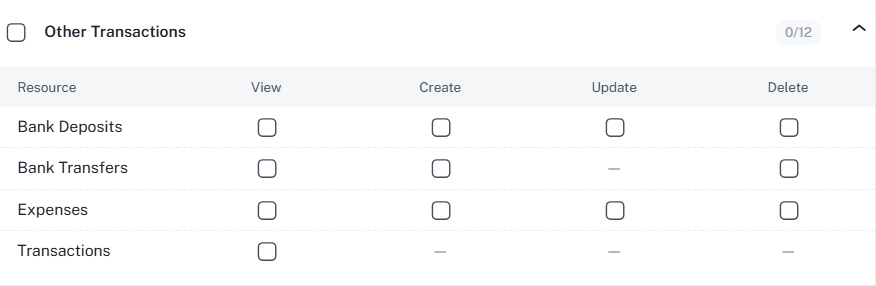
Access Control ➔ Other Transactions
Finance
Finance covers Journal Entries, Ledger Accounts, and Imports. It is the core accounting structure on which everything else is built. Mistakes here can throw off your entire chart of accounts, so this is usually limited to Accountants and Admins.
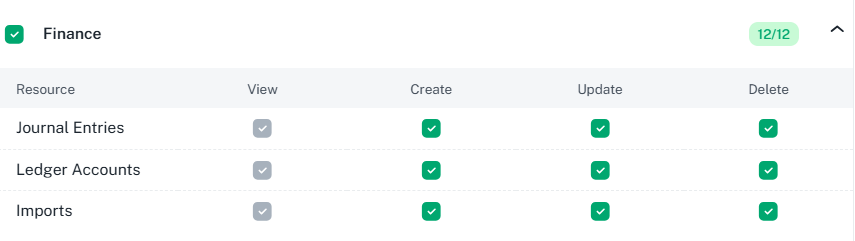
Access Control ➔ Finance
Team & Access
This controls who can manage roles themselves. Keeping this Admin-only prevents a Property Manager from granting themselves (or anyone else) more access than they should have.

Access Control ➔ Team & Access
Hotel Eye
Controls access to Hotel Eye Accounts, including a Reveal permission for sensitive sync data. Restrict this to whoever is actually responsible for compliance reporting.

Access Control ➔ Hotel Eye
Accounting Periods
Accounting Periods control who can close, reopen, or override a closed accounting period. This should almost always stay Admin-only, as reopening a closed period can affect financial reports that have already been finalized.

Access Control ➔ Accounting Periods
Reports
Controls which financial and operational reports a role can view, like Profit & Loss, A/R Aging, or the Activity Log. You might give Accountants full report access while limiting Property Managers to operational reports only.

Access Control ➔ Reports
Platform & Settings
This covers dashboard access and company-wide settings like billing, lease settings, vacancy settings, accounting settings, invoice settings, fees, and notifications. This is broad, so it’s worth reviewing carefully. Giving “Manage billing & subscription” to the wrong role means they could change your plan or payment details.
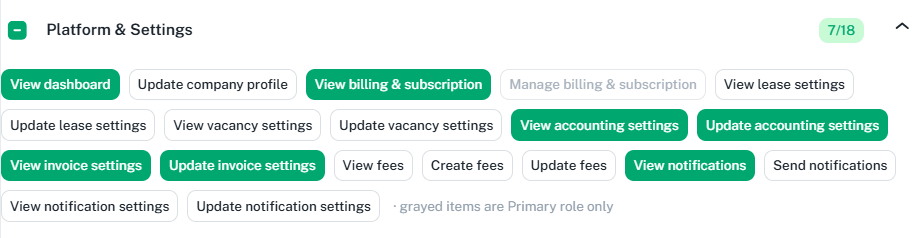
Access Control ➔ Platform and Settings
File Manager
Controls who can view, create, or delete documents. Restricting Delete here protects against important files (like signed agreements) being accidentally removed.
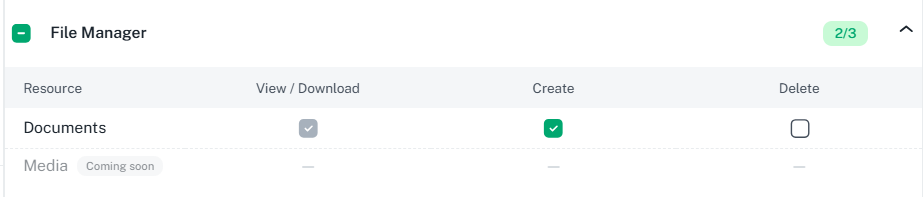
Access Control ➔ File Manager
Note: Changes to a role take effect immediately after saving. Switching between roles without saving will discard any unsaved changes.
That covers inviting your team and controlling their access. As your team grows, revisit Access Control from time to time; roles that made sense with two people often need tightening once you’re managing a larger team.