
Esset is invite-only, so there’s no sign-up form to fill in. Once your subscription is active, our team will add you as a user, and you’ll receive an email invitation to set up your password and access your Esset account.
This guide explains how to set up your Esset account, accept your invitation, create your password, and sign in for the first time.
Open your Esset invitation email
Look for an email from Esset.io ([email protected]) with the subject “Invitation to join Esset.” Check spam or promotions if it doesn’t show up within a few minutes.
Click Accept Invitation.
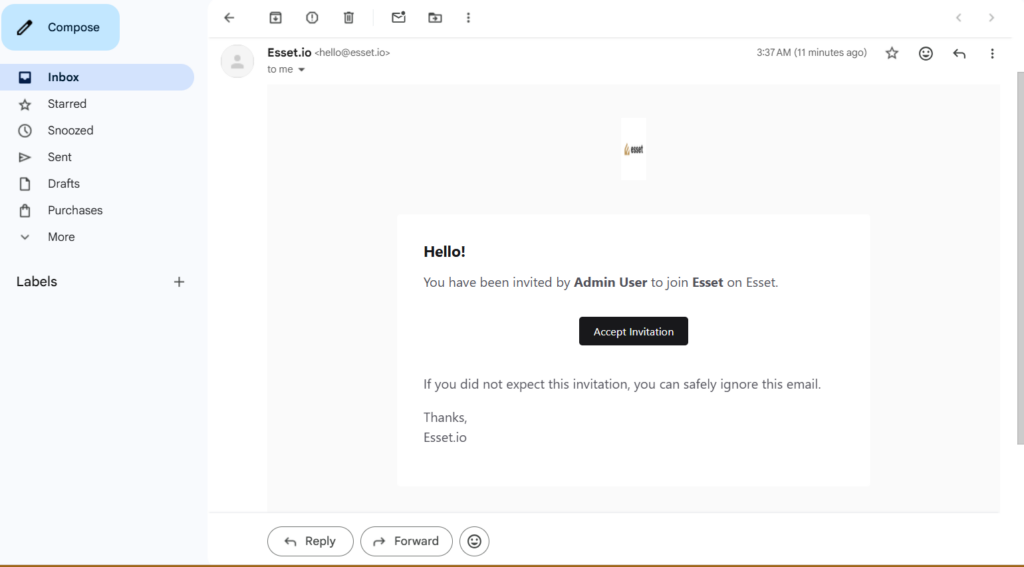
Invitation Email by Esset
Set up your Esset account and create your password
You’ll land on the Accept Invitation page. A blue banner confirms the account and role you’re joining — check that this is correct before continuing.
Fill in:
- First Name and Last Name
- Phone Number (select your country code first)
- Password and Confirmed Password
Click Accept.
Already accepted your invitation before? Click Return to sign in at the bottom of this page instead of filling in the form again
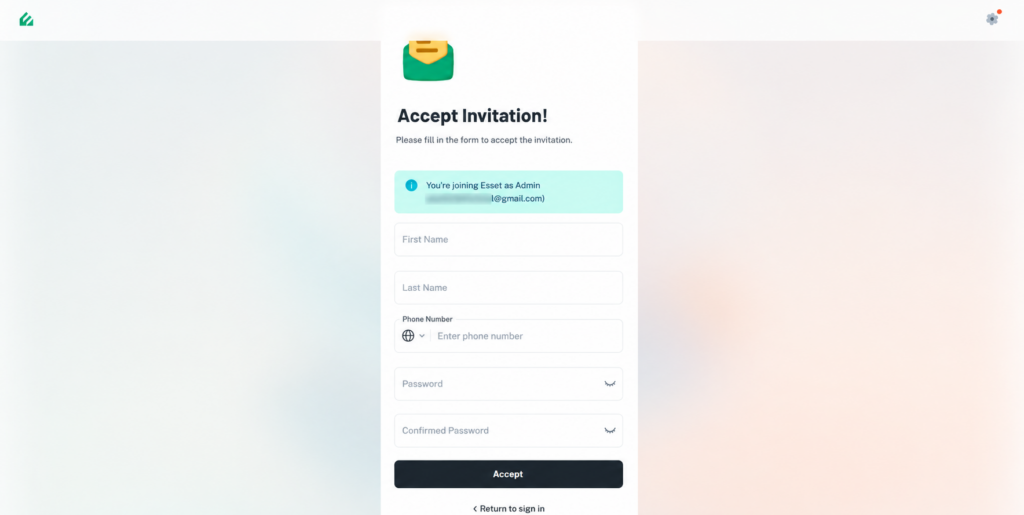
The Invitation Page
Sign in to your Esset account
You’re taken to the Sign in page. Enter the Email address and Password you just created, then click Sign in.
That’s it — you’re in your Esset workspace.
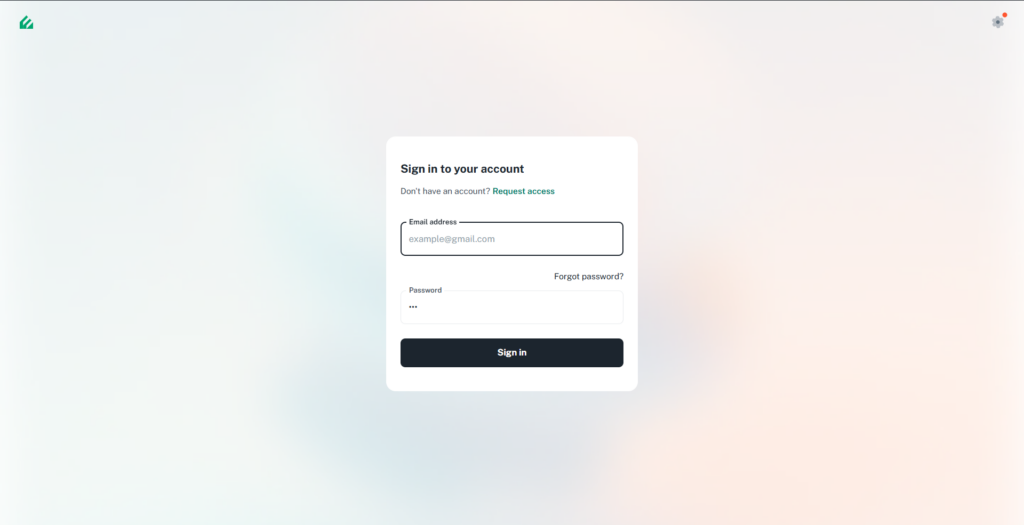
The Sign In Page
Now that you’ve signed in, learn how to navigate your Esset dashboard and get familiar with your workspace.
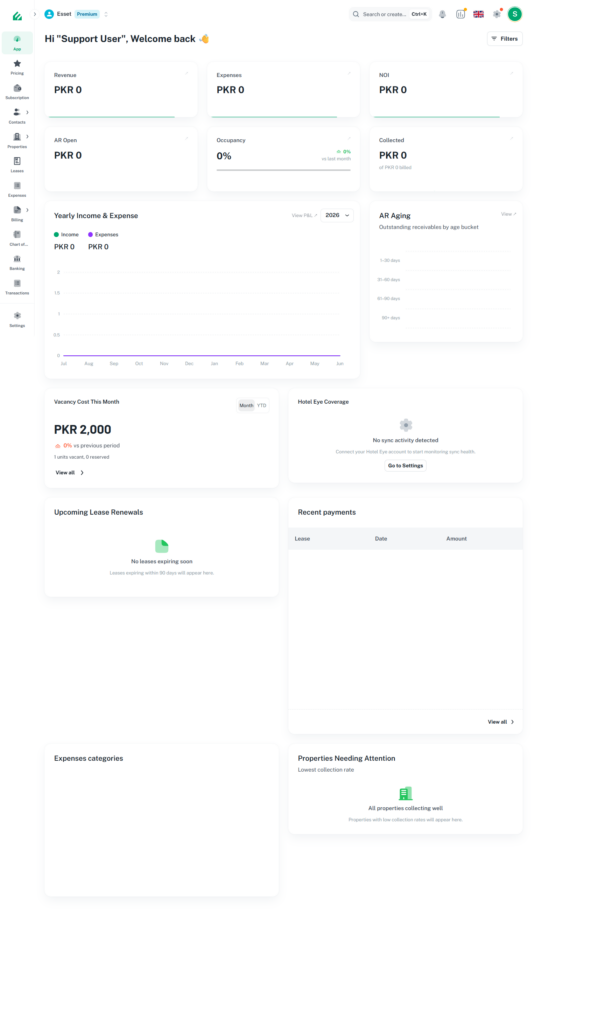
The Dashboard