
Transactions is Esset’s central ledger — every payment, charge, expense, bill, deposit, and transfer that happens anywhere in your account shows up here as a record.
Unlike most other lists in Esset, Transactions is read-only: you don’t edit or archive entries here, since each one is generated automatically by an action elsewhere. This article covers the Transactions list itself and where to go to actually record something new.
Why the Esset Transactions List Matters
Transactions is where you go to trace a property or tenant’s full financial history, reconcile a bank account against what Esset shows, track down a discrepancy in your numbers, or hand an accountant a complete record of activity. If something happened financially anywhere in Esset, it’s traceable here.
View Transactions in Esset
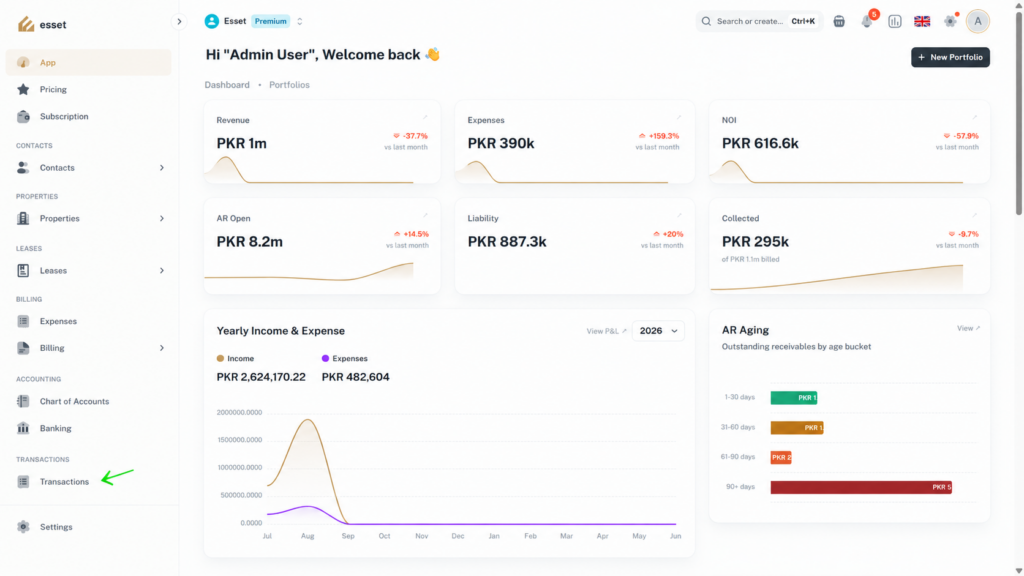
Go to Transactions in the sidebar.
The list shows Entry Date, Transaction Type (an icon and type name, like Payment, Charge, Bank Deposit, or Expense, with a short reference code underneath), Description, Ledger Account, Property, Person, and Amount — each amount is tagged Dr or Cr.
At the bottom of the list, you’ll see the total row count along with running Debit, Credit, and Net totals for whatever’s currently in view.
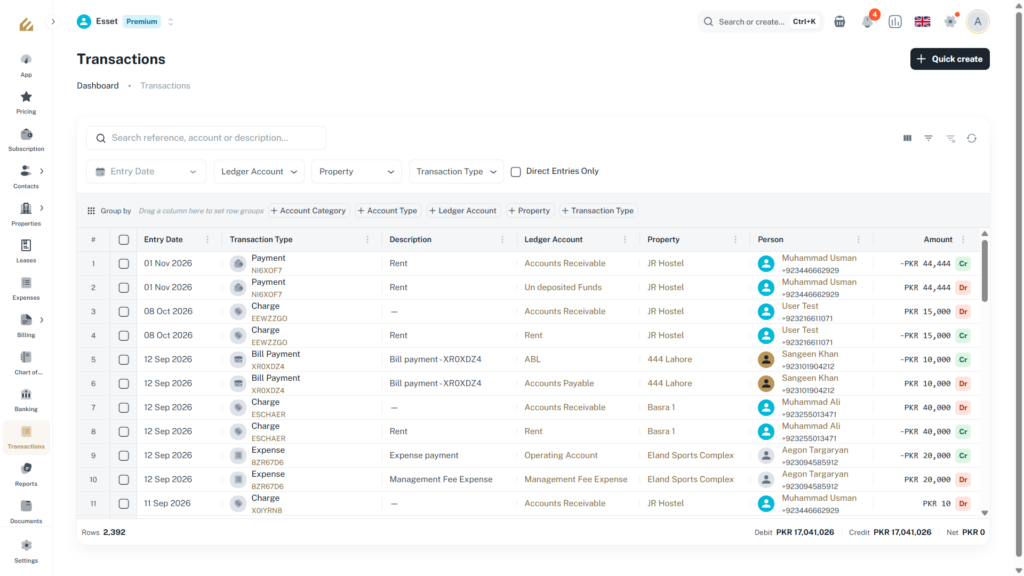
What Debit (Dr) and Credit (Cr) mean: Esset uses double-entry accounting, so every transaction is recorded on two sides that always balance out.
In simple terms: when money comes into an account (like a payment landing in your Operating Account), that’s a Debit; when money moves out of an account or clears a balance (like a tenant’s Accounts Receivable balance going down after they pay), that’s a Credit.
That is why the Debit and Credit totals at the bottom of the list always match, giving a Net of 0—it’s a quick way to confirm your books are balanced.
Transaction List Toolbar
To make transactions easier to review and manage, Esset provides several tools, filters, and grouping options in the transaction list.
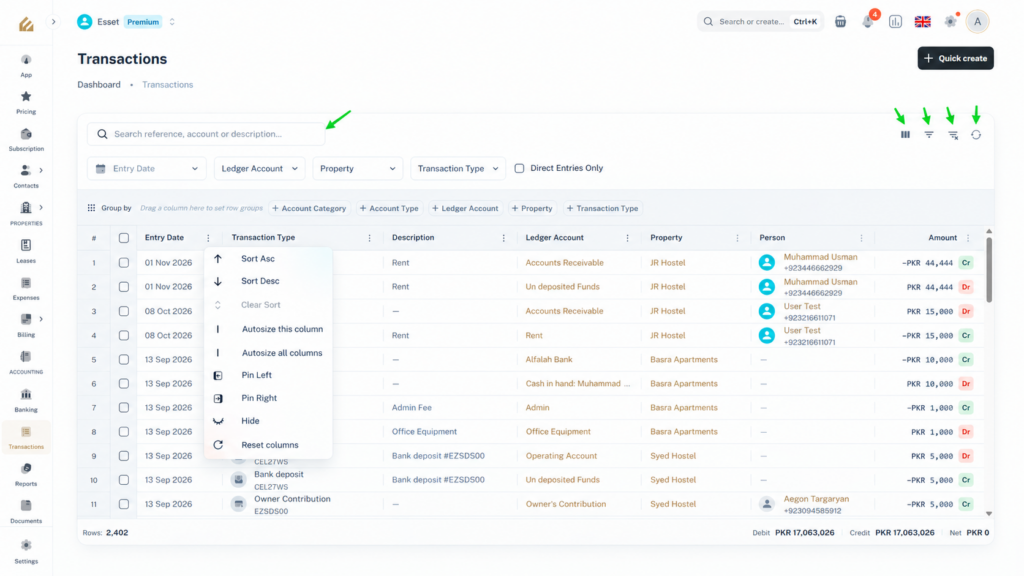
- Searchbar: Quickly find a specific transaction by entering relevant information in the search bar.
- Manage Columns: Show, hide, or reset which columns appear in the list.
- Export: Download the list as a CSV or JSON file, with options for the filename, including headers, and including only visible columns.
- More Filters: A shortcut to the filter dropdowns above.
- Remove Filter: Resets any search or filter you’ve applied and returns the list to its unfiltered view.
- Refresh: Reloads the list with the latest data.
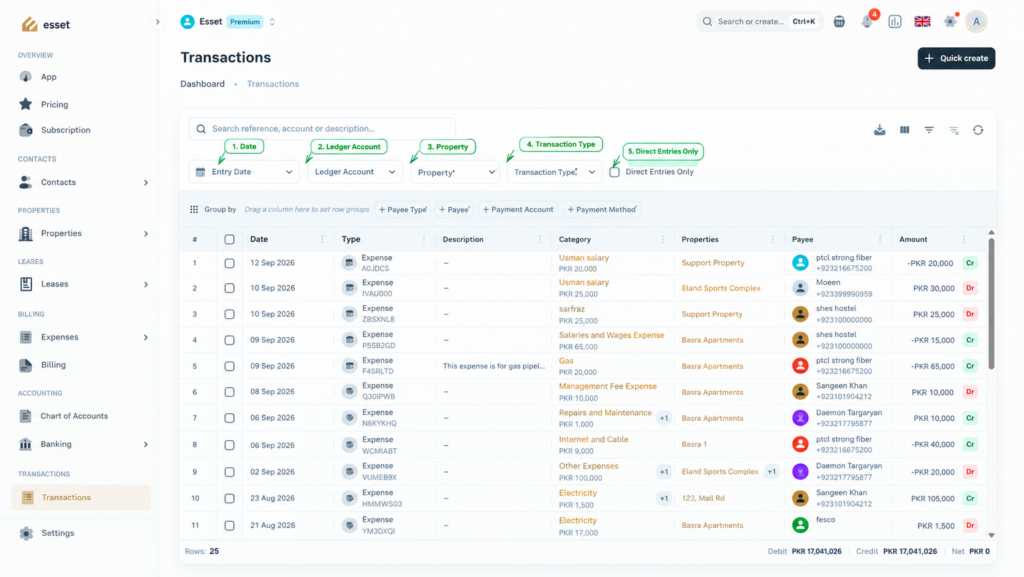
Filter Transactions
Above the list, you can filter by Entry Date, Ledger Account, Property, and Transaction Type, plus a Direct Entries Only checkbox to hide any transaction tied to a specific person (a tenant, vendor, or owner) and show only entries with no person attached.
Group Transactions
Drag any column header into the Group by row, or use one of the quick-add buttons — Account Category, Account Type, Ledger Account, Property, Transaction Type — to collapse the list into groups with a count for each. Grouping by Property, for example, gives you one row per property showing how many transactions it has.
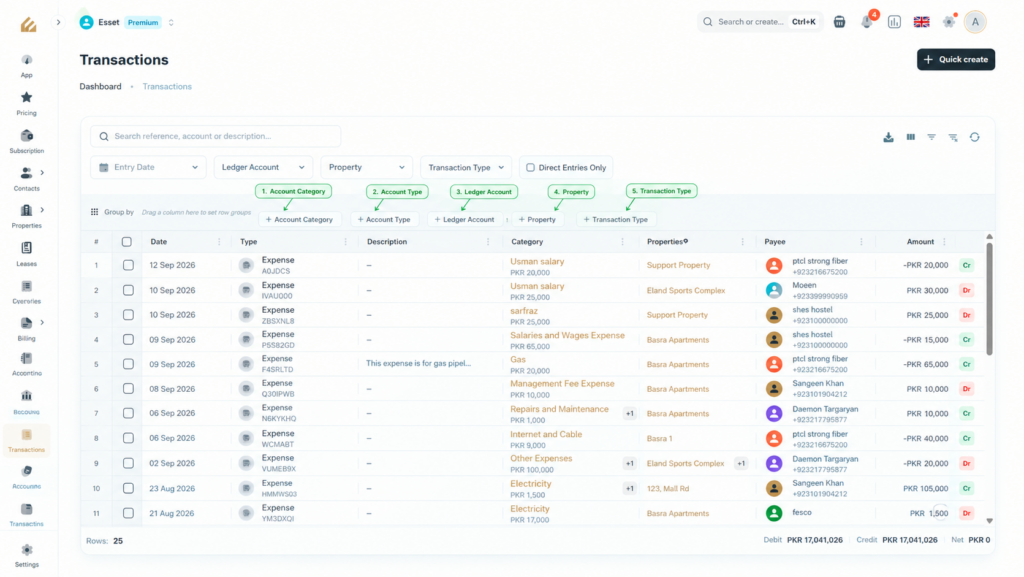
Customize Transaction Columns
You can customize the Transactions list from any column header. Click the ⋮ menu to sort the column in ascending or descending order, resize the current column or all columns, pin the column to the left or right, hide the column, or reset the column settings.
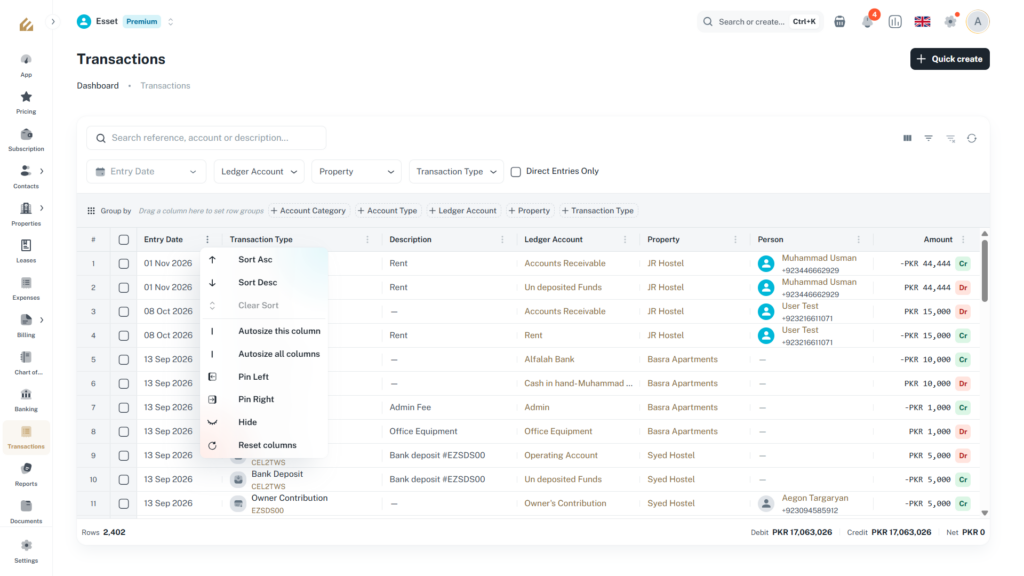
Record New Transactions with Quick Create
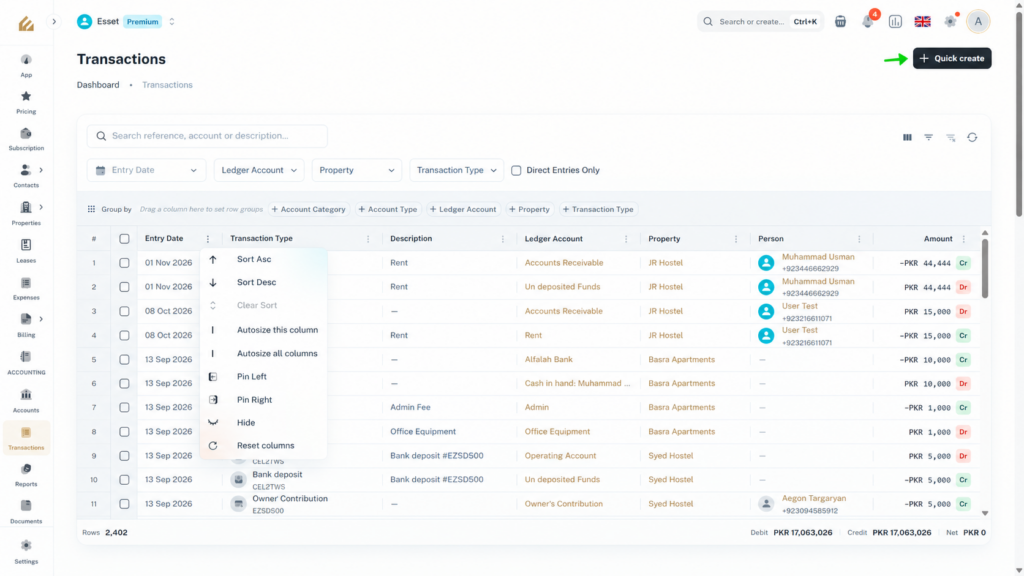
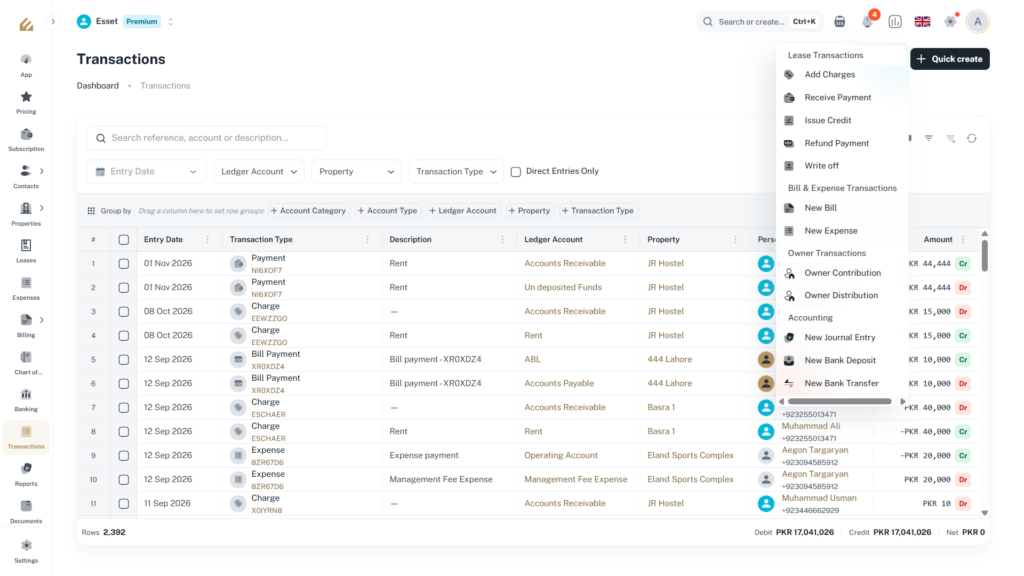
The Transactions list is read-only, so new entries are created through the Quick Create button at the top right.
Lease Transactions
- Add Charges — add a new charge, like rent or a fee, to a lease.
- Receive Payment — record a payment received from a tenant.
- Issue Credit — apply a credit to a lease’s balance.
- Refund Payment — refund money back to a tenant, such as a security deposit.
- Write off — write off uncollectable charges as bad debt.
Bill & Expense Transactions
- New Bill — record an unpaid amount owed to a vendor.
- New Expense — record a cost that’s already been paid.
Owner Transactions
- Owner Contribution — record money an owner puts into a property.
- Owner Distribution — pay out an owner’s share of distributable cash.
Accounting
- New Journal Entry — manually post a custom accounting entry.
- New Bank Deposit — record money deposited into a bank account.
- New Bank Transfer — move money between two bank accounts.
We’ll cover each of these in detail in their own article — Lease Transactions and Bills in the upcoming Leases and Bills articles, and Owner Transactions in the upcoming Accounting article. New Expense opens the same form covered in How to Add and Manage Expenses.
Think of Transactions as the paper trail behind everything else in Esset — once you record a payment, an expense, or a distribution somewhere else in the app, it lands here automatically, broken down into its debit and credit sides. You won’t create or edit anything directly from this list, but it’s the fastest place to search, filter, and group your way through your account’s full financial history.
When you do need to record something new, Quick Create is the shortcut — it’s grouped by what the transaction relates to (a lease, a bill, an owner, or general accounting), which is a good clue for where to look if you’re not sure which action you need.