
Every property in Esset is made up of one or more units — these are the actual rentable spaces (rooms, apartments, floors) that leases and tenants attach to. This article walks you through the Units list, adding and editing units, archiving them, and what the different status badges mean.
Before you begin
- You’ll need at least one property already created, since every unit must belong to one. See “How to Add and Manage Properties” if you haven’t added one yet.
View Your Units in Esset
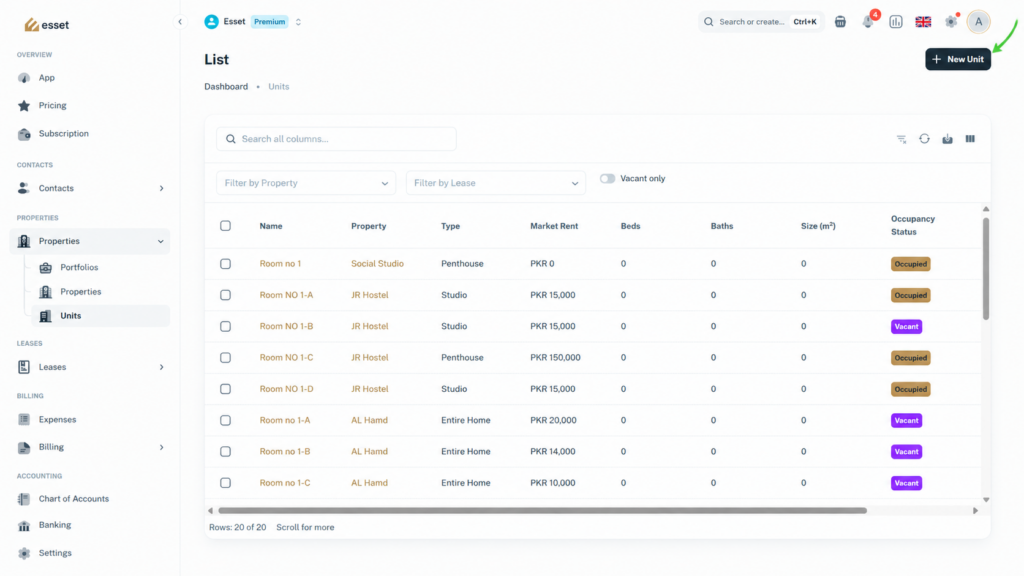
Go to Properties → Units in the sidebar.
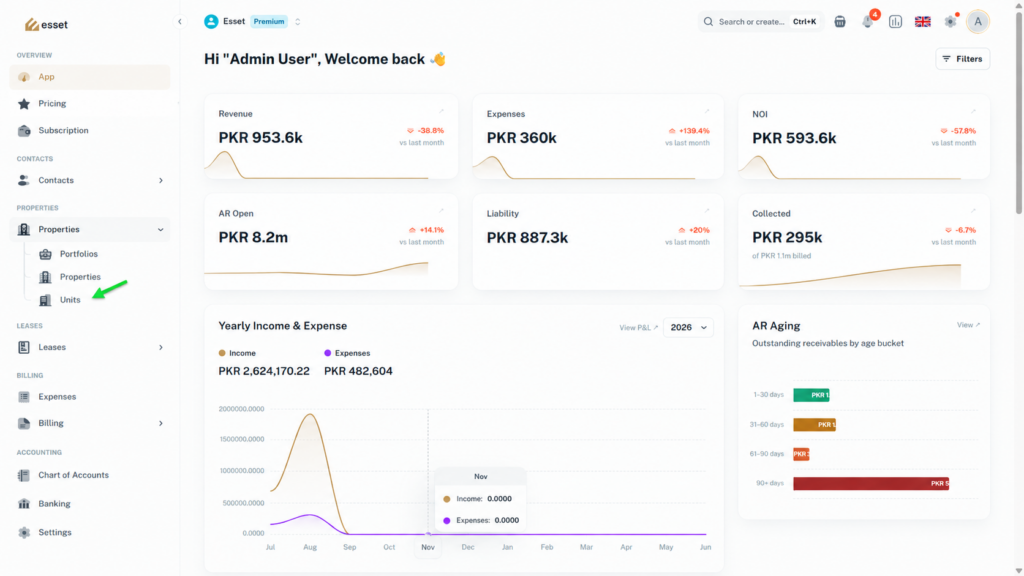
The Units list shows every unit across all your properties, with these columns by default: Name, Property, Type, Market Rent, Beds, Baths, Size (m²), Occupancy Status, and (scroll right) Status.
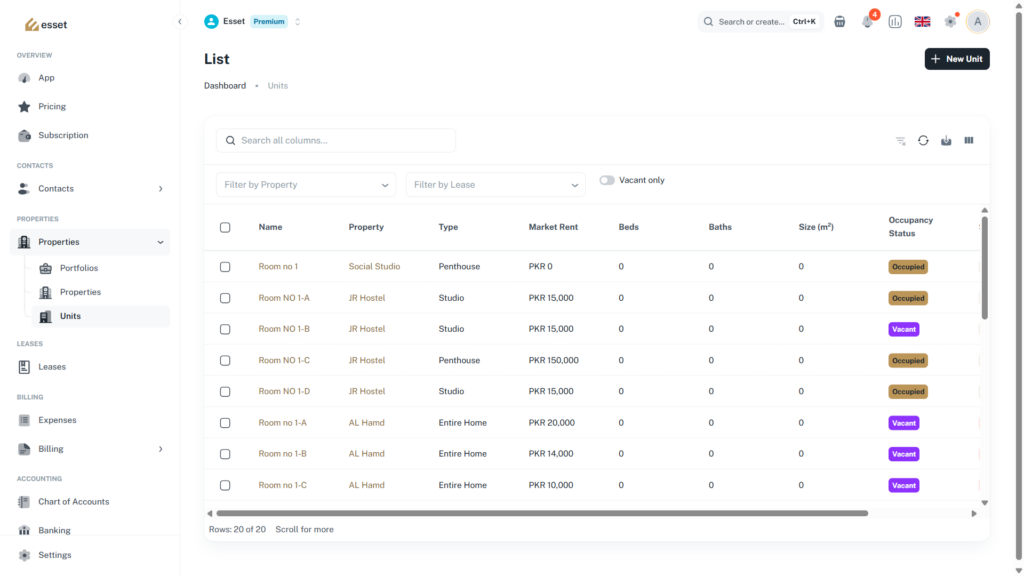
Above the list, you have:
- Filter by Property — narrow the list down to units belonging to a specific property.
- Filter by Lease — narrow the list down to units on a specific lease.
- Vacant only — toggle this on to show only vacant units.
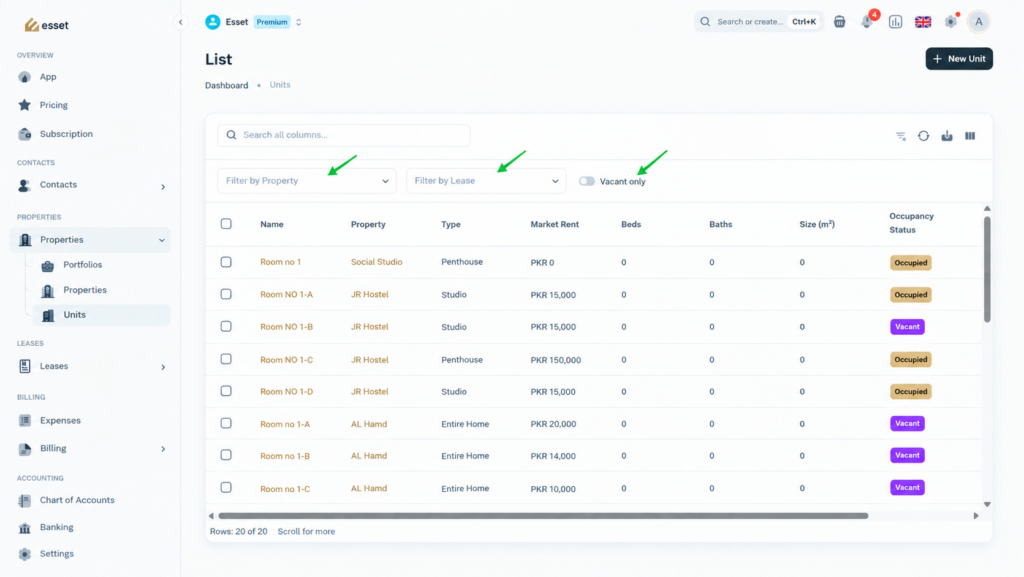
The toolbar gives you the same shared set of tools you’ll see across Esset’s lists:
- Search all columns — search across every visible column at once.
- Remove Filter — resets any search or filter you’ve applied, back to the unfiltered view.
- Refresh — reloads the list’s data.
- Export Data — download the list as a CSV or JSON file, with options for filename, including headers, and including only visible columns.
- Manage Columns — show, hide, or reset which columns appear in the list.
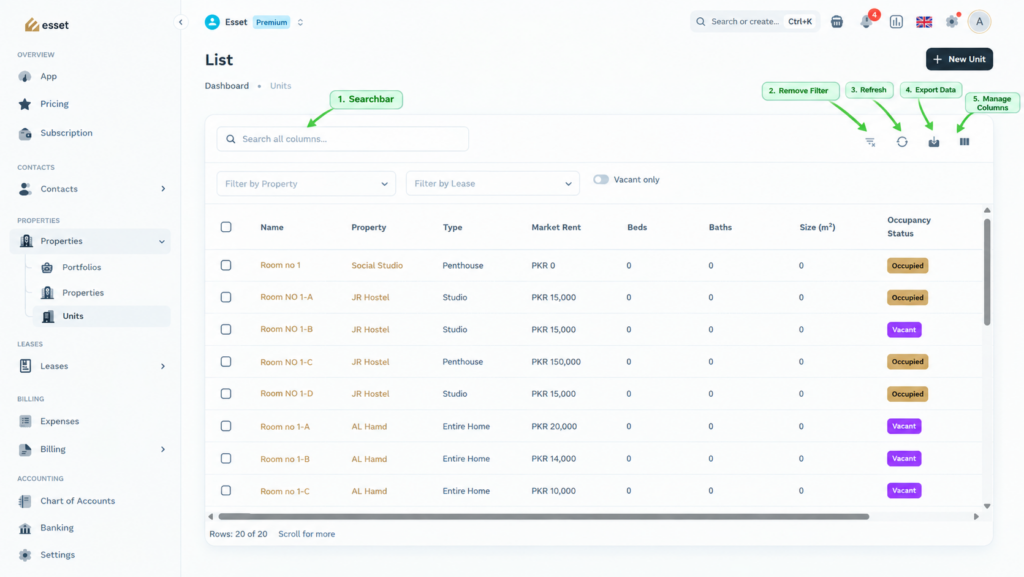
Note: There are two different status concepts on a unit, and it’s worth keeping them apart:
- Occupancy Status (Occupied / Vacant) — whether a lease is currently attached to the unit.
- Status (Active / Archived) — whether the unit itself has been archived.
A unit can be Vacant and Active at the same time (available to lease), or Vacant and Archived (no longer in use at all).
Adding a new unit
Click New Unit, either from the global Units list or from a specific property’s own Units tab.
This opens a General Info modal:
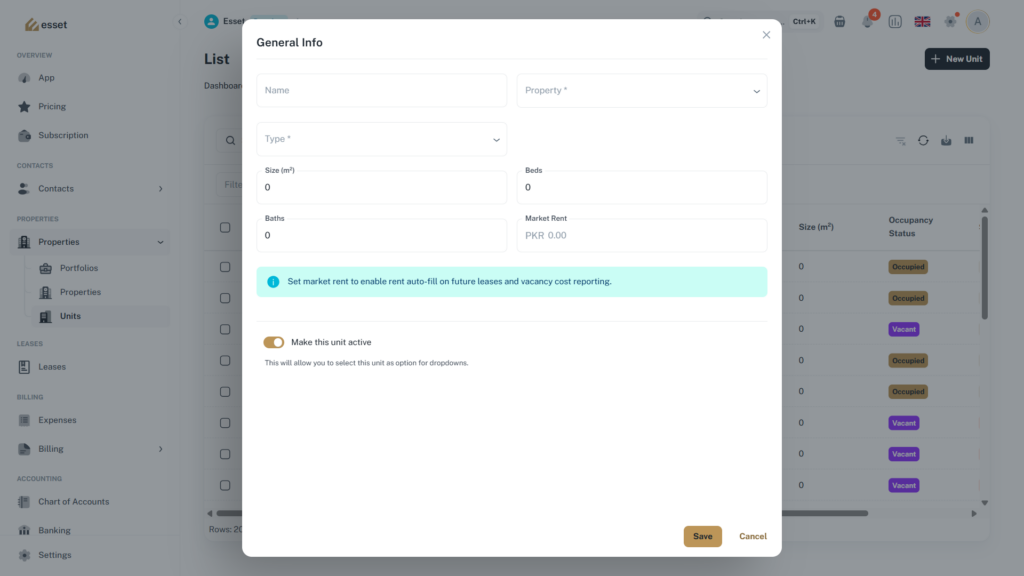
- Name — required.
- Property (required) — which property this unit belongs to. If you opened this from within a property’s own Units tab, this is already filled in for you; from the global Units page, you’ll need to pick one.
- Type (required) — e.g., Studio, Penthouse, Entire Home, and others.
- Size (m²), Beds, Baths — optional; default to 0.
- Market Rent — optional. Setting this enables rent to auto-fill on future leases and in vacancy cost reporting.
- Make this unit active — toggle this off to hide the unit from selection in dropdowns elsewhere in Esset, without archiving it outright.
Click Save when you’re done.
Edit or Archive a Unit
From the row menu (⋮) on any unit, you can choose Edit to reopen the same General Info modal with the unit’s current details, or Archive to remove it from active use.
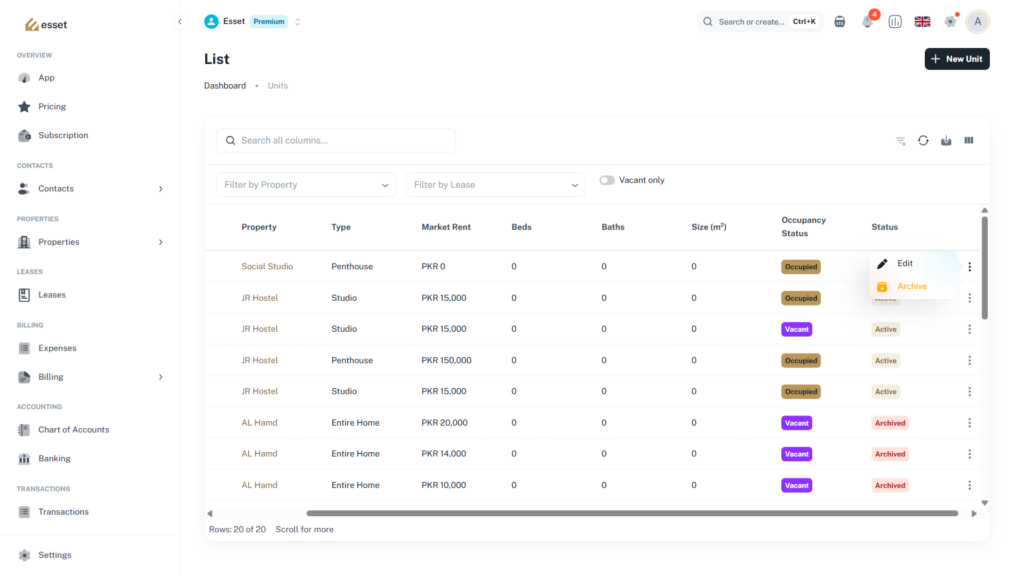
Note: Archiving a unit is permanent — there’s no Restore option, so make sure you’re done with a unit before archiving it. If you just want to temporarily stop a unit from showing up in dropdowns, use the Make this unit active toggle in Edit instead. Archived units stay visible in the Units list with a Status of “Archived.”
Viewing a unit’s details
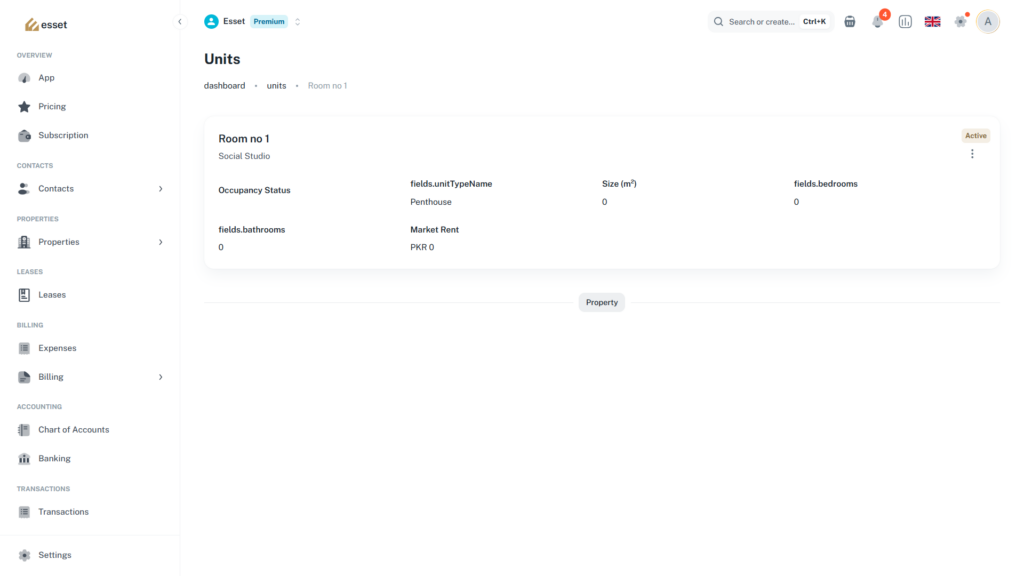
Clicking a unit’s name from the list opens its detail page, showing the unit’s name, its parent property, an Active/Archived status badge, and a summary of its Occupancy Status, Type, Size, Beds, Baths, and Market Rent.
Units are the day-to-day working layer beneath your properties — every lease, tenant, and vacancy report ultimately points back to one. Adding a unit only takes a name, type, and the property it belongs to, though filling in size, beds/baths, and market rent up front will save you time later when you’re creating leases.
The Active toggle and Archive action work the same way here as they do for properties and portfolios: toggling a unit inactive is a quick, reversible way to pull it out of dropdowns, while archiving is meant for units you’re genuinely done with, since it can’t be undone.
Between the global Units list and each property’s own Units tab, you’ve got two ways to get to the same data — use whichever fits how you’re already navigating.