
A portfolio in Esset groups related properties together —for example, by owner, location, or however you organize your business. This article covers finding your Portfolios list, creating a new portfolio, understanding the “active” and “default” settings, and managing existing portfolios.
Before you begin
- Portfolio management is available from the Growth plan onward — see the Esset Pricing & Plans article if you’re not sure which plan you’re on
- You’ll need Primary/Admin access, or a role with properties permissions, to add or manage portfolios
Finding your Portfolios list
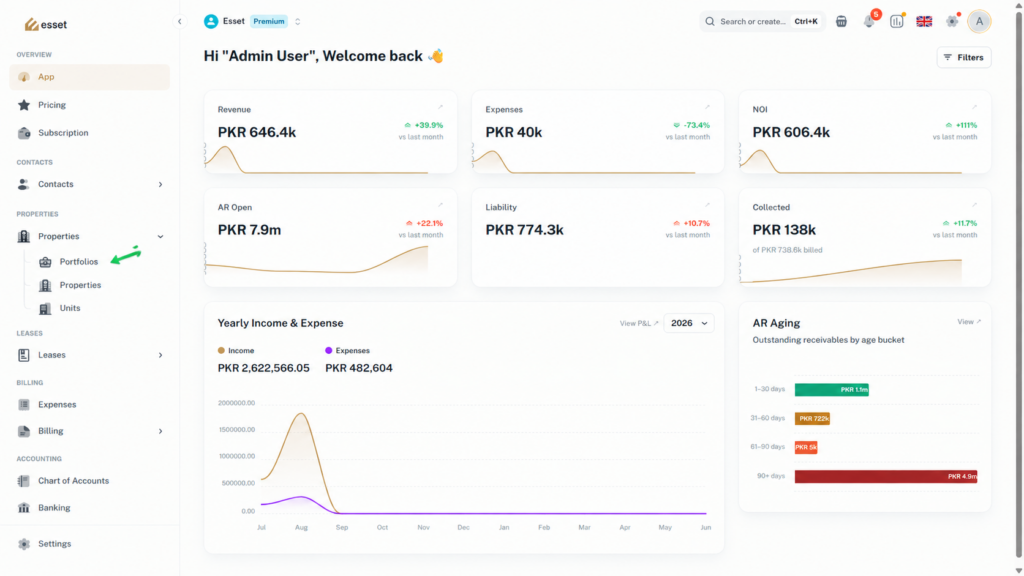
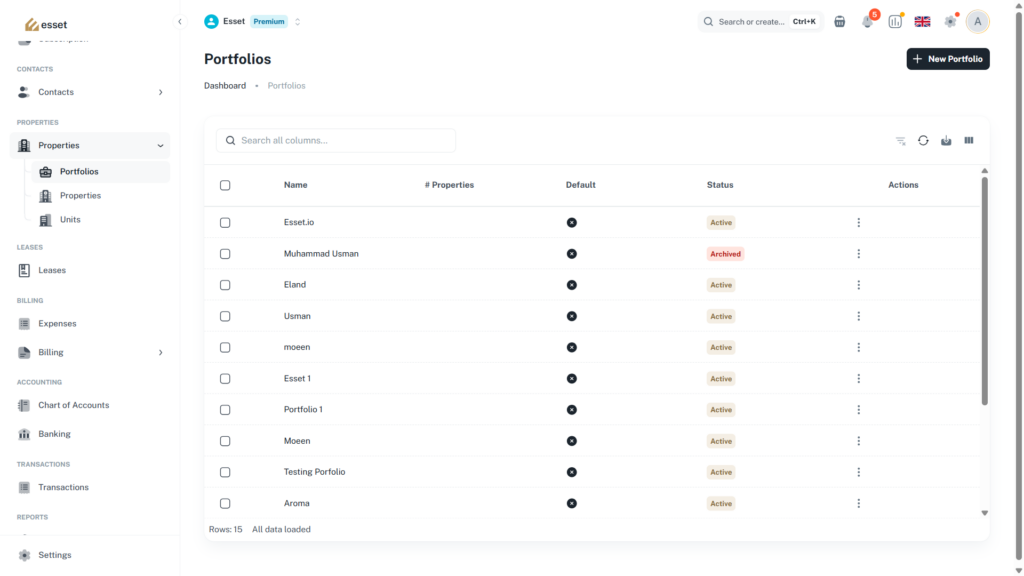
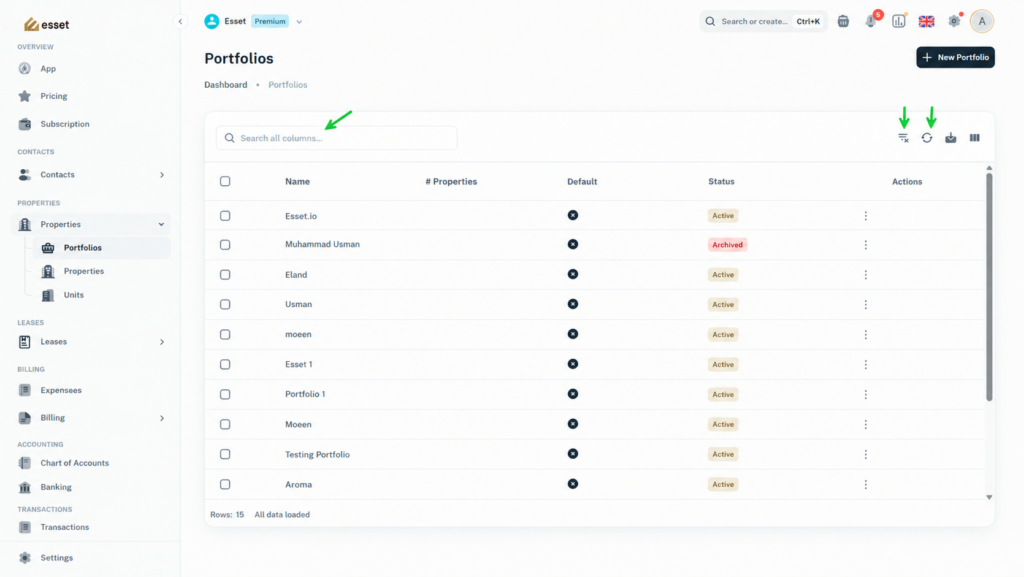
Go to Properties → Portfolios in the sidebar. The list shows Name, # Properties, Default, and Status by default.
Adding a new portfolio
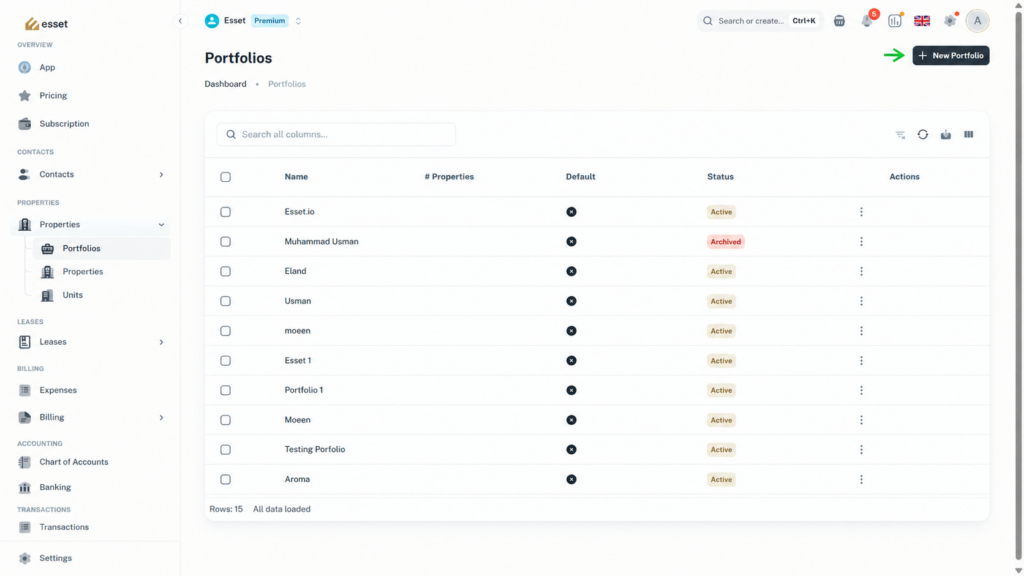
Click New Portfolio. The form is short — just a Name field and two toggles:
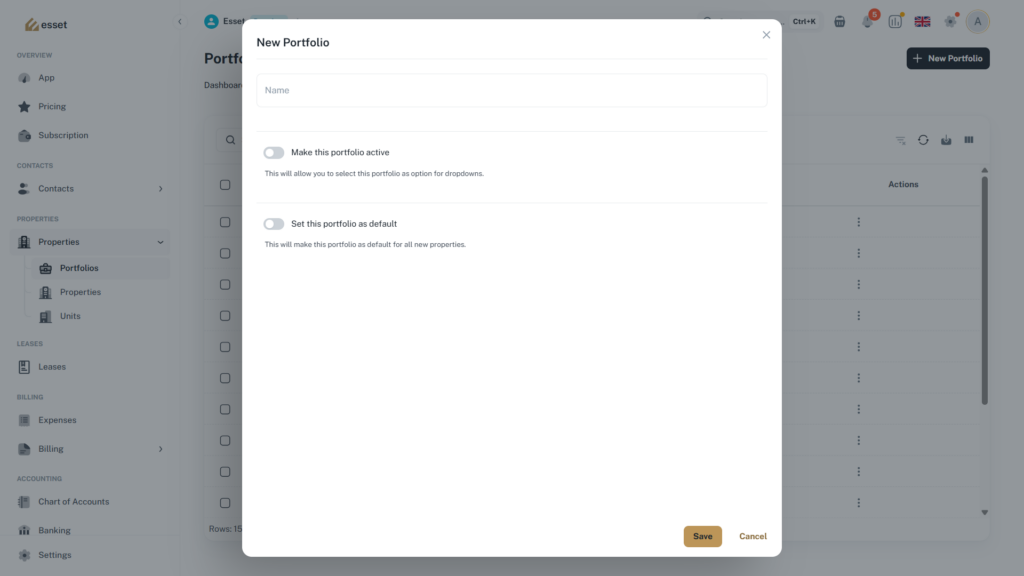
Make this portfolio active
Turn this on to make the portfolio available as a selectable option throughout Esset, such as in the Portfolio dropdown when creating or editing a property. If this is turned off, the portfolio remains in Esset but won’t appear as an available choice elsewhere.
Set this portfolio as default:
Turn this on to automatically select this portfolio when creating new properties. Only one portfolio can be the default at a time. If you set a different portfolio as the default, the previously selected default portfolio will automatically be unselected.
Note: How you actually assign a portfolio to a property — via the Portfolio field on the property’s own create/edit form — will be covered in the dedicated Properties article.
Managing existing portfolios
The Portfolios list works the same way as Vendors and Owners — same grid, same controls.
Searchbar, filter remover, and grid refresh
The search bar at the top searches across every visible column at once. Next to it, on the right, are three icons: a clear filters icon (resets any search or filter you’ve applied back to the full unfiltered list), and a refresh icon (reloads the list’s data).
Managing columns and exporting
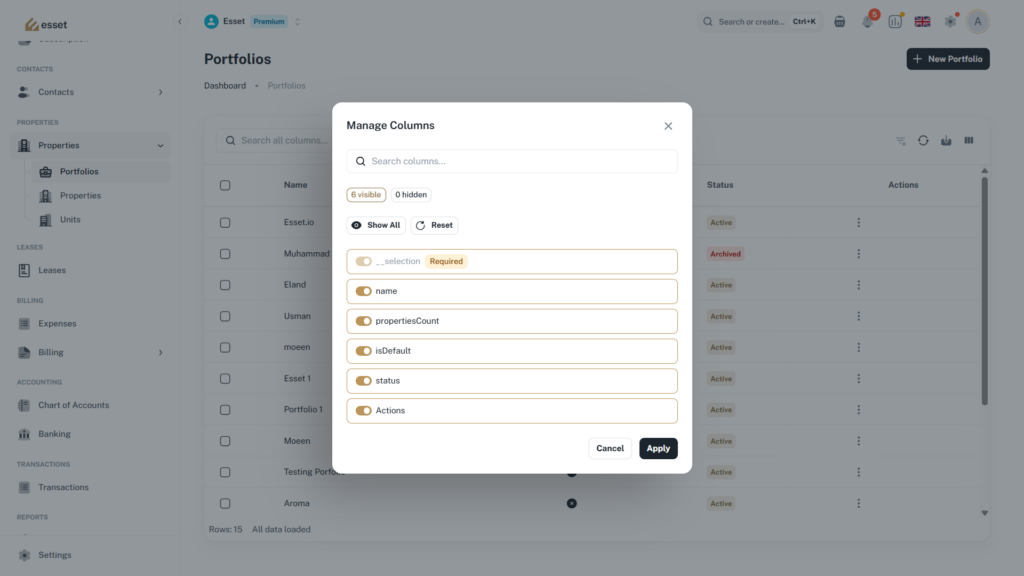
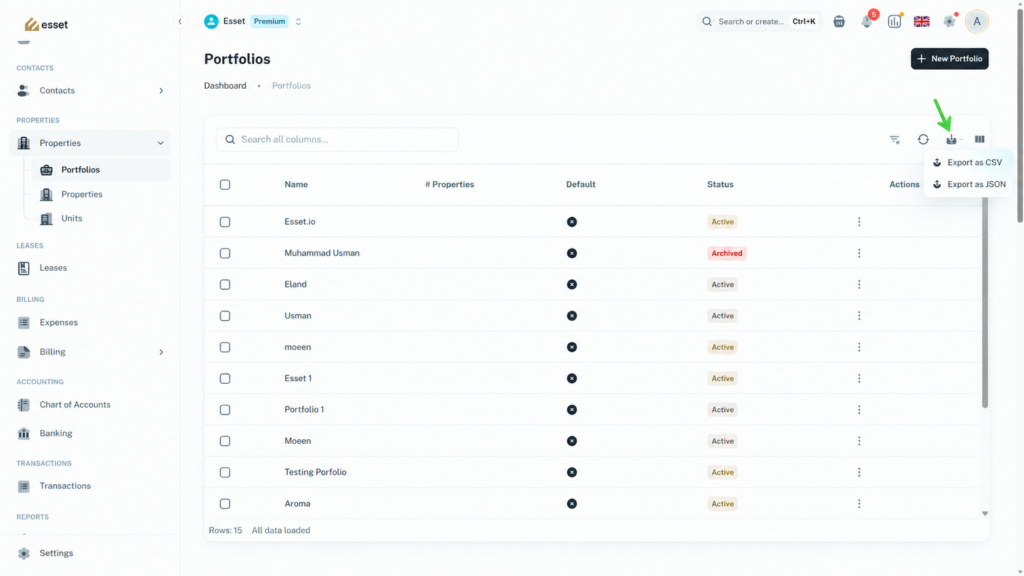
Use the column icon in the toolbar → Manage Columns to show/hide columns, and the download icon to Export as CSV or Export as JSON.
Editing a portfolio
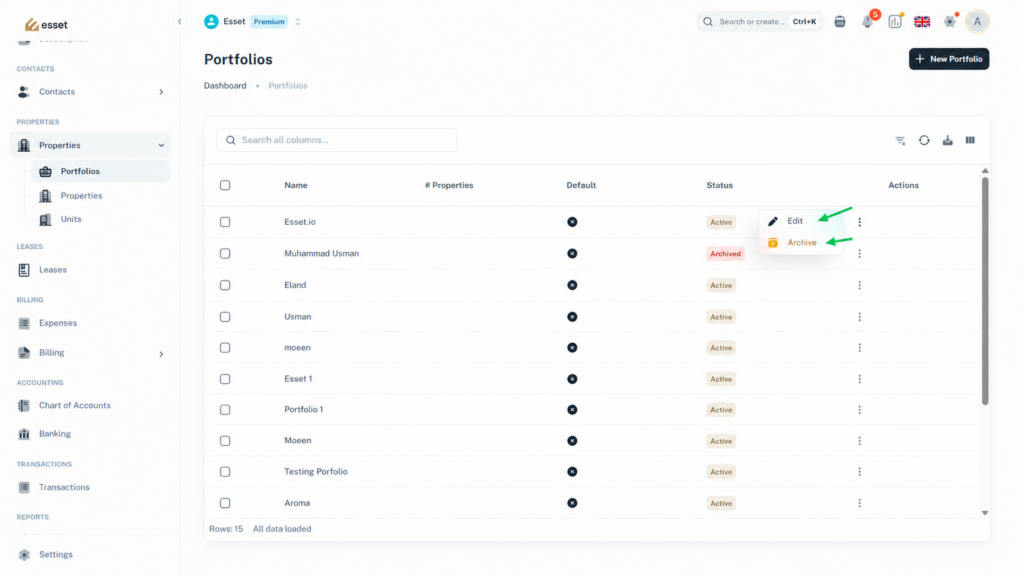
Open the row’s ⋮ menu and choose Edit to change its name or toggle its active/default settings.
Archiving a portfolio
Choose Archive from the row menu.
Archiving is meant to be permanent — it’s for portfolios you’re done with, not a way to temporarily hide one. If you just want to stop a portfolio from being selectable for a while (without archiving it), use the “Make this portfolio active” toggle on its Edit form instead and switch it off — that keeps the portfolio intact but removes it from dropdowns until you turn it back on.
Since a portfolio only appears as a selectable option once it’s marked active, double-check that toggle if you’ve created a new portfolio and can’t find it while setting up a property. For how portfolios connect to actual properties, see the upcoming Properties article.