
Owners are the people (or entities) who own a share of a property in Esset. This article covers adding an owner as a contact, what info you can store for them, and—separately—how ownership percentages are assigned to a property.
Note: Owner management is available on the Growth plan and above. See Esset Pricing & Plans to compare available plans.
Before you begin
- You’ll need Primary/Admin access, or a role with contacts permissions, to add or manage owners
Finding your Owners list
Go to Contacts → Owners in the sidebar.
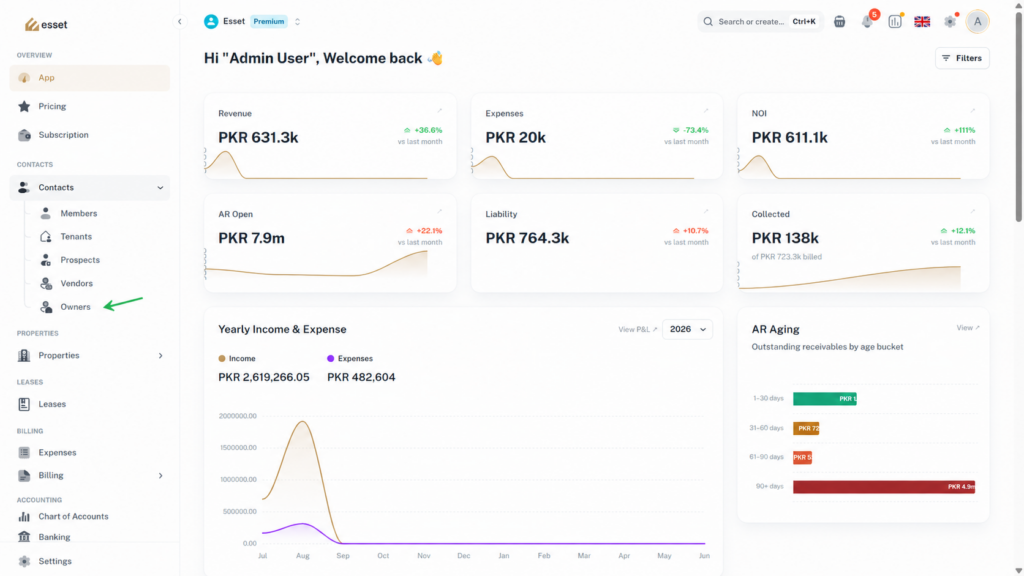
This button takes you to the Owners list, which shows Name, Phone Number, # Properties, and Status right away.
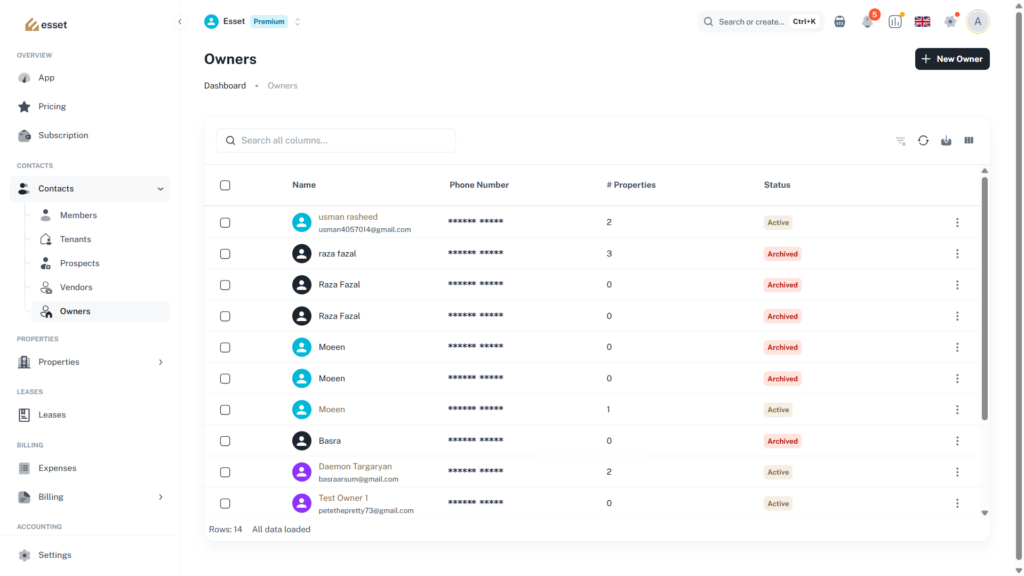
Note: # Properties tells you at a glance how many properties each owner currently has an ownership stake in.
Adding a new owner
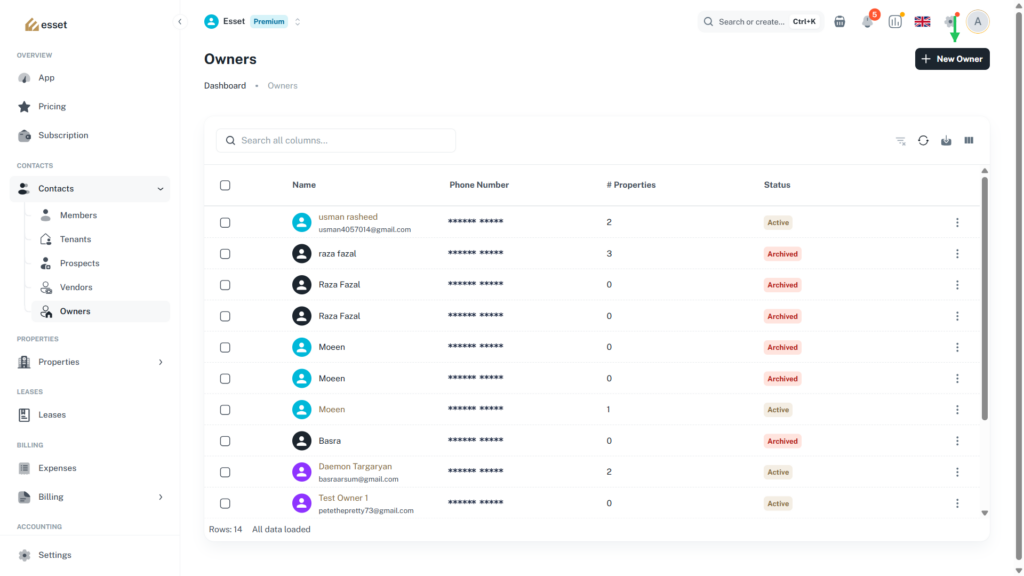
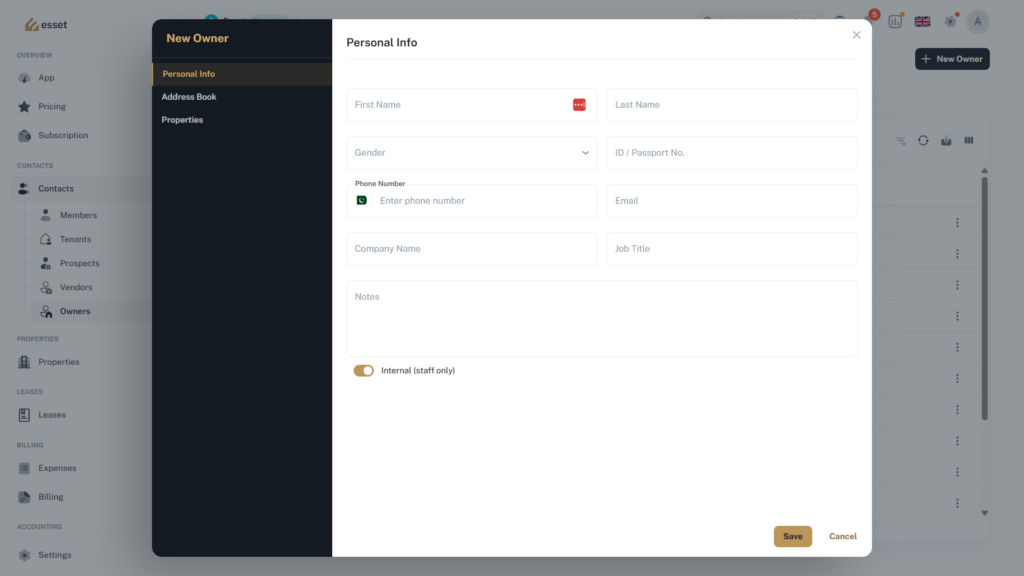
Click New Owner to open the owner form — a 3-tab modal, similar in shape to the Vendor form:
Personal Info
- First Name, Last Name, Gender, ID/Passport No.
- Phone Number, Email
- Company Name, Job Title
- Notes — free text, plus an Internal (staff-only) toggle; notes accumulate over time instead of being a single field you overwrite
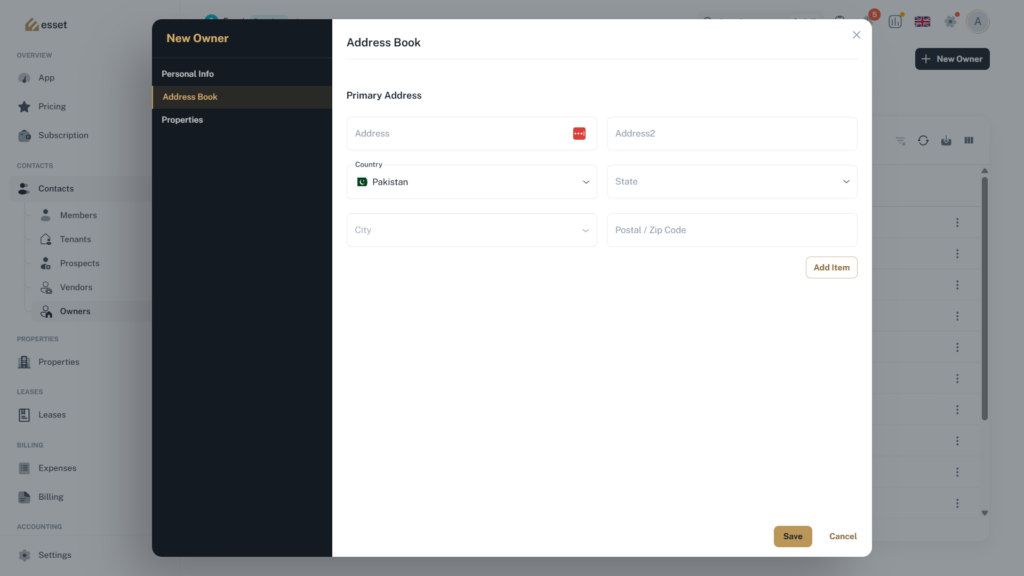
Address Book
Add the owner’s Primary Address (Address, Address2, Country, State, City, Postal/Zip Code). Click Add Item for additional addresses.
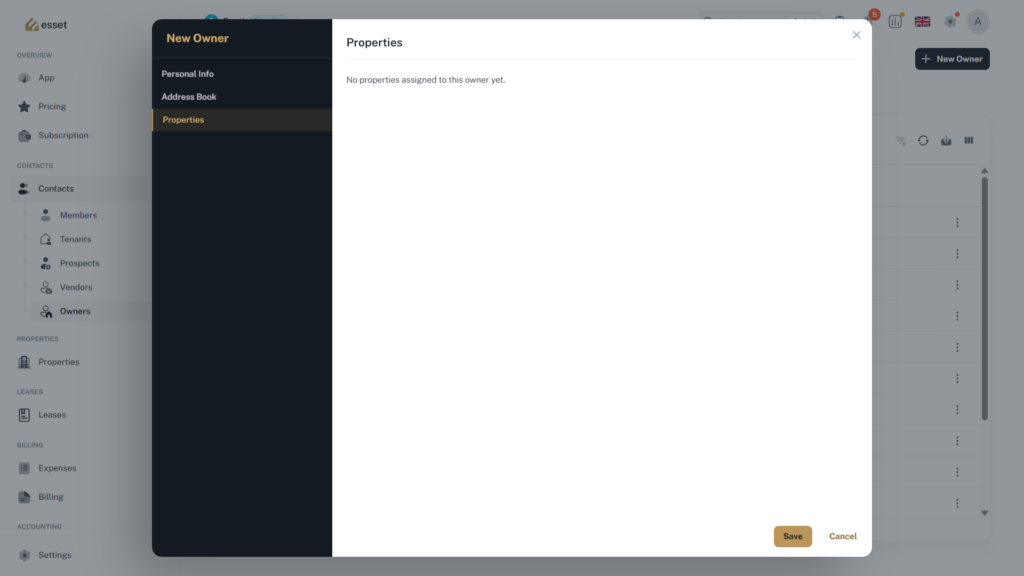
Properties
For a brand-new owner, this tab just shows “No properties assigned to this owner yet” — there’s nothing to manage until they have a stake somewhere.
Once an owner already has a stake in one or more properties, editing them shows a Property ownership stakes list instead — each property they’re on, with its ownership % and a pencil icon you can use to adjust that percentage right from here.
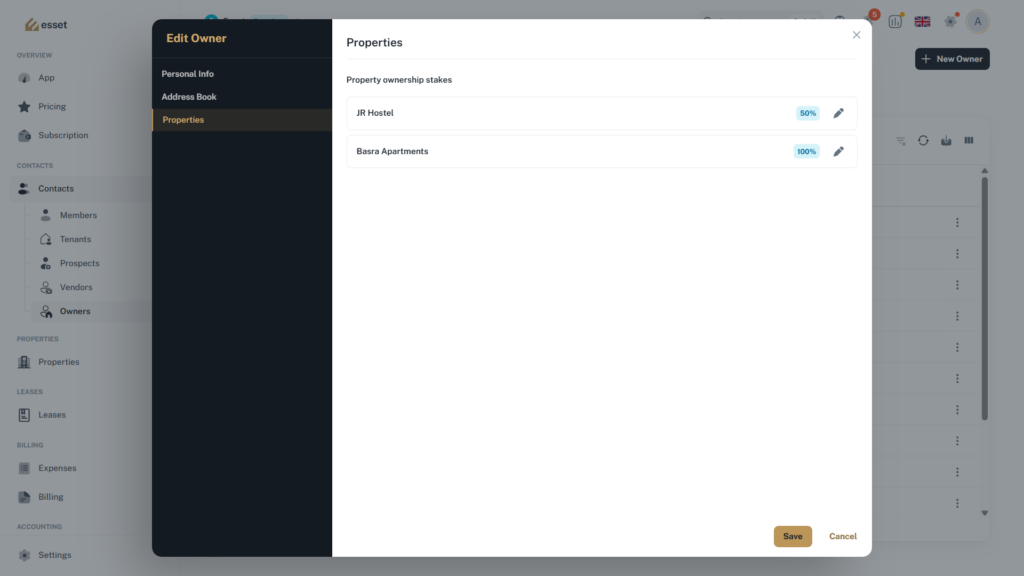
Note: This tab only lets you adjust percentages for properties the owner is already on — it doesn’t have an “add property” option. To give an owner a stake in a property they’re not yet assigned to, you still do that from the property’s own Owners tab, covered next.
Manage Existing Owners
The Owners list uses the same familiar table controls as other contact lists in Esset.
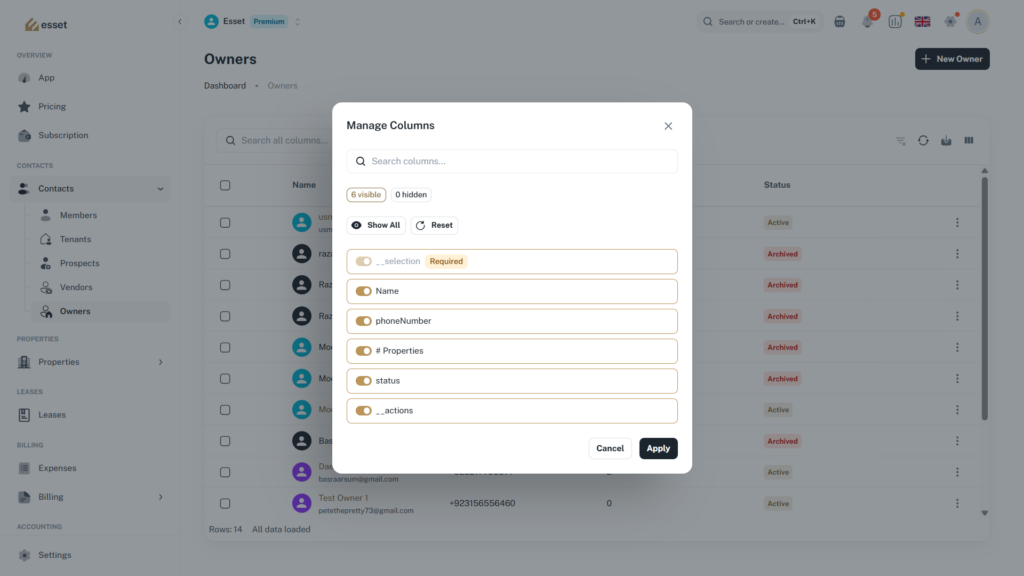
Manage Owner List Columns
Name, Phone Number, # Properties, and Status are all visible by default. Click the column icon in the toolbar → Manage Columns if you want to hide any of them, or Reset to bring back the default set.
Edit an Owner
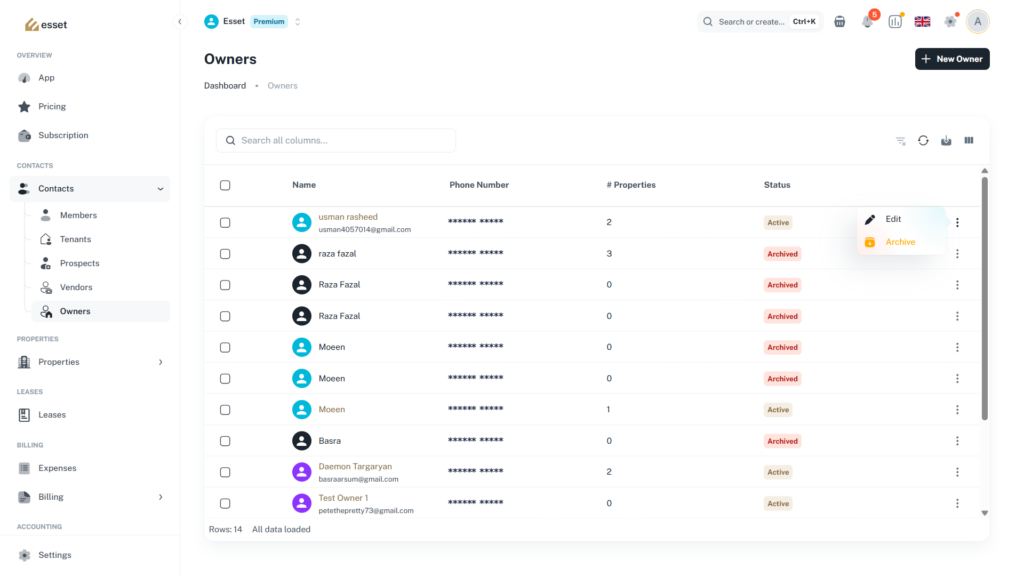
Open the row’s ⋮ menu and choose Edit to reopen the same three-tab form, pre-filled with the owner’s current details.
Archive or Restore an Owner
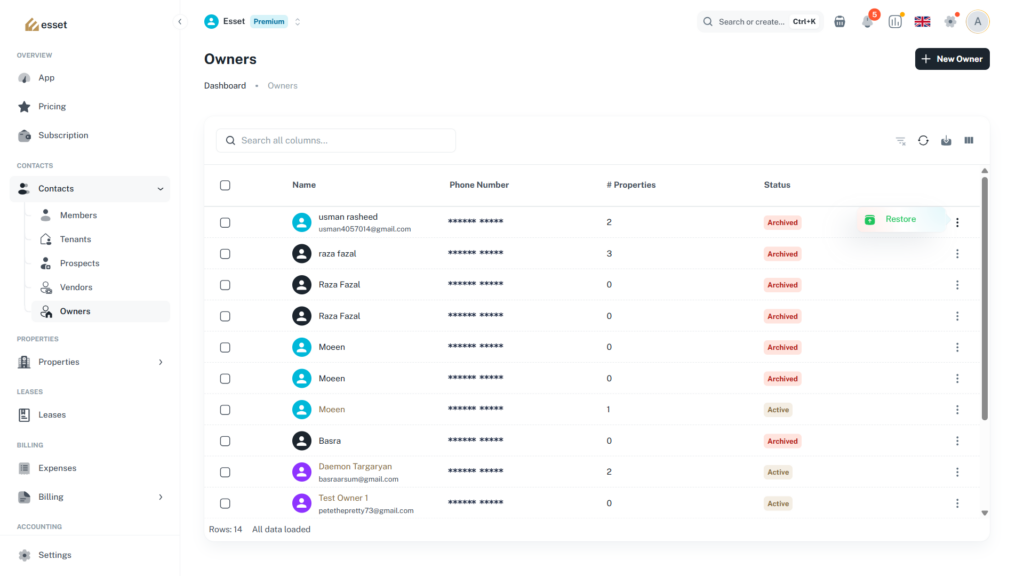
Choose Archive from the row menu to remove an owner from active use — you’ll be asked to confirm. Archived owners stay right in the same list with their Status shown as Archived; to bring one back, open its row menu and choose Restore.
Exporting your owners list
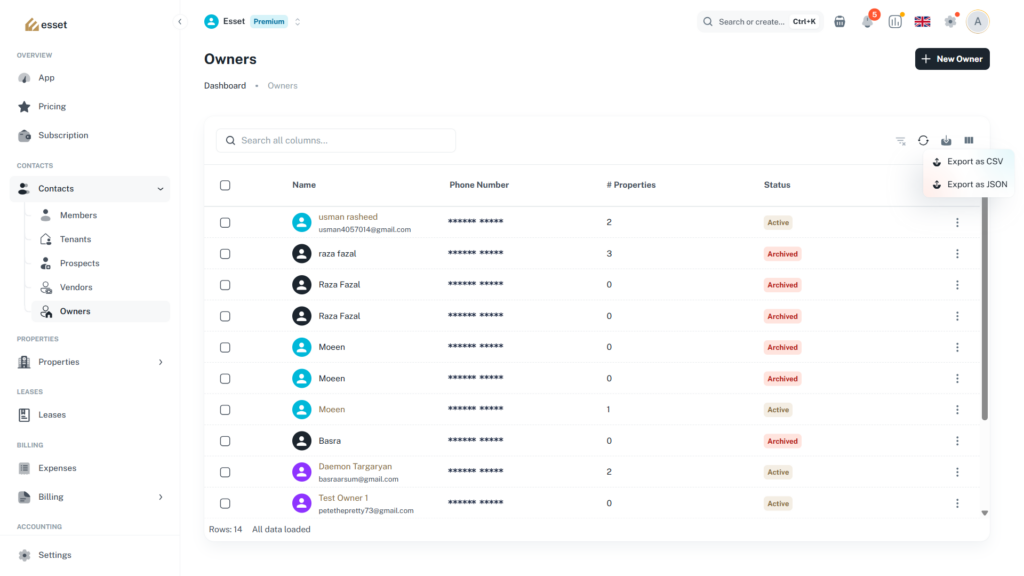
Use the download icon in the toolbar to export as CSV or JSON, with the same filename / Include headers / Include only visible columns options as the Vendors export.
Assign Ownership Percentages to a Property
Ownership is assigned from the property, not from the owner record. Open the property you want to manage and go to its Owners tab.
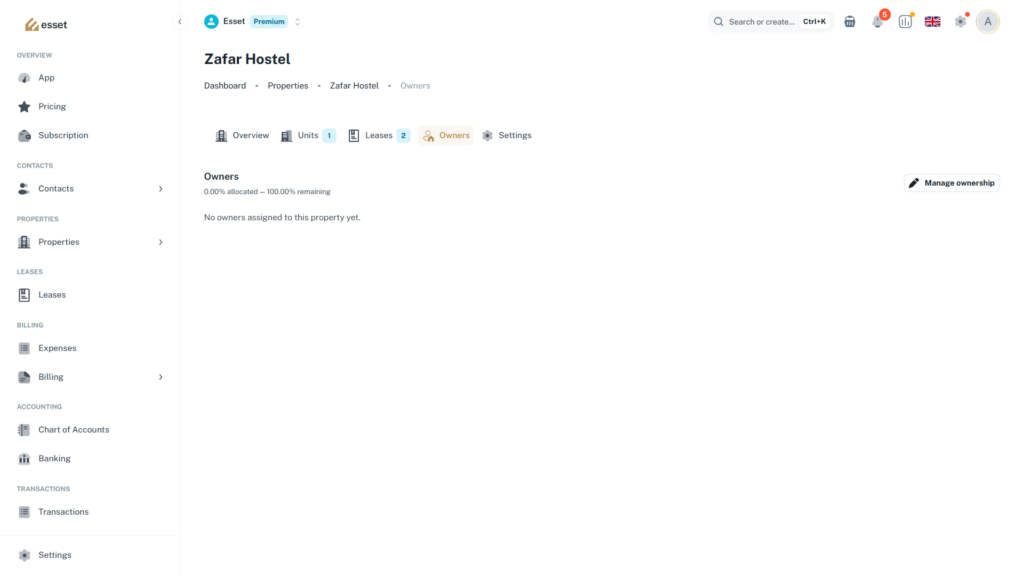
At the top, you’ll see how much of the property’s ownership is allocated so far (e.g., “0.00% allocated — 100.00% remaining”). Click Manage ownership to open the ownership editor.
Manage Ownership Percentages
You’ll see a note reminding you to settle or void any posted distributions before changing ownership — past payouts aren’t recalculated if you change the percentages later.
Click Add Owner to add a row: pick an existing owner from the searchable Owner dropdown (this pulls from your Contacts → Owners list), then set their Ownership %. Add more rows for additional co-owners — each new row reduces the remaining percentage shown on the right.
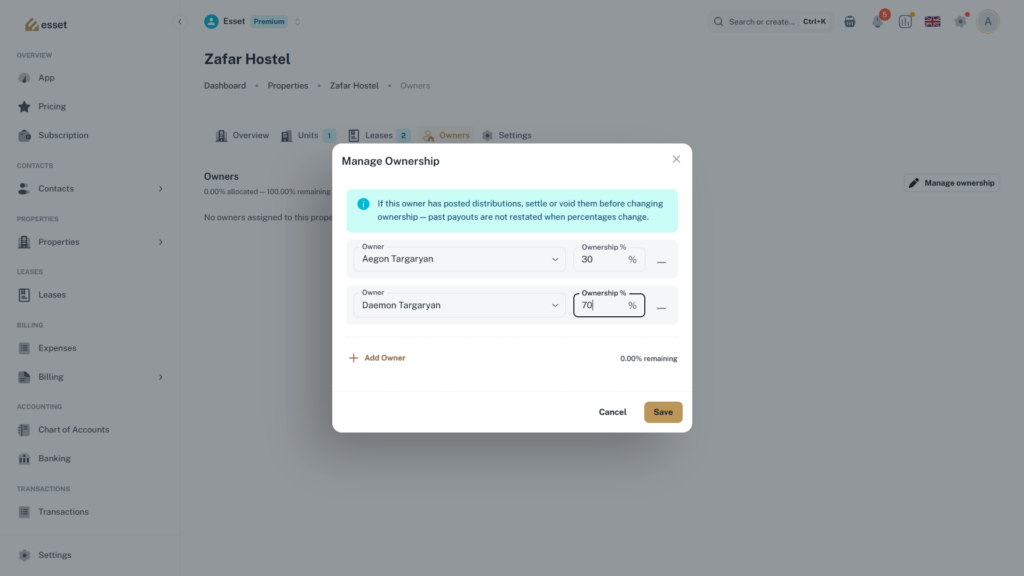
Use the – button next to a row to remove that owner. Total ownership across everyone on the property can’t exceed 100%. Once you’re happy with the split, click Save.
Since ownership is tied to a specific owner contact, make sure the owner already exists under Contacts → Owners before you try to add them on a property — if they’re new, add them there first (or search for them by name in the Owner dropdown.