
Once a prospect submits an application through your Intake Form, it shows up in Esset as a Prospect Application for you to review. This article walks you through finding submitted applications, filtering the list, reviewing an applicant’s details and PDF, and approving or rejecting their application.
Before you begin
- You’ll need Primary/Admin access, or a role with contacts/leasing permissions, to review applications
- If you haven’t set up or shared your Intake Form yet, see Setting Up Your Intake Form and Sharing It with Prospects first
Finding the Prospect Applications list
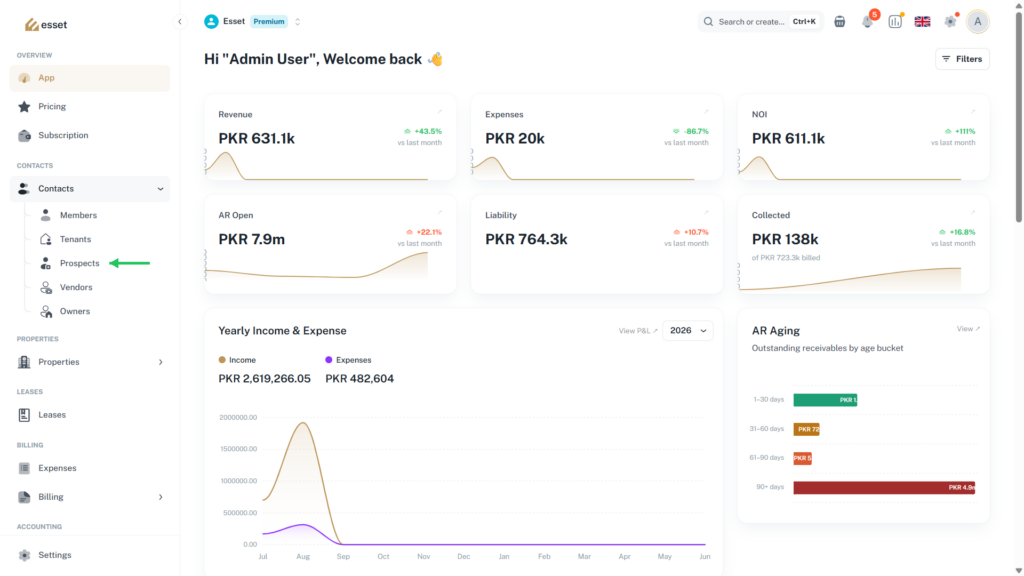
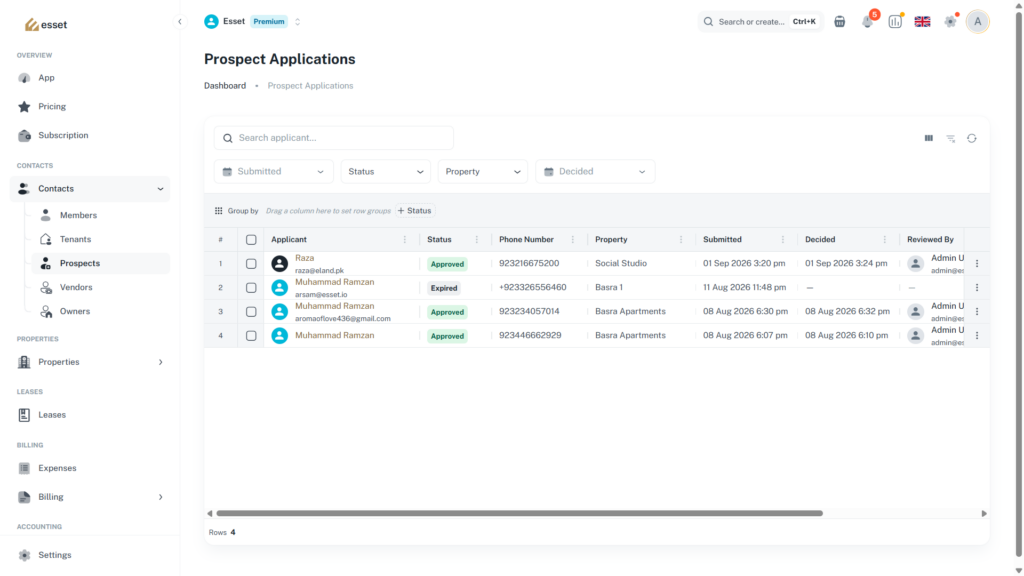
Go to Contacts → Prospects in the sidebar to see every application submitted across all your properties.
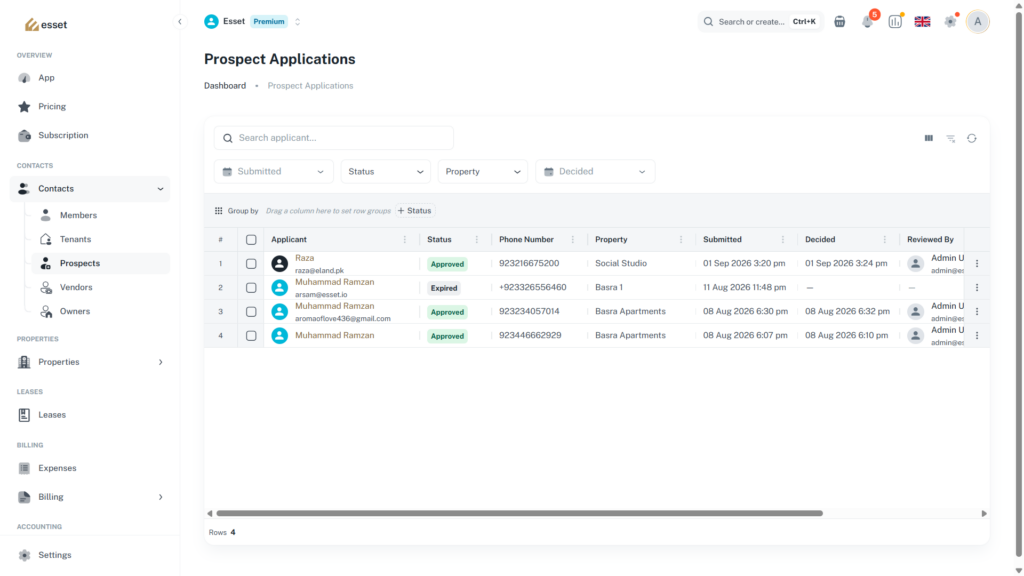
Each row shows the applicant’s name and email, their current status, phone number, which property they applied to, when they submitted, when a decision was made (if any), and who reviewed it.
Filtering and searching applications
Above the list, use the Search applicant bar to find someone by name, or narrow the list with the filter dropdowns:
- Submitted — filter by a date range (Today, Yesterday, Last 7/30 days, This month, or a Custom range)
- Status — filter by Pending, Approved, Rejected, or Expired
- Property — filter to applications for one or more specific properties
- Decided — filter by when a decision was made regarding the prospect application
Note: You can also drag a column into the Group by row to group applications — for example, grouping by Status to see all Pending applications together.
Viewing an application’s details and PDF
Click an applicant’s name, or use the row’s ⋮ menu → View details, to open the full application.
![Prospect Application detail page showing phone number, property, date of birth, CNIC/ID number, full name, father's/guardian's name, addresses, submitted/expires/decided dates, and reviewed by]](https://support.esset.io/wp-content/uploads/2026/09/image-1-1024x576.png)
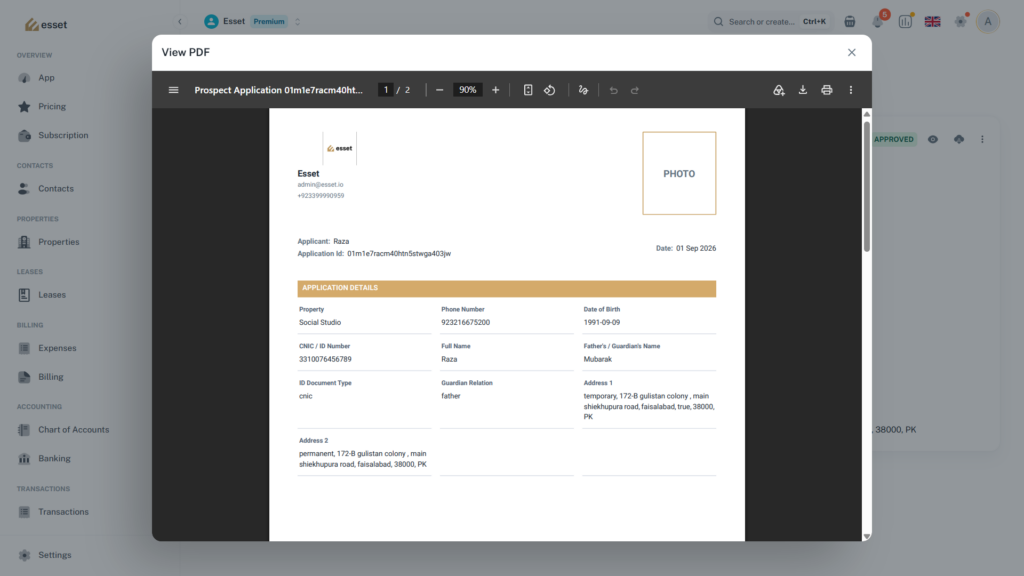
From here, you can also generate a View PDF of the application — a formatted summary with the applicant’s photo, application ID, and all submitted details — which you can download or print if you need a physical copy for your records.
Approving or rejecting an application
From the row’s ⋮ menu, choose Approve or Reject.
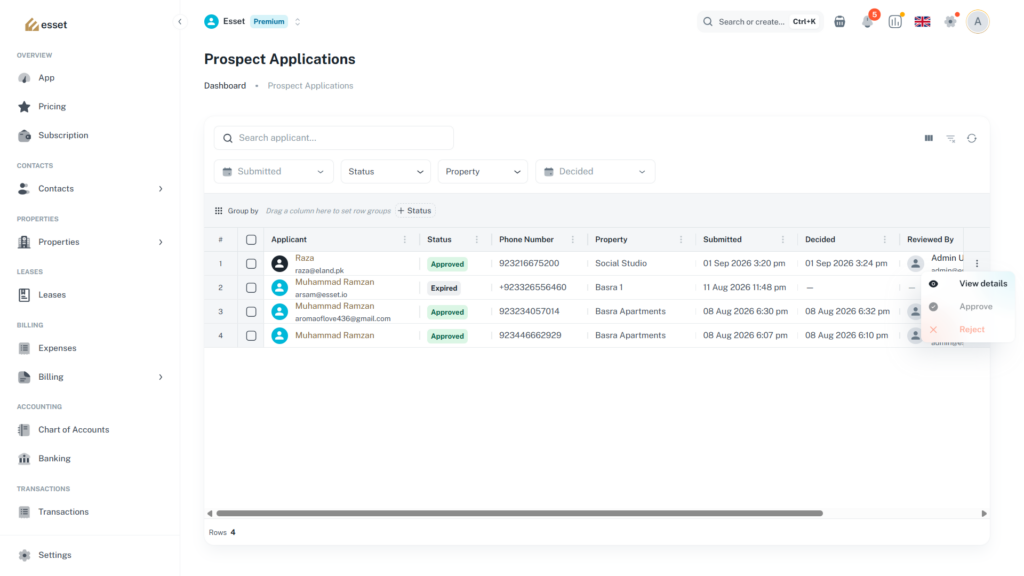
Note: Approving an application automatically creates a Tenant record for that applicant — you don’t need to add them separately. The approved application’s detail page links directly to the new tenant record.
Understanding application status
Every application has one of four statuses:
- Pending — submitted, awaiting your decision
- Approved — accepted, and a Tenant record has been created
- Rejected — declined
- Expired — the application wasn’t decided within its review window and expired automatically. Applications expire 7 days after submission if left undecided — this window is fixed and can’t be changed.
Reviewing prospect applications regularly keeps your Pending queue from piling up — and since Expired applications can’t be approved later, it’s worth checking the list on a routine basis rather than only when you remember to.
If you need to adjust what information applicants are asked for, that’s done from the Intake Form itself — see Setting Up Your Intake Form and Sharing It with Prospects.