
Every Esset account runs on a subscription plan. This article walks you through where to view your current plan, monitor your usage, manage saved cards, and access your invoices- basically everything that lives on your company’s Billing page.
Before you begin
- You’ll need Primary/Admin access, or a role with billing permissions, to view subscription details.
- Only your account’s Primary user can add a card.
Getting to your Billing page
Esset’s left sidebar has a Subscription icon — click it to go directly to Company Settings → Billing. You can also get there through Settings → Billing in the sidebar’s Company Settings menu, or from the account panel: click your profile icon (top right) → Subscription.
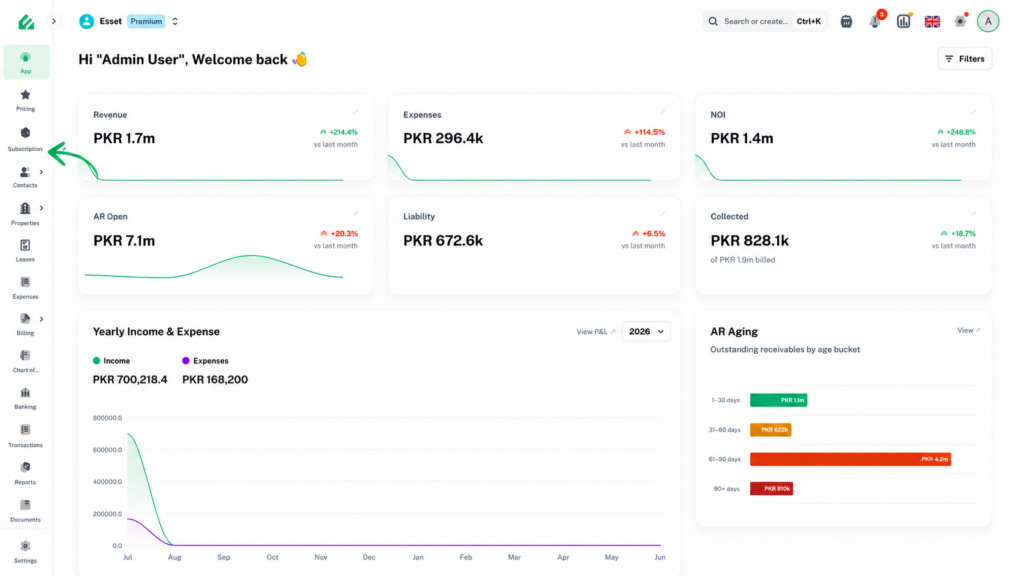
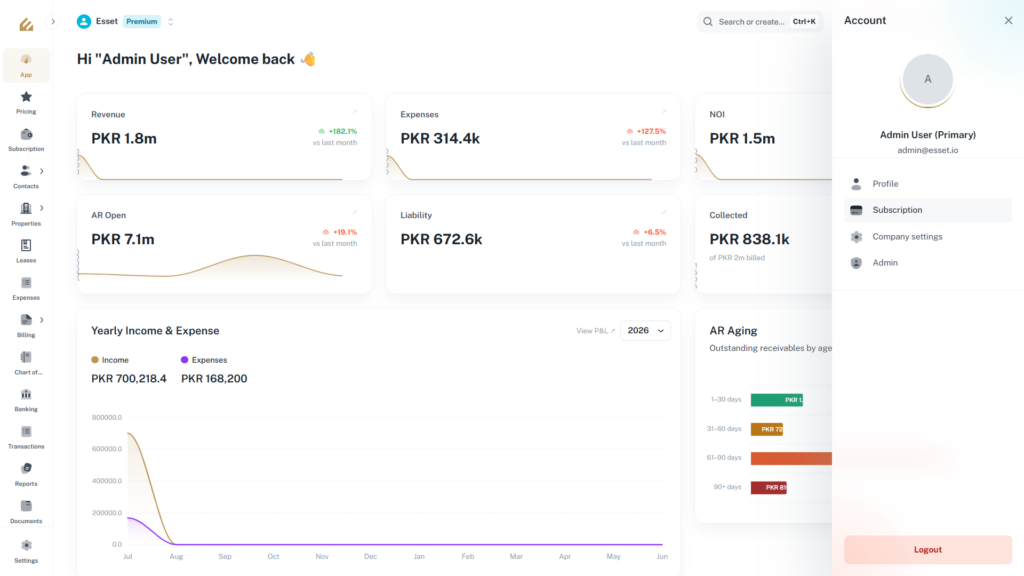
Both routes take you to the same Billing page.
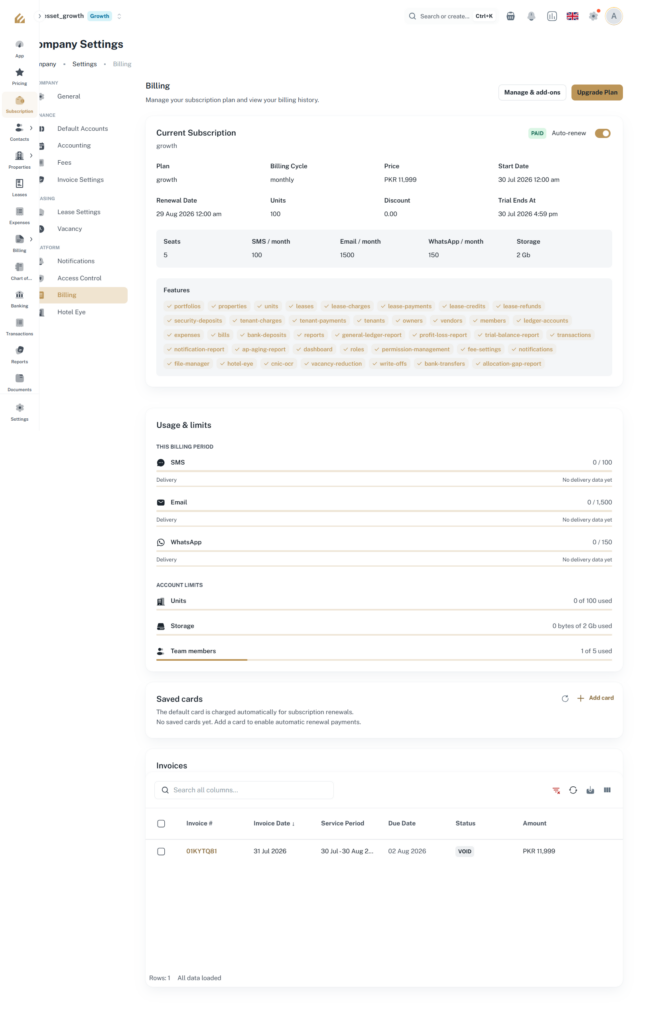
Understanding your Current Subscription
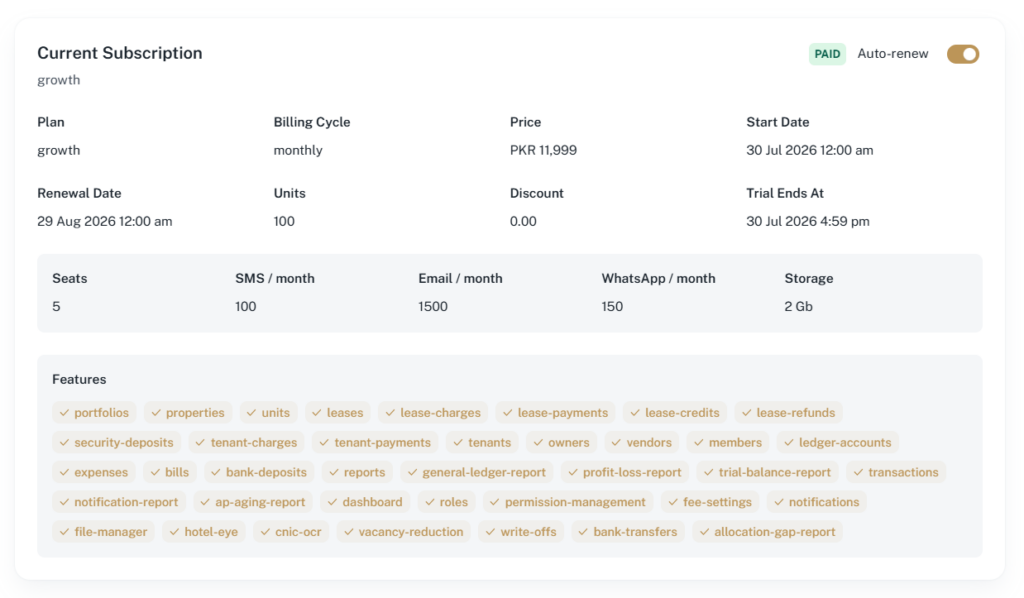
At the top of the Billing page, the Current Subscription card shows:
- Plan and Billing Cycle (monthly or annual)
- Price, Start Date, and Renewal Date
- Units, Discount, and Trial Ends At
- A row of plan limits — Seats, SMS/month, Email/month, WhatsApp/month, and Storage
- A Features list showing everything included in your plan
A PAID badge and an Auto-renew toggle sit in the top-right corner of this card — switch auto-renew off if you don’t want your plan to renew automatically.
What’s in the Features list
The Features tags show every module your plan unlocks, grouped loosely by area:
- Portfolio structure — portfolios, properties, units, leases
- Leasing & tenant finances — lease-charges, lease-payments, lease-credits, lease-refunds, security-deposits, tenant-charges, tenant-payments, tenants
- Contacts — owners, vendors, members
- Accounting — ledger-accounts, expenses, bills, bank-deposits, bank-transfers, allocation-gap-report
- Reports — reports, general-ledger-report, profit-loss-report, trial-balance-report, transactions, notification-report, ap-aging-report
- Platform & admin — dashboard, roles, permission-management, fee-settings, notifications, file-manager
- Extras — hotel-eye, cnic-ocr, vacancy-reduction, write-offs
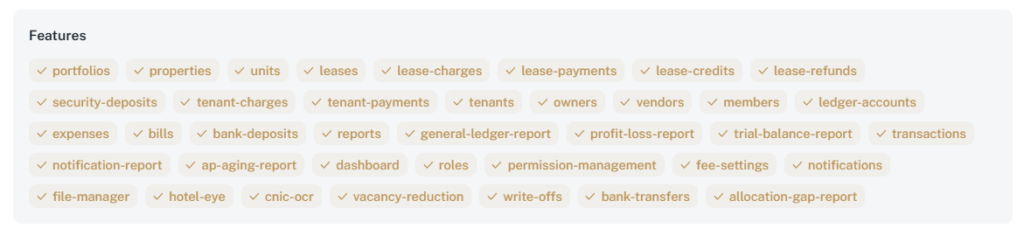
A checkmark next to a tag means that module is active on your plan. This list grows as you move from Starter to Growth to Premium; see the Comparing Plans and Upgrading article for the full feature-by-plan breakdown.
Note: The numbers shown here (units, seats, SMS/Email/WhatsApp allowances, storage, features) reflect what your company is actually subscribed to — they’ll differ from account to account.
Understanding Usage & limits
Below the subscription card, Usage & limits shows how much of your monthly allowance you’ve used:
- This billing period: SMS, Email, and WhatsApp sent so far (with delivery status)
- Account limits: Units, Storage, and Team members — each shown as a progress bar against your plan’s cap
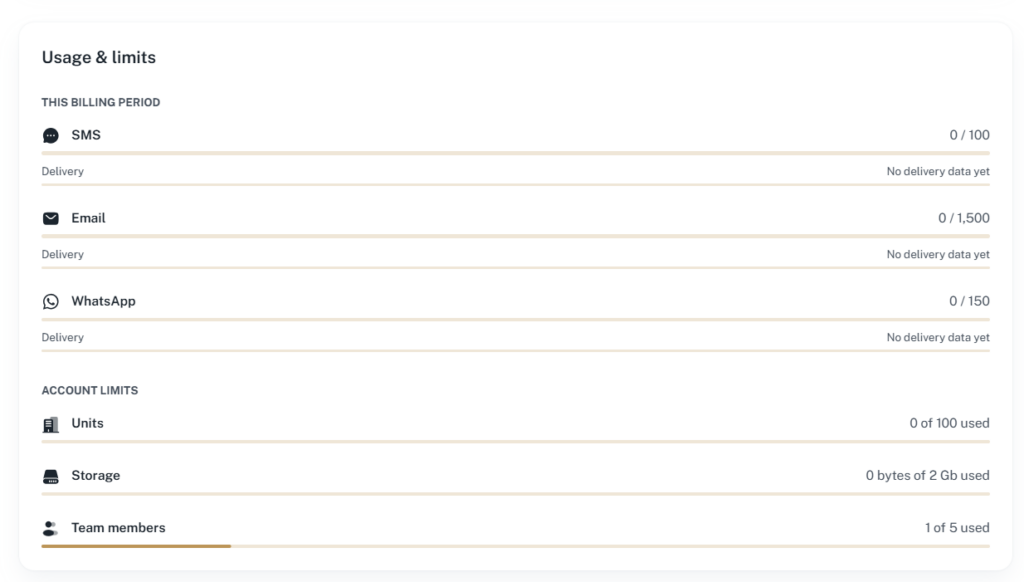
Watch this section if you’re close to a limit—for example, if Team members shows you’ve used most of your seats, you’ll need to free up a seat or add more before inviting someone new.
Saved cards and auto-renew
The Saved cards section shows which card is charged automatically for renewals. If none is saved yet, click Add card — a dialog opens asking you to confirm your billing contact details (first name, last name, email, phone number) before continuing to enter your card securely.

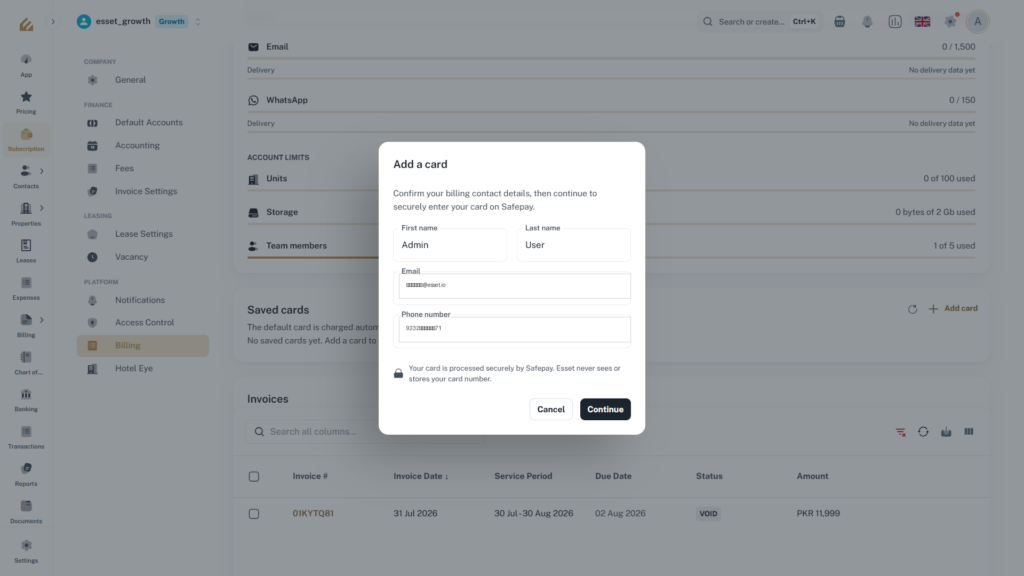
Note: Esset’s payment partner, Safepay, enters and processes card details; Esset never sees or stores your card number.
Invoices
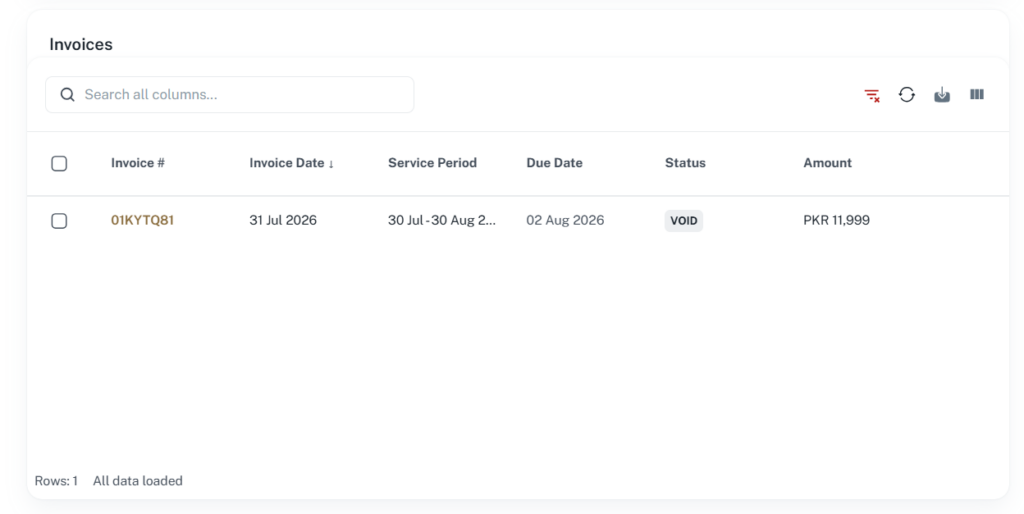
The Invoices table at the bottom keeps a record of every invoice generated for your subscription and billing. Each invoice includes the invoice number, invoice date, service period, due date, status (e.g., Paid, Void), and amount.
Use the search bar to find a specific invoice, or the download icon to export the invoice list for your records.
That covers everything on your Billing page. If you’re ready to add more SMS, email, storage, or team seats without changing your plan, see the Adding Capacity with Add-ons article.
If you’d rather compare plans or upgrade entirely, see Comparing Plans and Upgrading.